
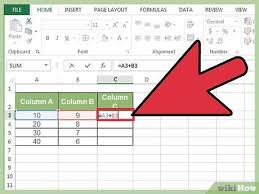
How to Copy a Formula on Excel: A Step-by-step Guide
Are you struggling to copy formulas on Excel? Do you find yourself getting frustrated with the process? Look no further! In this article, we will guide you through the step-by-step process of copying formulas on Excel, both on desktop and online versions.
Understanding Formulas in Excel
Before we dive into the process, let’s quickly understand what a formula is. A formula in Excel is an equation that performs a calculation based on values in cells. It’s used to automate calculations and make your life easier. Now that we have a basic understanding of formulas, let’s move on to the process of copying them.
Copying Formulas on Desktop Excel
To copy a formula on desktop Excel, follow these steps:
- Select The Cell: Select the cell containing the formula you want to copy.
- Right-click: Right-click on the selected cell and choose “Copy” from the context menu.
- Select Destination Cell: Select the destination cell where you want to paste the formula.
- Right-click Again: Right-click again on the destination cell and choose “Paste Special” > “Formulas”.
- Update References: The formula will be updated with references to the new cells.
Alternative Method: Using The Contextual Menu
Alternatively, you can use the contextual menu to copy a formula:
- Select The Cell: Select the cell containing the formula.
- Right-click: Right-click on the selected cell and choose “Copy” from the context menu.
- Select Destination Cell: Select the destination cell where you want to paste the formula.
- Hit Enter: Press Enter to update the references.
Copying Formulas Without Updating References
If you don’t want the references in your formula to be updated, follow these steps:
- Copy The Formula: Copy the formula as usual (right-click > copy).
- Paste as Value: Paste the formula as a value by pressing Ctrl+V or using the “Paste Special” option.
- Update References Manually: Update the references manually to match the new cells.
Copying Formulas on Online Excel
If you’re using online Excel, follow these steps:
- Select The Cell: Select the cell containing the formula.
- Right-click: Right-click on the selected cell and choose “Copy” from the context menu.
- Select Destination Cell: Select the destination cell where you want to paste the formula.
- Hit Enter: Press Enter to update the references.
Alternative Method: Using The Contextual Menu
Alternatively, you can use the contextual menu to copy a formula:
- Select The Cell: Select the cell containing the formula.
- Right-click: Right-click on the selected cell and choose “Copy” from the context menu.
- Select Destination Cell: Select the destination cell where you want to paste the formula.
- Hit Enter: Press Enter to update the references.
Copying Formulas Without Updating References
If you don’t want the references in your formula to be updated, follow these steps:
- Copy The Formula: Copy the formula as usual (right-click > copy).
- Paste as Value: Paste the formula as a value by pressing Ctrl+V or using the “Paste Special” option.
- Update References Manually: Update the references manually to match the new cells.
Copying Formulas on Mobile Devices
If you’re using mobile devices, follow these steps:
- Select The Cell: Select the cell containing the formula.
- Tap And Hold: Tap and hold on the selected cell until the contextual menu appears.
- Choose “Copy”: Choose “Copy” from the contextual menu.
- Select Destination Cell: Select the destination cell where you want to paste the formula.
- Hit Enter: Press Enter to update the references.
Troubleshooting Common Issues
If you’re experiencing issues while copying formulas, try these troubleshooting tips:
- Make sure the cells are selected correctly.
- Check if the formula is correct and not causing any errors.
- Try using the alternative method (contextual menu) instead of right-clicking.
Conclusion
Copying formulas on Excel can be a breeze once you know the steps. Remember to always select the correct cell, use the contextual menu (if available), and update references as needed. With these tips, you’ll become an expert in no time!
Frequently Asked Questions
- Q: How do I Copy a Formula on Desktop Excel?
A: To copy a formula on desktop Excel, follow steps 1-5 above. - Q: Can I Copy Formulas Without Updating References?
A: Yes, you can copy formulas without updating references by following steps 6-8 above. - Q: How do I Copy Formulas on Online Excel?
A: To copy formulas on online Excel, follow steps 9-11 above. - Q: Can I Copy Formulas Using The Contextual Menu on Mobile Devices?
A: Yes, you can copy formulas using the contextual menu on mobile devices by following steps 12-14 above. - Q: What if I’m Experiencing Issues While Copying Formulas?
A: Try troubleshooting tips 15-17 above to resolve any issues. - Q: Can I Copy Entire Columns or Rows of Formulas at Once?
A: Yes, you can copy entire columns or rows of formulas by selecting the range and using the “Cut” option (Ctrl+X) followed by “Paste Special” > “Formulas”. - Q: How do I Update References Manually?
A: Update references manually by re-entering the correct cell addresses in your formula. - Q: Can I Copy Formulas From One Worksheet to Another?
A: Yes, you can copy formulas from one worksheet to another by selecting the range and using the “Copy” option (Ctrl+C) followed by “Paste Special” > “Formulas”. - Q: How do I Prevent Errors When Copying Formulas?
A: Make sure to select the correct cells and use the contextual menu (if available) to copy formulas. - Q: Can I Copy Formulas Using Keyboard Shortcuts?
A: Yes, you can copy formulas using keyboard shortcuts such as Ctrl+C or Ctrl+X followed by Ctrl+V.
We hope this article has been helpful in guiding you through the process of copying formulas on Excel. Happy calculating!


