
How to Copy a CD Audio on a Usb Flash Drive: A Step-by-step Guide
Are you tired of carrying around CDs everywhere you go? Do you want to be able to listen to your favorite music without having to worry about damaging the physical disc? Look no further! In this article, we will guide you through the process of copying a CD audio onto a USB flash drive using three different operating systems: Windows, macOS, and Linux.
Why Copy a CD Audio on a Usb Flash Drive?
Before we dive into the step-by-step guide, let’s talk about why copying a CD audio onto a USB flash drive is a good idea. First and foremost, it’s convenient! No more worrying about damaging the physical disc or having to carry around multiple CDs for your favorite music. With a USB flash drive, you can take your music with you wherever you go, without taking up too much space.
Additionally, copying a CD audio onto a USB flash drive is also a great way to preserve your music collection. If you have a rare or hard-to-find album on CD, copying it onto a USB flash drive will ensure that your music is safe and won’t get damaged over time.
Step-by-step Guide: Copying a CD Audio on a Usb Flash Drive With Windows
If you’re using Windows as your operating system, don’t worry! We’ve got you covered. Here’s how to copy a CD audio onto a USB flash drive:
- Insert The CD Into The Computer: First things first, insert the CD into the computer that has Windows installed.
- Open Windows Media Player: Next, open Windows Media Player by clicking on the Start menu and searching for “Windows Media Player”.
- Select The CD: In the top left corner of the screen, select the CD you want to copy from the drop-down menu.
- Go to Settings: Click on the Settings icon (it looks like a gear) next to the play button in Windows Media Player.
- Choose Other Options…: From the settings menu, choose “Other options…” And then select “Copy music of CD”.
- Select Mp3 as The Format: Make sure that MP3 is selected as the format for your copy.
- Choose The Quality: You can adjust the quality of the audio to suit your needs.
- Click on Copy: Once you’ve made all your selections, click on “Copy” and wait for the process to complete.
Step-by-step Guide: Copying a CD Audio on a Usb Flash Drive With Macos
If you’re using macOS as your operating system, here’s how to copy a CD audio onto a USB flash drive:
- Insert The CD Into The Computer: First things first, insert the CD into the computer that has macOS installed.
- Open Itunes: Next, open iTunes by clicking on the Launchpad icon in the dock and searching for “iTunes”.
- Select The CD: In the top left corner of the screen, select the CD you want to copy from the drop-down menu.
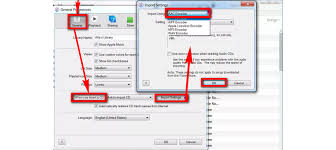
- Go to Preferences: Click on the iTunes menu at the top left corner of the screen and choose “Preferences…”.
- Select Mp3 as The Format: Make sure that MP3 is selected as the format for your copy in the import settings window.
- Click on OK: Once you’ve made all your selections, click on “OK” to save the changes.
- Copy The CD: Select the CD you want to copy from the iTunes library and choose “Copy…” From the contextual menu.
Step-by-step Guide: Copying a CD Audio on a Usb Flash Drive With Linux
If you’re using Linux as your operating system, here’s how to copy a CD audio onto a USB flash drive:
- Insert The CD Into The Computer: First things first, insert the CD into the computer that has Linux installed.
- Open Sound Juicer: Next, open Sound Juicer by searching for it in the terminal or from the application menu.
- Select The CD: In the top left corner of the screen, select the CD you want to copy from the drop-down menu.
- Go to Preferences: Click on the Edit menu at the top left corner of the screen and choose “Preferences…”.
- Select Mp3 as The Format: Make sure that MP3 is selected as the format for your copy in the preferences window.
- Click on OK: Once you’ve made all your selections, click on “OK” to save the changes.
- Copy The CD: Select the CD you want to copy from the Sound Juicer library and choose “Extract…” From the contextual menu.
Conclusion
In this article, we have shown you how to copy a CD audio onto a USB flash drive using three different operating systems: Windows, macOS, and Linux. Copying a CD audio onto a USB flash drive is a convenient way to preserve your music collection and take it with you wherever you go. We hope that this guide has been helpful in showing you the step-by-step process of copying a CD audio onto a USB flash drive.
Frequently Asked Questions
- Q: Can I Copy Multiple Cds Onto One Usb Flash Drive?
A: Yes, you can! Just repeat the steps we’ve outlined above for each CD you want to copy. - Q: How Long Does it Take to Copy a CD Audio Onto a Usb Flash Drive?
A: The time it takes will depend on the size of your CD collection and the speed of your computer. Generally, it should take around 30 minutes to an hour to copy one CD. - Q: Can I Use Any Type of Usb Flash Drive For This Process?
A: Yes, you can! Any USB flash drive that is compatible with your operating system will work.
Common Issues
- Issue: The USB flash drive is not recognized by the computer.
Solution: Try using a different USB port or restarting the computer. - Issue: The CD audio is not being copied onto the USB flash drive.
Solution: Check that the USB flash drive is properly connected to the computer and that there are no issues with the copy process itself.
Additional Resources
For more information on copying CDs onto USB flash drives, you can check out these additional resources:
- Windows Help: For Windows users, you can find more information on copying CDs onto USB flash drives by searching for “Copy CD audio to USB flash drive” in the Windows help menu.
- Macos Support: For macOS users, you can find more information on copying CDs onto USB flash drives by searching for “Copy CD audio to USB flash drive” in the Apple support website.
- Linux Forums: For Linux users, you can find more information on copying CDs onto USB flash drives by searching for “Copy CD audio to USB flash drive” in online forums and communities.


