
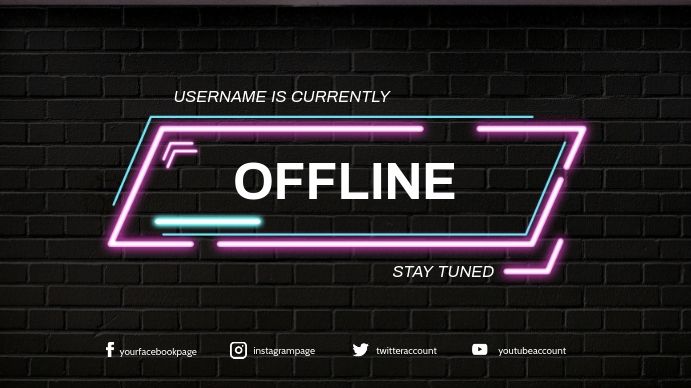
Creating an appealing Twitch banner is essential for building your channel’s identity and attracting viewers. A well-designed banner can help make your channel stand out in the crowded world of Twitch streaming. In this article, we will walk you through everything you need to know about creating a Twitch banner, from choosing the right tools to uploading it to your profile. Let’s dive in!
Table of Contents
- Introduction
- Why Is a Twitch Banner Important?
- Key Elements of a Good Twitch Banner
- Best Tools for Creating Twitch Banners
- Canva: The Popular Choice
- Crello: A Versatile Alternative
- PosterMyWall: Simple and Fast
- Understanding Twitch Banner Dimensions
- Step-by-Step Guide to Create a Twitch Banner
- Creating a Banner with Canva
- Making a Banner with Crello
- Using PosterMyWall for Quick Designs
- Customizing Your Twitch Banner
- Adding Personal Branding
- Choosing Colors and Fonts
- How to Upload Your Banner to Twitch
- Pro Tips for Creating the Best Twitch Banner
- Conclusion
- Frequently Asked Questions (FAQs)
Why Is a Twitch Banner Important?
Your Twitch banner is often the first thing visitors notice when they land on your channel. It’s a visual representation of your brand and can instantly communicate your personality, style, and what viewers can expect from your content. An attractive and professional banner helps set a positive first impression, making it more likely that viewers will stick around and follow your channel.
Key Elements of a Good Twitch Banner
A great Twitch banner should:
- Reflect Your Brand: Whether you’re a gamer, musician, or artist, your banner should communicate what your channel is all about.
- Be Visually Appealing: High-quality images, good color choices, and readable fonts are key to making your banner look professional.
- Follow the Correct Dimensions: Twitch has specific size requirements for banners, and using the wrong size can result in a distorted image.
Best Tools for Creating Twitch Banners
There are many online tools available for creating Twitch banners, each with unique features. Below, we’ll explore three of the most popular options.
Canva: The Popular Choice
Canva is one of the most widely used design tools for creating banners, thanks to its ease of use and wide range of templates. With Canva, you can create a banner from scratch or use one of the many pre-made Twitch templates.
Key Features:
- Over 250,000 free templates
- Drag-and-drop design interface
- Free and paid versions available (Pro version offers more resources)
Crello: A Versatile Alternative
Crello is another excellent option for designing Twitch banners. It offers similar features to Canva, with many templates and an intuitive interface.
Key Features:
- Over 30,000 design templates
- Download five designs per month with the free plan
- Paid version offers unlimited downloads and team collaboration
PosterMyWall: Simple and Fast
PosterMyWall is a lesser-known but highly effective platform for creating social media graphics, including Twitch banners.
Key Features:
- Thousands of templates and stock images
- Free version available with watermarks (removal with a paid plan)
- Simple user interface for fast designs
Understanding Twitch Banner Dimensions
Before you start creating your Twitch banner, it’s important to know the recommended dimensions. This ensures that your banner looks sharp and fits perfectly across all devices.
- Profile Banner Size: 1200 x 480 pixels (maximum file size of 10 MB)
- Video Player Banner Size: Up to 10 MB (no specific dimension limit)
- Panel Banners: 320 pixels wide (height can vary)
Step-by-Step Guide to Create a Twitch Banner
Now that you’re familiar with the tools and dimensions, let’s walk through the process of creating your Twitch banner.
Creating a Banner with Canva
- Sign Up: Go to Canva’s website and create an account.
- Search for “Twitch Banner”: Type “Twitch Banner” in the search bar to view available templates.
- Choose a Template: Select a template that fits your style or start from scratch.
- Customize: Add images, text, and animations to personalize your banner. Canva also lets you upload your own images.
- Download: Once you’re satisfied, click the download button and choose the file format (PNG or JPG for images, MP4 or GIF for animations).
Making a Banner with Crello
- Create an Account: Go to Crello and sign up.
- Search for Twitch Templates: In the search bar, type “Twitch Banner” and select a template.
- Edit the Design: Customize the template by adding your branding elements like logos, colors, and fonts.
- Save and Download: Once your design is ready, download it in your preferred format.
Using PosterMyWall for Quick Designs
- Visit PosterMyWall: Head over to PosterMyWall and sign up for a free account.
- Search for Twitch Templates: Look for “Twitch Banners” in the search bar.
- Edit: Use the drag-and-drop editor to add text, images, and effects.
- Download: Free downloads come with a watermark, but you can purchase the design for a few dollars to remove it.
Customizing Your Twitch Banner
Your Twitch banner should reflect your unique personality and style. Here are a few customization tips to help you create a standout banner.
Adding Personal Branding
Your banner is an extension of your personal or professional brand. If you already have a logo or color scheme that you use across other platforms, make sure to incorporate those into your Twitch banner.
Choosing Colors and Fonts
Colors and fonts are crucial elements that can evoke emotions and convey the tone of your channel. Keep these tips in mind:
- Colors: Stick to two or three colors that complement each other.
- Fonts: Choose fonts that are legible and match the theme of your channel. Avoid overly decorative fonts that may be hard to read.
How to Upload Your Banner to Twitch
After designing your banner, it’s time to upload it to your Twitch channel.
- Log In: Go to Twitch and log into your account.
- Go to Channel Settings: Click on your profile picture in the top-right corner and select Dashboard. From there, go to Settings > Channel.
- Upload the Banner: Scroll down to the Profile Banner section, click Upload, and select your banner file. Ensure it meets the required dimensions (1200 x 480 pixels) and file size (maximum 10 MB).
If you’re uploading a Video Player Banner, simply navigate to that section in your settings and upload your file.
Pro Tips for Creating the Best Twitch Banner
- Keep it Simple: A cluttered banner can be overwhelming. Stick to minimal designs that clearly communicate your brand.
- Update Regularly: Consider updating your banner to reflect special events, new games, or seasonal themes.
- Use High-Quality Images: Always use high-resolution images to ensure your banner looks sharp on all devices.
- Test on Multiple Devices: Your banner should look great on both desktop and mobile devices. Preview it on different screen sizes to ensure everything is displayed properly.
Conclusion
Creating a Twitch banner is an essential part of building a recognizable and professional channel. With the right tools like Canva, Crello, and PosterMyWall, you can easily design a banner that reflects your brand and captures the attention of potential viewers. Follow the steps and tips in this guide to make a banner that not only looks great but also elevates your Twitch presence.
Frequently Asked Questions (FAQs)
-
What size should a Twitch banner be?
The recommended size for a Twitch profile banner is 1200 x 480 pixels, with a maximum file size of 10 MB. -
Can I use any image for my Twitch banner?
Yes, but it’s important to use high-quality, properly sized images to avoid pixelation or distortion. -
What is the best tool for creating a Twitch banner?
Canva, Crello, and PosterMyWall are popular tools with free and paid options that are easy to use for creating professional-looking banners. -
Do I need design experience to create a Twitch banner?
No, many online tools offer templates and drag-and-drop features, making it easy even for beginners to create professional designs. -
Can I change my Twitch banner later?
Absolutely! You can update your Twitch banner at any time by going into your channel settings. -
Is there a specific file type I should use for my banner?
You can use PNG, JPG, MP4, or GIF, depending on whether your banner includes static images or animations. -
Are there any free tools for creating Twitch banners?
Yes, tools like Canva, Crello, and PosterMyWall offer free versions with basic features and templates. -
How often should I update my Twitch banner?
It’s a good idea to update your banner periodically, especially when promoting special events or changes in your channel’s focus.


