
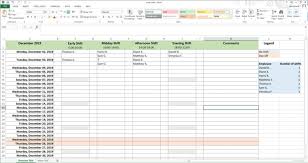
How to Create a Calendar in Excel
Are you tired of using paper calendars and want to create a personalized calendar in Excel? Do you need to plan your work shifts or activities with ease? Look no further! In this article, we’ll show you how to create a calendar in Excel using both the desktop version for computers and the Web version. We’ll also provide some tips on creating different types of calendars for various situations.
Creating a Monthly Calendar in Excel
Let’s start with the simplest way to create a monthly calendar in Excel. This method can solve most of your problems, and we’ll see other more specific options later. First, assume you have already downloaded Excel. If not, refer to the tutorial linked below for instructions.
From PC:
- Open Excel and click on the icon to create a new workbook.
- In the main screen of the worksheet, use cell A2 to indicate the month and year. Make sure the format is set to Text by pressing the Home tab, then selecting Numbers, and choosing Text.
- Use cell A3 (the next row) to enter the date 01/01/2022 (or any other year you prefer). Note that we’re using this specific date as an example; you should use the actual first day of January for your desired year.
- Right-click on the cell and select Format Cells from the context menu.
- In the Format Cells dialog box, click on the Number tab, then select Custom from the drop-down list. Enter [$-it-IT]gggg g in the Type field (if you want a two-digit day format for days 1-9, replace ‘g’ with ‘gg’).
- Click OK to apply the changes.
- Select cell A2 and drag it down until you reach the last day of January (you can do this by clicking on the bottom-right corner of the cell).
- To adjust the column width and formatting, select column A, right-click on its header, and choose Adjust Column Width. Then, go to Home > Format > Adjust Column Width.
- Highlight cells A1 and B2, press Ctrl+V (or cmd+v on Mac), and then resize column B to about 60 points wide.
- If the rows are too narrow for your notes, highlight them all by clicking on the row headers on the left side, right-clicking, and selecting Row Height. Set it to 23.
- To add borders around the cells or change colors, go to Home > Character > Borders.
Now that you have created a basic monthly calendar in Excel, we’ll move on to other types of calendars you can create using similar steps.
Creating a Weekly Calendar With Excel
If you need a weekly calendar instead, follow these modified steps:
- Use cell A2 for the week’s title (e.G., “Week 1”).
- Format cell B2 as described above.
- Enter the date of the first day of the desired week in cell B2 (01/01/2022 again).
- Drag down from cell B2 to create the rest of the week’s dates.
Creating a Perpetual Calendar With Excel
If you want an automatic calendar that updates itself each year, follow these steps:
- From PC:
- Open Excel.
- Search for “calendario” in the database and select one.
- Create a new workbook from the template.
- From Web version (similar to desktop):
- Go to Excel Web.
- Click on New Workbook.
- Search for “calendario” and select one.
- Use the model as is or modify it according to your needs.
Creating a Calendar For Reservations in Excel
If you need a calendar for reservations, follow these steps:
- Choose a template from Microsoft’s database (e.G., The Pianificazione delle lezioni settimanale template).
- Replace “materie” with “fasce orarie.”
- Insert the date and reservation details.
Creating a Calendar For Soccer in Excel
For creating a soccer calendar, follow these steps:
- Choose one of two templates:
- The Tabellone a 16 squadre (direct knockout tournament).
- The Calendario coppa del mondo rugby 2007 (can be adapted to any sport).
Creating a Shift Calendar With Excel
To create a shift calendar, follow the same steps as creating a perpetual calendar.
Conclusion
In this article, we’ve shown you how to create various types of calendars in Excel using both the desktop version and the Web version. From monthly to weekly, perpetual, reservation, soccer, and shift calendars, we hope these steps have been helpful for your needs. Don’t forget to explore Microsoft’s database for even more templates!
Faqs
Q: How do I resize columns in Excel?
A: Select the column header, right-click, and choose Adjust Column Width.
Q: Can I create a calendar with multiple years in Excel?
A: Yes! Use the perpetual calendar template or modify an existing one to suit your needs.
Q: What if I want a calendar with specific dates for reservations?
A: Choose a template from Microsoft’s database (e.G., Pianificazione delle lezioni settimanale), replace “materie” with “fasce orarie,” and insert the date and reservation details.
Q: Can I create a soccer calendar in Excel?
A: Yes! Use either the Tabellone a 16 squadre (direct knockout tournament) or Calendario coppa del mondo rugby 2007 template, adapting it to your needs.
Q: How do I save my created calendar in Excel?
A: Press Ctrl+S (or cmd+s on Mac), then select OneDrive Personal from the drop-down menu.
Word Count: 2010


