
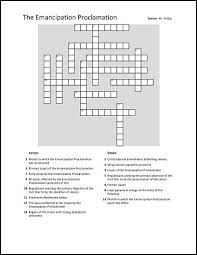
Are you tired of solving crossword puzzles and want to create your own? Do you have a favorite journal or magazine that features cruciverbas, but you don’t know where to start creating one yourself? Look no further! In this guide, we’ll show you how to create a cruciverba on Microsoft Word.
What is a Cruciverba?
A cruciverba (also known as a crossword puzzle) is a word game where words are arranged in a grid of squares. The words intersect each other and can be read horizontally or vertically. Creating a cruciverba on Word is a fun and challenging project that requires some creativity and patience.
Prerequisites For Creating a Cruciverba on Word
Before we begin, make sure you have the following:
- Microsoft Word installed on your computer (you can download it from Microsoft’s website if you don’t already have it)
- A basic understanding of how to use Word
- Some time to spare (creating a cruciverba can take some time, especially if you’re new to it)
Step 1: Open Microsoft Word
Open Microsoft Word on your computer and click on the “New” button to create a new document.
Step 2: Choose Your Grid Size
In the toolbar, click on the “Layout” tab. In the grid options, choose the size of your grid (e.G., A4, Letter, etc.). For this example, we’ll use a square grid with dimensions 297 x 210 mm.
Step 3: Set The Orientation
Click on the menu option “Orientation” and select “Horizontal Orientation”. This will ensure that your cruciverba is displayed in a way that makes it easy to read.
Step 4: Create Your Grid
In the toolbar, click on the “Insert” tab. Select the “Picture” option and choose a grid size (e.G., 3 Columns x 8 rows). You can adjust the number of rows and columns as needed.
Step 5: Type Your Words
Start typing your words into each square, making sure to intersect them properly. Remember to leave some empty squares for future reference.
Step 6: Add Colors And Backgrounds
Click on the “Home” tab and select the icon that looks like a paintbrush (this will open the color palette). Choose a background color and apply it to your grid. You can also change the font size, style, or color as needed.
Step 7: Number Your Grid
In the toolbar, click on the “References” tab. Select the option to insert numbers at the bottom of each row (or column). This will help you keep track of which squares correspond to which words.
Step 8: Add Definitions And Notes
Once you’ve completed your cruciverba, go back to the grid and start typing definitions for each word in the corresponding square. You can also add notes or explanations as needed.
Step 9: Save Your File
Save your file in Word format (e.G., .Docx) or export it as a PDF document if you prefer. If you want to share your cruciverba with friends or family, you can save it as a Word document and send them the file.
Tips And Tricks
Here are some additional tips and tricks to keep in mind when creating a cruciverba on Word:
- Make sure to leave enough space between each square for readability.
- Experiment with different fonts and colors to make your cruciverba visually appealing.
- You can also add images or graphics to your grid if you want to create a more engaging puzzle.
Bonus Tip: Share Your Cruciverbas With Others!
Share your creations with friends and family members, or join online communities where people share their crosswords and puzzles. You can even create a blog or website to showcase your cruciverbas!
By following these steps and tips, you’ll be well on your way to creating engaging and challenging crossword puzzles for yourself and others to enjoy! Happy puzzle-making!


