
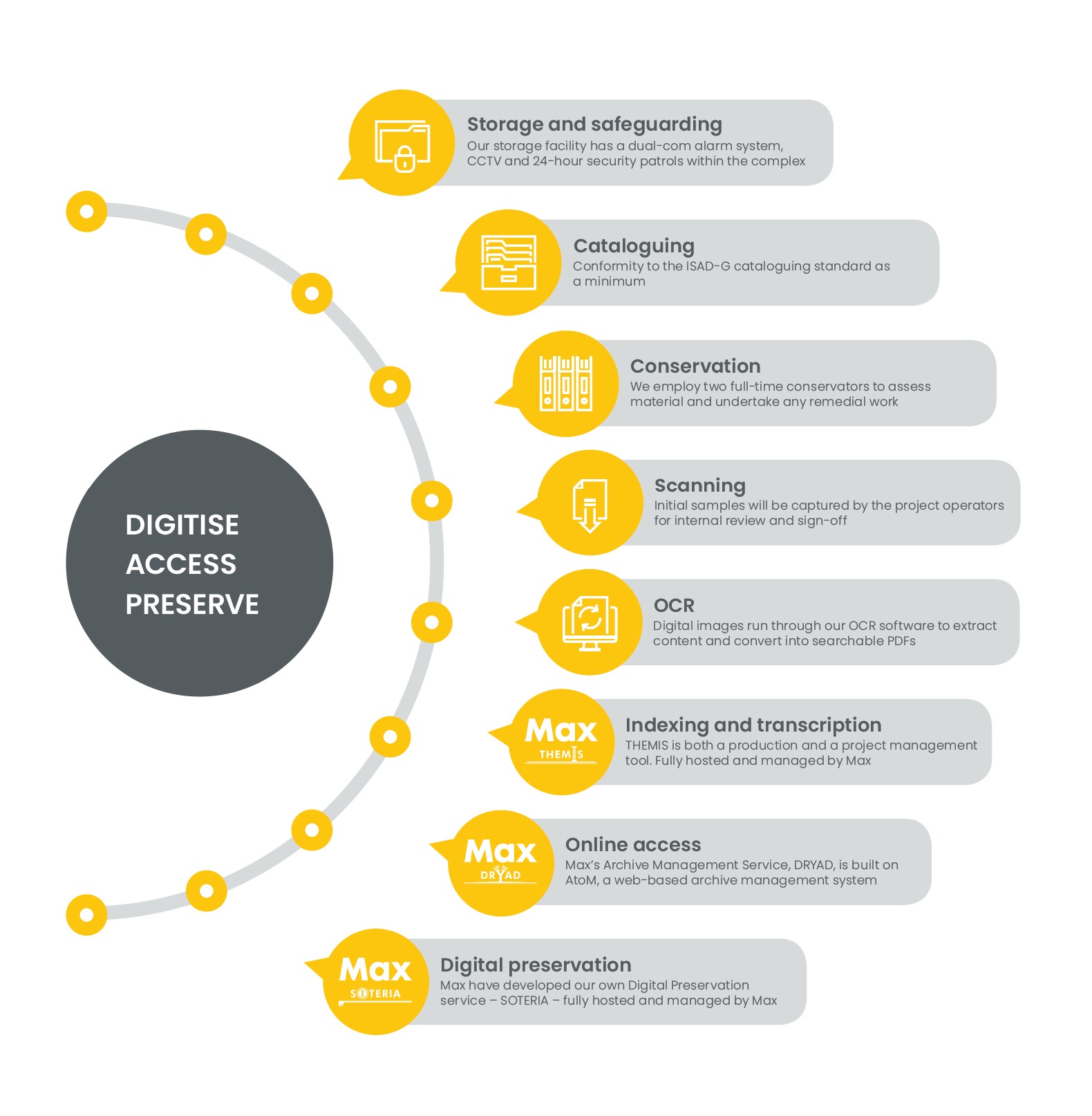
How to Create a Digital File: A Step-by-step Guide
Are you tired of cluttered physical files and want to switch to a digital system? Look no further! Creating a digital file is easier than you think, and we’re here to guide you through the process.
Why Digitalize Your Documents?
In today’s digital age, it’s essential to have your important documents in a format that’s easily accessible and manageable. By digitalizing your documents, you’ll be able to:
- Save space and reduce clutter
- Increase productivity and efficiency
- Enhance security and data protection
- Contribute to a more environmentally friendly practice
Choosing The Right Format
The first step in creating a digital file is choosing the right format for your documents. For most users, the classic PDF (Portable Document Format) or DOCX (Microsoft Word) formats are ideal. These formats are widely compatible and can be easily edited using various software.
Step-by-step Guide to Digitalizing Your Documents
To create a digital file, you’ll need:
- A Scanner or Multifunction Printer: You can use a dedicated scanner or a multifunction printer with scanning capabilities.
- Software For Ocr (Optical Character Recognition): This will help convert your scanned documents into editable text.
Here’s how to proceed:
- Place the document on the scanner bed and select the desired format.
- Choose the correct settings, such as resolution and color.
- Save the file in a suitable location on your computer or external drive.
- Use OCR software to convert the scanned image into editable text.
Organizing Your Digital File
Now that you have your digitalized documents, it’s essential to organize them properly. Create folders for different categories of documents, such as:
- Important Documents: Financial records, contracts, and other crucial papers.
- Photographs: Personal photos, family albums, or vacation memories.
- Receipts And Invoices: Keep track of purchases and expenses.
Tips For Naming And Searching Your Files
To make your digital file easily searchable:
- Use descriptive names for your files, including relevant keywords.
- Utilize special characters, such as underscores (_), to improve search results.
- Consider using a centralized database or cloud storage service for seamless access.
Storing Your Digital File Safely
To ensure the security and integrity of your digital file:
- Backup Your Data: Regularly backup your files to an external drive, cloud storage, or both.
- Use Secure Storage Services: Take advantage of reputable cloud storage services like Google Drive, OneDrive, Dropbox, or iCloud Drive.
Searching Your Digital File
When searching for a specific document within your digital file:
- Utilize the search bar in your operating system’s explorer.
- Use the “Find” feature to locate files containing specific keywords or phrases.
- Take advantage of advanced search operators and filters to refine your results.
Conclusion
Creating a digital file is a straightforward process that offers numerous benefits, from increased productivity to enhanced security. By following these steps and tips, you’ll be well on your way to managing your documents digitally.
Frequently Asked Questions (FAQs)
- Q: What’s The Best Format For my Digital File?
A: The most suitable formats are PDF and DOCX. - Q: How do I Scan a Document?
A: Use a scanner or multifunction printer with scanning capabilities. - Q: Can I Edit Scanned Documents?
A: Yes, you can use OCR software to convert scanned images into editable text. - Q: How do I Organize my Digital File?
A: Create folders for different categories of documents and utilize descriptive naming conventions. - Q: What’s The Best Way to Store my Digital File Safely?
A: Regularly backup your files using external drives, cloud storage services, or a combination of both. - Q: How do I Search For Specific Documents Within my Digital File?
A: Utilize search bars in your operating system’s explorer and take advantage of advanced search operators and filters.
Stay organized and enjoy the benefits of a well-managed digital file!


