
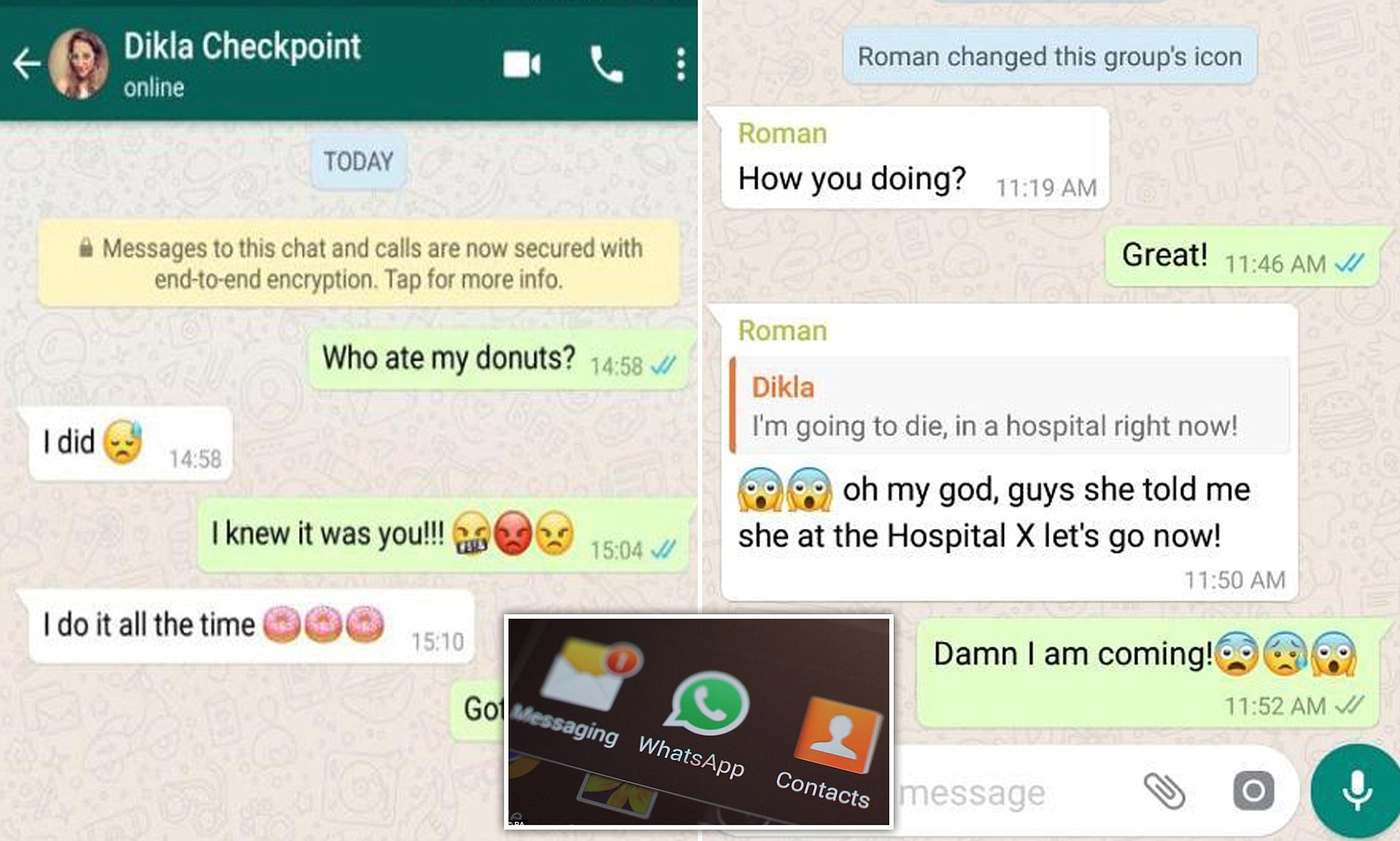
Creating a Fake Chat on Whatsapp: A Step-by-step Guide
Are you curious about how to create a fake chat on WhatsApp? Well, you’re not alone! Many people have wondered about this, and today we’ll show you exactly how to do it.
Before we dive in, let’s talk about why someone might want to create a fake chat. Perhaps you want to prank a friend or family member by making them think they’re having a real conversation with you. Or maybe you just want to have some fun with your phone and experiment with different scenarios.
Whatever the reason, creating a fake chat on WhatsApp is relatively easy and can be done using various methods. We’ll explore each of these methods in detail below.
Creating a Fake Chat on Android
If you own an Android smartphone, you can create a fake chat on WhatsApp by downloading a third-party app called “Fake Chat.” This app allows you to simulate conversations with friends or family members and even includes features like voice messages and photos.
Here’s how to do it:
- Download The Fake Chat App: Head over to the Google Play Store and search for “Fake Chat.” Download and install the app on your Android device.
- Open The App: Launch the Fake Chat app and follow the prompts to create a new chat.
- Customize Your Chat: Choose a name, profile picture, and other details for your fake chat. You can also add friends or family members to the conversation.
- Start Chatting: Begin sending messages, photos, and videos to your “friends” as if you’re having a real conversation.
Creating a Fake Chat on Iphone
If you own an iPhone or iPad, you can create a fake chat on WhatsApp by using a third-party app called “Fake W.” This app is available for free in the App Store and allows you to simulate conversations with friends or family members.
Here’s how to do it:
- Download The Fake W App: Search for “Fake W” in the App Store and download the app on your iPhone or iPad.
- Open The App: Launch the Fake W app and follow the prompts to create a new chat.
- Customize Your Chat: Choose a name, profile picture, and other details for your fake chat. You can also add friends or family members to the conversation.
- Start Chatting: Begin sending messages, photos, and videos to your “friends” as if you’re having a real conversation.
Creating a Fake Chat Online
If you don’t want to download any apps on your phone or tablet, you can create a fake chat online using WhatsApp Web. This method requires access to a computer or laptop with a browser and an internet connection.
Here’s how to do it:
- Access Whatsapp Web: Open your browser and navigate to the WhatsApp website.
- Log in to Whatsapp: Enter your phone number and password to log in to your WhatsApp account.
- Select a Chat: Choose a conversation you want to modify or create a new one.
- Inspect The Conversation: Right-click on the message you want to modify (or select “Inspect” from the menu) to view the HTML code behind it.
- Modify The Message: Change the text of the message and add any other details you like.
- Save Your Changes: Click “Forward” to save the modified message.
Tips:
- Be creative with your fake chat! You can customize everything from the names and profile pictures to the messages and photos shared between friends or family members.
- Remember, creating a fake chat is all about having fun and experimenting with different scenarios. Don’t use it to deceive or harm anyone!
- If you find this process too complicated, consider using a service like FakeWhats, which can generate fake screenshots of WhatsApp conversations for you.
Conclusion
Creating a fake chat on WhatsApp is relatively easy and can be done using various methods. Whether you’re an Android or iPhone user, or prefer to do it online, we’ve got you covered! Remember to have fun with your phone and experiment with different scenarios, but always be respectful of others’ time and boundaries.
Frequently Asked Questions
- What is The Purpose of Creating a Fake Chat on Whatsapp?
Creating a fake chat can be used for various purposes such as pranking friends or family members, experimenting with different scenarios, or simply having fun with your phone. - How do I Create a Fake Chat on Android?
To create a fake chat on Android, you need to download the Fake Chat app from the Google Play Store and follow the prompts to create a new chat. - Can I Create a Fake Chat on Iphone?
Yes, you can create a fake chat on iPhone by downloading the Fake W app from the App Store and following the prompts to create a new chat. - How do I Modify Messages in Whatsapp Web?
To modify messages in WhatsApp Web, select the message you want to change, right-click, and choose “Inspect” to view the HTML code behind it. Modify the text as needed and click “Forward” to save your changes.


