
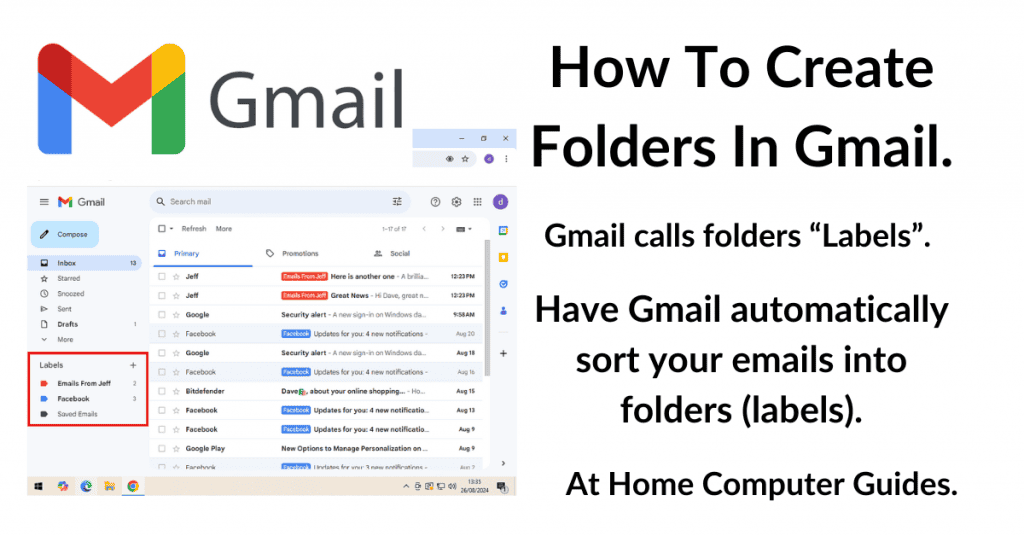
How to Create a Folder on Gmail: A Step-by-step Guide
Are you tired of having a cluttered inbox on Gmail? Do you want to organize your emails into folders, but don’t know how? Look no further! In this article, we’ll show you how to create a folder on Gmail, whether you’re using a computer or smartphone.
Understanding Labels And Folders
Before we dive into the step-by-step guide, let’s talk about labels and folders. On Gmail, labels are used to categorize emails into different groups. These labels can be created by you or are system-generated (e.G., Chat, In program, Bumps, Posticipati, Important). While system-generated labels cannot be modified or deleted, you can create custom labels to suit your needs.
Creating a Folder on Gmail Using a Computer
To create a folder on Gmail using a computer, follow these steps:
- Open Gmail: Start by opening your browser and navigating to the Gmail website.
- Log in to Your Account: Enter your email address and password to access your account.
- Click on The Three Lines: In the top left corner of the page, click on the three horizontal lines.
- Select “Labels”: From the drop-down menu, select “Labels.”
- Click on The “+” Button: Next to the “Labels” tab, you’ll see a “+” button. Click on it.
- Enter a Name For Your Label: In the box that appears, enter a name for your new label.
- Choose a Color: You can choose a color for your label by clicking on the color palette.
- Click “Create”: Once you’ve entered a name and chosen a color, click on the “Create” button.
Creating a Folder on Gmail Using a Smartphone or Tablet
To create a folder on Gmail using a smartphone or tablet, follow these steps:
- Open The Gmail App: Open the Gmail app on your device.
- Log in to Your Account: Enter your email address and password to access your account.
- Tap on The Three Lines: In the top left corner of the screen, tap on the three horizontal lines.
- Select “Labels”: From the menu, select “Labels.”
- Tap on The “+” Button: Next to the “Labels” tab, you’ll see a “+” button. Tap on it.
- Enter a Name For Your Label: In the box that appears, enter a name for your new label.
- Choose a Color: You can choose a color for your label by tapping on the color palette.
- Tap “Save”: Once you’ve entered a name and chosen a color, tap on the “Save” button.
Creating a Shared Folder on Gmail
If you want to create a shared folder on Gmail, follow these steps:
- Open Gmail: Open your browser and navigate to the Gmail website.
- Log in to Your Account: Enter your email address and password to access your account.
- Click on The Three Lines: In the top left corner of the page, click on the three horizontal lines.
- Select “Settings”: From the menu, select “Settings.”
- Select “Account”: From the settings menu, select “Account.”
- Scroll Down to “Concede Access to Your Account”: Scroll down to the section labeled “Concede access to your account.”
- Click on “Add Another Account”: Click on the button that says “Add another account.”
- Enter The Email Address of The Person You Want to Share With: Enter the email address of the person you want to share your Gmail account with.
- Follow The Instructions: Follow the instructions provided by Gmail to share your account.
Sharing Folders Using Google Drive
If you want to share folders using Google Drive, follow these steps:
- Open Google Drive: Open the Google Drive website.
- Log in to Your Account: Enter your email address and password to access your account.
- Select a Folder: Select the folder you want to share.
- Click on The “Share” Button: Click on the “Share” button next to the folder name.
- Enter The Email Addresses of The People You Want to Share With: Enter the email addresses of the people you want to share your folder with.
- Choose a Permission Level: Choose a permission level for each person you’re sharing with.
Conclusion
Creating folders on Gmail is an easy way to organize your emails and make them easier to find. Whether you’re using a computer or smartphone, following these steps will guide you through the process of creating custom labels and shared folders. Remember to always follow proper email etiquette when sharing folders with others.
Frequently Asked Questions (FAQs)
- Q: Can I Create Multiple Folders on Gmail?
A: Yes, you can create multiple folders on Gmail using the steps outlined in this article. - Q: How do I Add a New Message to a Folder?
A: To add a new message to a folder, simply drag and drop the email into the folder or click on the label icon next to the email and select the folder you want to add it to. - Q: Can I Share a Folder With Someone Else?
A: Yes, you can share a folder with someone else by following the steps outlined in this article. - Q: How do I Revoke Access to a Shared Folder?
A: To revoke access to a shared folder, follow the same steps as sharing the folder, but select the “Delete” option instead of “Share.” - Q: Can I Create a Folder on Gmail Using The Mobile App?
A: Yes, you can create a folder on Gmail using the mobile app by following the steps outlined in this article.


