
The Ultimate Guide to Creating Folders on Mac: A Step-by-step Tutorial
Are you struggling to create folders on your Mac? Do you find the process daunting or confusing? Fear not, dear reader! In this comprehensive guide, we will walk you through the steps of creating folders on Mac, from basic to advanced techniques.
Understanding The Basics
Before we dive into the nitty-gritty, let’s cover the basics. Creating a folder on Mac is a straightforward process that involves:
- Opening the Finder
- Navigating to the desired location (Desktop, Documents, or any other folder)
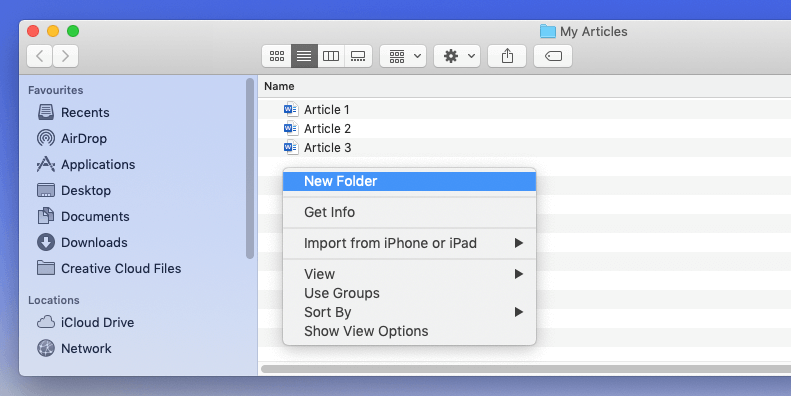
- Right-clicking (or control-clicking) an empty area
- Selecting “New Folder” from the contextual menu
Creating a New Folder on Mac
To create a new folder on your Mac, follow these steps:
- Open the Finder by clicking on the Finder icon in the Dock or by pressing Command + Shift + D.
- Navigate to the desired location by clicking on the folder you want to create inside of (e.G., Desktop, Documents).
- Right-click (or control-click) an empty area within the chosen folder.
- From the contextual menu, select “New Folder.”
Renaming a Folder
Once you’ve created a new folder, you can rename it by:
- Selecting the folder and clicking on its name.
- Typing in a new name for the folder.
Alternatively, you can right-click (or control-click) on the folder and select “Rename” from the contextual menu.
Creating a Folder Without a Mouse
If you prefer not to use your mouse, you can create a new folder using keyboard shortcuts:
- Press Shift + Command + N.
- A new folder will be created with a default name (e.G., “Folder”).
Creating a Folder Via Terminal
For those who are comfortable using the Terminal app, creating a new folder is as simple as typing:
Cdto navigate to the desired location.Mkdirfollowed by the desired folder name.
Example: Mkdir MyNewFolder
Sharing a Folder on Mac
To share a folder with others, follow these steps:
- Open System Preferences and select “Sharing.”
- Ensure that “Share files and folders” is enabled.
- Select the folder you want to share and click “Add.”
- Enter the recipient’s email address or username.
Concealing a Folder on Mac
To conceal a folder, follow these steps:
- Open Terminal and type
chflags hiddenfollowed by the folder path. - Replace “hidden” with the desired flags (e.G., “Nohidden”).
Example: Chflags hidden /Users/YourUsername/Documents
Creating a Smart Folder on Mac
To create a smart folder, follow these steps:
- Open Finder and click on the “Rows” menu in the top-left corner.
- Select “New Folder with Query.”
- Choose the desired criteria (e.G., Date, author, or file type).
Example: Create a smart folder that shows all files created within the last 24 hours.
Compressing a Folder Into Zip
To compress a folder into ZIP, follow these steps:
- Right-click (or control-click) on the folder and select “Compress [folder name].”
- Alternatively, click on the “Rows” menu in the top-left corner and select “Compress.”
Conclusion
In this comprehensive guide, we’ve walked you through the process of creating folders on Mac, from basic to advanced techniques. Whether you’re a beginner or an experienced user, this tutorial should have provided you with the necessary knowledge to create and manage your files and folders effectively.
Frequently Asked Questions (FAQs)
-
Q: How do I Create a New Folder on my Mac?
A: Open Finder, navigate to the desired location, right-click (or control-click), and select “New Folder.” -
Q: Can I Rename a Folder on my Mac?
A: Yes, select the folder, click on its name, and type in a new name. -
Q: How do I Compress a Folder Into Zip on my Mac?
A: Right-click (or control-click) on the folder, select “Compress [folder name].” -
Q: Can I Share a Folder With Others on my Mac?
A: Yes, open System Preferences, select “Sharing,” and follow the prompts. -
Q: How do I Conceal a Folder on my Mac?
A: Open Terminal, typechflags hiddenfollowed by the folder path. -
Q: Can I Create a Smart Folder on my Mac?
A: Yes, open Finder, click on “Rows,” select “New Folder with Query,” and choose your desired criteria. -
Q: How do I Masterize a Folder Onto a CD or Dvd on my Mac?
A: Create a new folder, add files or folders to it, and follow the prompts in System Preferences > Sharing. -
Q: Can I Use Keyboard Shortcuts to Create a New Folder on my Mac?
A: Yes, press Shift + Command + N to create a new folder using keyboard shortcuts.


