
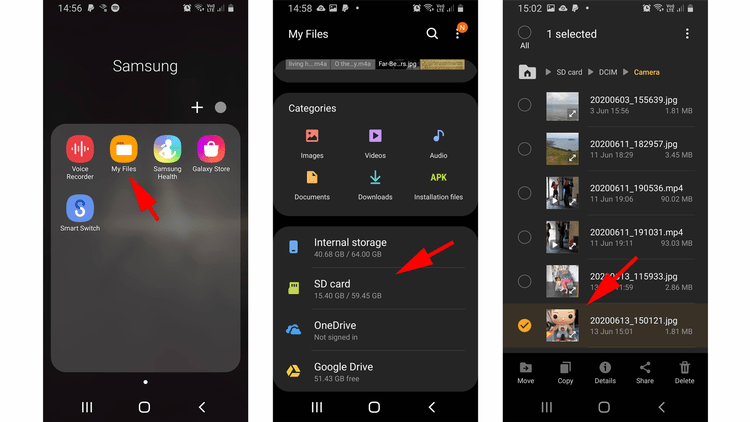
Creating Folders on Your Mobile Device: A Step-by-step Guide
Are you tired of having a cluttered mobile phone with files scattered all over the place? Do you wish to create folders on your device, just like you do on your computer? Look no further! In this article, we will guide you through the process of creating folders on both Android and iOS devices.
Why Create Folders on Your Mobile Device?
Creating folders on your mobile device can help you stay organized and focused. With a cluttered phone, it’s easy to miss important files or messages. By categorizing your files into neat and tidy folders, you’ll be able to quickly find what you need, without having to sift through a sea of unrelated documents.
How to Create Folders on Android Devices
If you’re using an Android device, there are several ways to create folders. You can either use the pre-installed File Manager app or download a third-party app from the Play Store.
- Using The File Manager App: Go to your device’s Home screen and find the File Manager icon. Tap on it to open the app. From there, you’ll see a list of files and folders. Tap on “New Folder” and enter a name for your folder. You can then drag and drop files into this new folder.
- Using Third-party Apps: There are many third-party apps available in the Play Store that offer advanced file management features, including the ability to create folders. Some popular options include Files of Google and Folder Lock.
How to Create Folders on Ios Devices
If you’re using an iOS device, creating folders is a bit more straightforward. You can use the built-in Files app to create folders and organize your files.
- Using The Files App: Open the Files app and tap on the “Browse” tab. From there, you’ll see a list of files and folders. Tap on the “+” icon to create a new folder. Enter a name for your folder and then drag and drop files into it.
- Using The Home Screen: You can also create folders directly from the Home screen. Tap and hold on an app icon until the context menu appears. Then, tap “Edit” and select the apps you want to add to your new folder.
How to Create a Secret Folder on Your Mobile Device
If you’re concerned about keeping certain files private, you can create a secret folder on your mobile device. This is especially useful for Android devices, which don’t have built-in password protection for folders.
- Using Folder Lock: Download the Folder Lock app from the Play Store and follow the instructions to set up a secure folder.
- Using Norton App Lock: Another option is to use Norton App Lock, which allows you to block access to specific apps using a PIN or password.
How to Create Folders on Iphone
Creating folders on an iPhone is similar to creating them on an iPad. You can use the Files app to create folders and organize your files.
- Using The Files App: Open the Files app and tap on the “Browse” tab. From there, you’ll see a list of files and folders. Tap on the “+” icon to create a new folder. Enter a name for your folder and then drag and drop files into it.
- Using The Home Screen: You can also create folders directly from the Home screen. Tap and hold on an app icon until the context menu appears. Then, tap “Edit” and select the apps you want to add to your new folder.
Conclusion
Creating folders on your mobile device is a simple process that can help you stay organized and focused. Whether you’re using an Android or iOS device, there are many options available for creating folders and protecting sensitive files. By following these steps, you’ll be able to create a clutter-free phone and enjoy the benefits of a well-organized digital life.
Frequently Asked Questions
- Q: How do I Create a Folder on my Android Device?
A: You can use the pre-installed File Manager app or download a third-party app from the Play Store. - Q: How do I Create a Folder on my Iphone?
A: You can use the Files app to create folders and organize your files. - Q: Can I Create a Secret Folder on my Mobile Device?
A: Yes, you can use Folder Lock or Norton App Lock to create a secure folder. - Q: How do I Protect Sensitive Files on my Mobile Device?
A: You can use the Files app to encrypt your files or use a third-party app like Folder Lock or Norton App Lock.


