
How to Create a Folder on Your Pc, Phone, or Tablet
Are you new to computers and phones, and don’t know how to create folders to save your files? Or perhaps you’re looking to organize your digital life but are unsure about the process? You’ve come to the right place! In this guide, we’ll walk you through the steps of creating a folder on various devices, including PCs, Windows, Macs, smartphones (Android and iOS), and tablets.
Creating Folders on Your PC
If you’re using a Windows PC, creating a folder is as easy as clicking your mouse. Here’s how:
- Right-click on an empty space on your desktop or in File Explorer.
- Choose New > Folder from the context menu that appears.
- Give your new folder a name by typing it into the text field that appears.
- Click OK to create the folder.
Alternatively, you can use the Command Prompt (Windows 10 and later) or PowerShell (Windows 8 and earlier) to create a new folder:
- Open the Command Prompt or PowerShell as an administrator.
- Type
mkdirfollowed by the name of your folder, e.G.,Mkdir MyFolder. - Press Enter to create the folder.
Creating Folders on Your Mac
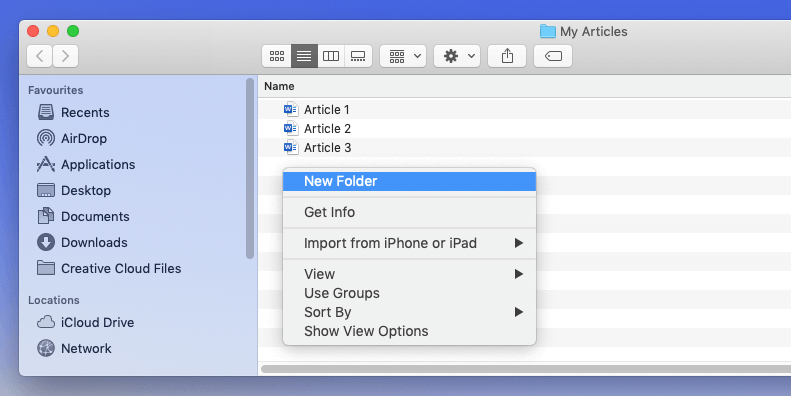
If you’re using a Mac, creating a folder is similarly straightforward:
- Right-click (or Control-click) on an empty space on your desktop or in Finder.
- Choose New Folder from the context menu that appears.
- Type a name for your new folder into the text field that appears.
- Click Create to create the folder.
Alternatively, you can use the Terminal app (macOS Catalina and later) to create a new folder:
- Open the Terminal app.
- Type
mkdirfollowed by the name of your folder, e.G.,Mkdir MyFolder. - Press Enter to create the folder.
Creating Shared Folders
If you want to share a folder with others over the internet or using cloud storage services like Google Drive or Dropbox, here’s what you need to do:
Windows:
- Right-click on the folder you want to share.
- Choose Properties from the context menu that appears.
- In the Sharing tab, click Share…
- Select Everyone and choose the permissions level (Read, Write, etc.) For the users who will be sharing the folder.
Mac:
- Open System Preferences.
- Click on Sharing.
- Select File Sharing from the left-hand menu.
- Choose the folder you want to share and select Share Selected Folders or Disks.
- In the sharing options, select the permissions level (Read, Write, etc.) For the users who will be sharing the folder.
Creating Compressed Folders (.Zip)
To compress a folder into a single file (e.G., .Zip), follow these steps:
Windows:
- Right-click on the folder you want to compress.
- Choose Send to > Compressed (zipped) folder from the context menu that appears.
Alternatively, you can use the built-in Zip utility in Windows:
- Open File Explorer.
- Navigate to the folder you want to compress.
- Click the three-dot button next to the “New” button.
- Select Compress to > [Folder name].
Mac:
- Right-click (or Control-click) on the folder you want to compress.
- Choose Compress [Folder name] from the context menu that appears.
Alternatively, you can use the built-in Archive utility in macOS:
- Open the Terminal app.
- Type
tar -czffollowed by the name of your compressed folder and press Enter.
Creating Protected Folders With Passwords
If you want to protect a folder with a password, you’ll need to use an encryption software like VeraCrypt or Disk Utility (macOS).
Windows:
- Download and install VeraCrypt.
- Create a new volume by selecting the folder you want to encrypt.
- Choose the encryption method and password for your protected folder.
Alternatively, you can use the built-in Windows Defender feature called BitLocker:
- Go to Control Panel > System and Security > BitLocker Drive Encryption.
- Select the drive or partition you want to protect with a password.
Mac:
- Download and install Disk Utility (macOS).
- Create a new image by selecting the folder you want to encrypt.
- Choose the encryption method and password for your protected folder.
Creating Folders on Your Smartphone or Tablet
If you’re using an Android device, creating a folder is as easy as tapping and holding on an empty space:
- Tap and hold on an empty space until the menu appears.
- Select Create new folder.
- Choose the folder type (e.G., Apps, Files) and give your new folder a name.
Alternatively, you can use the File Manager app:
- Open the File Manager app.
- Navigate to the location where you want to create your folder.
- Tap the New Folder button.
- Give your new folder a name.
If you’re using an iOS device, creating a folder is similarly straightforward:
- Tap and hold on an empty space until the menu appears.
- Select Create new folder.
- Choose the folder type (e.G., Apps, Files) and give your new folder a name.
Alternatively, you can use the Files app:
- Open the Files app.
- Navigate to the location where you want to create your folder.
- Tap the New Folder button.
- Give your new folder a name.
Conclusion
Creating folders on various devices is a straightforward process that can help you stay organized and keep track of your files. Whether you’re using a PC, Mac, smartphone, or tablet, the steps outlined above should give you a good understanding of how to create folders that suit your needs.
Faqs:
- Q: How do I rename a folder on Windows?
A: You can rename a folder by right-clicking on it and selecting Rename from the context menu. - Q: Can I share a folder with others using cloud storage services like Google Drive or Dropbox?
A: Yes, you can share a folder using cloud storage services like Google Drive or Dropbox. - Q: How do I compress a folder into a single file (e.G., .Zip)?
A: You can use the built-in Zip utility in Windows to compress a folder into a single file. - Q: Can I protect a folder with a password?
A: Yes, you can protect a folder using encryption software like VeraCrypt or Disk Utility (macOS). - Q: How do I create a new folder on my smartphone or tablet?
A: You can create a new folder by tapping and holding on an empty space until the menu appears. - Q: Can I share a folder with others using cloud storage services like Google Drive or Dropbox on my smartphone or tablet?
A: Yes, you can share a folder using cloud storage services like Google Drive or Dropbox on your smartphone or tablet. - Q: How do I rename a folder on my Mac?
A: You can rename a folder by right-clicking (or Control-clicking) on it and selecting Rename from the context menu. - Q: Can I compress a folder into a single file (e.G., .Zip) using my smartphone or tablet?
A: Yes, you can compress a folder into a single file using cloud storage services like Google Drive or Dropbox on your smartphone or tablet.


