
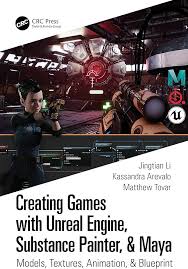
Creating a Game With Unreal Engine: A Beginner’s Guide
Are you ready to dive into the world of game development? Look no further than Unreal Engine, one of the most popular game engines on the market. In this article, we’ll take you through the steps to create your first game using Unreal Engine.
What is Unreal Engine?
Unreal Engine is a powerful game engine developed by Epic Games. It’s known for its high-performance graphics, physics-based rendering, and advanced dynamic global illumination. With Unreal Engine, you can create stunning games that run on PC, console, or even mobile devices.
Why Choose Unreal Engine?
There are many reasons why developers choose Unreal Engine:
- High-performance Graphics: Unreal Engine’s advanced graphics capabilities allow for stunning visuals and detailed environments.
- Physics-based Rendering: The engine’s physics-based rendering system ensures realistic lighting and shadows.
- Dynamic Global Illumination: This feature allows for more accurate and dynamic lighting effects in your game.
System Requirements
Before you start, make sure your computer meets the minimum system requirements:
- Operating System: Windows 10 (64-bit)
- Processor: Quad-core Intel or AMD processor with a clock speed of at least 2.5 GHz
- Ram: 8 GB of RAM (16 GB recommended)
- Graphics Card: A graphics card compatible with DirectX 11 or 12
Step 1: Installing Unreal Engine
To get started, you’ll need to download and install Unreal Engine:
- Visit the official Unreal Engine website (www.Unrealengine.Com) and click on the “Get Started” button.
- Choose your platform (Windows or macOS) and select the correct version of Unreal Engine.
- Click on the “Download Now” button to begin the installation process.
Step 2: Creating a New Project
Once installed, follow these steps:
- Launch Unreal Engine from your Start menu (Windows) or Applications folder (macOS).
- Select the project type you want to create (e.G., 3D Game, 2D Game, or Simulation).
- Choose a name for your project and select a location where it will be saved.
Step 3: Understanding The Unreal Engine Interface
Unreal Engine’s interface might look overwhelming at first, but don’t worry – we’ve got you covered!
- Editor: This is where you’ll spend most of your time creating and editing game assets.
- Console: The console allows you to enter commands and inspect variables in real-time.
Step 4: Creating a 3D Game
If you want to create a 3D game, follow these steps:
- Create a new project as described above (selecting the “3D Game” option).
- In the Editor, select the “Gameplay” tab and choose your game mode (e.G., Single Player, Multiplayer).
Step 5: Creating a 2D Game
If you want to create a 2D game, follow these steps:
- Create a new project as described above (selecting the “2D Game” option).
- In the Editor, select the “Gameplay” tab and choose your game mode (e.G., Single Player, Multiplayer).
Conclusion
Creating a game with Unreal Engine is an exciting journey! With these steps, you should be able to create your first game using this powerful engine. Remember to practice patience and persistence – building a game takes time and dedication.
Frequently Asked Questions (FAQs)
-
Q: What Are The System Requirements For Unreal Engine?
A: The minimum system requirements include Windows 10 (64-bit), a quad-core Intel or AMD processor with a clock speed of at least 2.5 GHz, 8 GB of RAM, and a graphics card compatible with DirectX 11 or 12. -
Q: How do I Install Unreal Engine?
A: To install Unreal Engine, visit the official website (www.Unrealengine.Com), choose your platform (Windows or macOS), select the correct version of Unreal Engine, and click on the “Download Now” button to begin the installation process. -
Q: What is The Difference Between a 3D Game And a 2D Game?
A: In a 3D game, you can move freely in three dimensions (left, right, forward, backward), while in a 2D game, movement is limited to two dimensions (left, right, up, down). -
Q: Can I Create a Game With Unreal Engine For Mobile Devices?
A: Yes, Unreal Engine allows you to deploy your game on various platforms, including PC, console, and mobile devices. -
Q: How do I Troubleshoot Common Issues in Unreal Engine?
A: If you encounter any issues during development, check the official Unreal Engine documentation (www.Unrealengine.Com) for troubleshooting tips and solutions. -
Q: Can I Use Unreal Engine to Create Games With Physics-based Rendering?
A: Yes, Unreal Engine’s advanced graphics capabilities include physics-based rendering, which allows for realistic lighting and shadows in your game. -
Q: How do I Share my Game With Others?
A: Once you’ve completed your game development process, follow the steps to export it as a playable executable file or distribute it on various platforms (e.G., Steam, GOG).


