
How to Create a Document Google
Are you looking for a way to create a document that can be shared with your colleagues or friends? Look no further than Google Drive! In this article, we will guide you through the process of creating a document in Google Drive and how to share it with others.
What is Google Drive?
Google Drive is a cloud storage service provided by Google. It allows users to store and access their files from anywhere, on any device with an internet connection. Google Drive also provides a suite of tools for creating documents, spreadsheets, presentations, and more.
Creating a Document in Google Drive
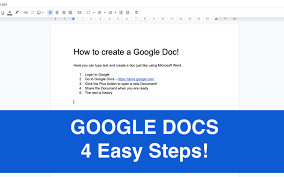
To create a document in Google Drive, follow these steps:
- Log in to your Google account.
- Click on the “New” button in the top left corner of the page.
- Select “Document” from the dropdown menu.
- Choose a title for your document and start typing away!
Features of Google Documents
Google documents offer many features that make them ideal for collaboration. Some of these features include:
- Real-time collaboration: Multiple users can work on a document at the same time, with changes reflected instantly.
- Version history: Every change made to a document is saved automatically, so you can always go back to a previous version if needed.
- Commenting: Users can add comments to specific parts of a document, making it easy to communicate and collaborate.
Sharing Documents in Google Drive
To share a document with others, follow these steps:
- Open the document you want to share.
- Click on the “Share” button in the top right corner.
- Enter the email addresses of the people you want to share the document with.
- Choose a role for each person: Editor, Commentator, or Viewer.
Other Tools in Google Drive
In addition to documents, Google Drive also provides tools for creating:
- Spreadsheets (Google Sheets)
- Presentations (Google Slides)
- Forms (Google Forms)
Each of these tools offers unique features and capabilities, making them ideal for specific tasks and projects.
Conclusion
Creating a document in Google Drive is easy and straightforward. With its real-time collaboration features, version history, and commenting functionality, Google documents are perfect for working with others. Whether you’re creating a simple text document or something more complex, Google Drive has the tools you need to get the job done.
Frequently Asked Questions
- What is The Difference Between Google Drive And Other Cloud Storage Services?
Google Drive offers a suite of collaboration tools that make it ideal for working with others. - How do I Share a Document With Someone?
To share a document, open the document, click on the “Share” button, enter the email address of the person you want to share with, and choose a role (Editor, Commentator, or Viewer). - Can I Use Google Drive on my Smartphone or Tablet?
Yes! Google Drive is available as an app for both Android and iOS devices. - What Happens if I Make Changes to a Document That Someone Else Has Already Edited?
Don’t worry! Changes made by multiple users are automatically saved, so you can always go back to a previous version if needed. - How do I Download a Copy of my Document?
To download a copy of your document, click on the “File” menu and select “Download”. - What is The Purpose of Google Forms?
Google Forms is a tool for creating surveys, quizzes, and questionnaires that can be shared with others. - Can I Use Google Sheets to Create Complex Spreadsheets?
Yes! Google Sheets offers many features for creating complex spreadsheets, including formulas, charts, and more. - What is The Difference Between Google Slides And Powerpoint?
Google Slides is a presentation tool that allows users to create and share presentations online. It offers many features similar to PowerPoint, but with some key differences.
How to Create Other Documents in Google Drive
In addition to documents, Google Drive also provides tools for creating:
- Spreadsheets (Google Sheets): A spreadsheet tool that allows you to create complex spreadsheets with formulas, charts, and more.
- Presentations (Google Slides): A presentation tool that allows you to create and share presentations online.
- Forms (Google Forms): A form tool that allows you to create surveys, quizzes, and questionnaires that can be shared with others.
How to Create a Form in Google Drive
To create a form in Google Drive, follow these steps:
- Open the Google Forms page.
- Click on the “New” button.
- Choose a title for your form.
- Add questions and answers to your form.
- Share your form with others.
How to Create a Spreadsheet in Google Drive
To create a spreadsheet in Google Drive, follow these steps:
- Open the Google Sheets page.
- Click on the “New” button.
- Choose a title for your spreadsheet.
- Add rows and columns to your spreadsheet.
- Use formulas and charts to analyze your data.
How to Create a Presentation in Google Drive
To create a presentation in Google Drive, follow these steps:
- Open the Google Slides page.
- Click on the “New” button.
- Choose a title for your presentation.
- Add slides and content to your presentation.
- Share your presentation with others.
How to Create an Image in Google Drive
To create an image in Google Drive, follow these steps:
- Open the Google Jamboard page.
- Click on the “New” button.
- Choose a title for your image.
- Use the drawing tools to create your image.
- Share your image with others.
How to Create a Script in Google Drive
To create a script in Google Drive, follow these steps:
- Open the Google Apps Script page.
- Click on the “New” button.
- Choose a title for your script.
- Write your code and use the tools to run it.
- Share your script with others.
Conclusion
Google Drive is a powerful tool that offers many features and capabilities for creating documents, spreadsheets, presentations, forms, images, scripts, and more. With its real-time collaboration features, version history, and commenting functionality, Google Drive is perfect for working with others. Whether you’re creating a simple text document or something more complex, Google Drive has the tools you need to get the job done.


