
Creating a Page on Google: A Comprehensive Guide
In today’s digital age, having an online presence is crucial for businesses and individuals alike. One of the most effective ways to create a page on Google is by using their free tools and services. In this article, we will guide you through the process of creating a page on Google, including Google Sites, Google Business, and Google Documents.
Why Create a Page on Google?
Before diving into the step-by-step instructions, let’s understand why creating a page on Google is essential:
- Increased Visibility: By having a page on Google, you can increase your online visibility, making it easier for people to find you when searching for specific keywords.
- Free Promotion: Google offers various free services that can help promote your business or individual profile.
- Easy Management: With Google’s intuitive interface, managing your page is a breeze.
Creating a Page on Google Sites
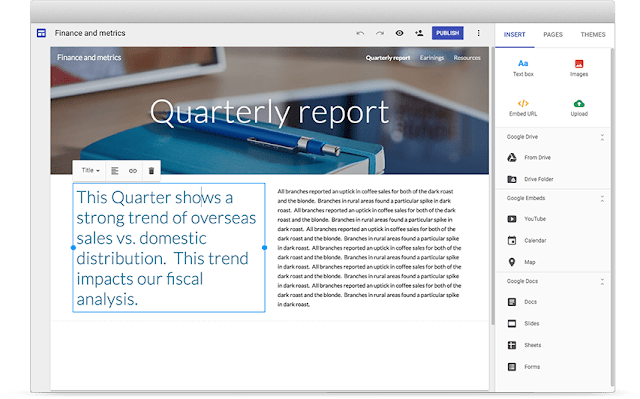
To start creating a page on Google Sites, follow these steps:
- Sign in to Google Sites: Go to www.Google.Com/sites and sign in with your Google account.
- Choose a Template: Select from various pre-designed templates or create a new site from scratch.
- Customize Your Site: Add content, images, and videos to make your page engaging.
- Publish Your Site: Click the “Publish” button to make it live on the internet.
Creating a Page on Google Business
If you’re looking to promote your business or local shop, creating a page on Google Business is an excellent choice:
- Sign in to Google My Business: Go to www.Google.Com/business and sign in with your Google account.
- Verify Your Business: Follow the verification process to confirm your business’s existence.
- Add Basic Information: Enter essential details like address, phone number, and hours of operation.
- Customize Your Page: Add photos, descriptions, and other relevant information.
Creating a New Page on Google Documents
If you’re familiar with Google Documents, creating a new page is a straightforward process:
- Open Google Documents: Go to www.Google.Com/documents and sign in with your Google account.
- Click The “+” Button: Create a new document or add a new page to an existing one.
- Add Content: Insert text, images, and other media to make your page engaging.
Tips And Tricks
To get the most out of creating a page on Google:
- Use Relevant Keywords: Ensure your page’s content includes relevant keywords for better search engine optimization (SEO).
- Keep Your Page Up-to-date: Regularly update your page with fresh information to maintain its relevance.
- Monitor Analytics: Use Google Analytics to track your page’s performance and make data-driven decisions.
Conclusion
Creating a page on Google is an essential step in establishing an online presence. With these comprehensive guides, you’ll be able to create a page on Google Sites, Google Business, or Google Documents with ease. Remember to regularly update and maintain your page to maximize its effectiveness.
Frequently Asked Questions (FAQs)
- Q: Why do I Need to Create a Page on Google?
A: Creating a page on Google increases your online visibility, making it easier for people to find you when searching for specific keywords. - Q: Can I Create Multiple Pages on Google?
A: Yes, you can create multiple pages on Google using different services like Google Sites, Google Business, or Google Documents. - Q: How do I Update my Page’s Content?
A: Regularly log in to your Google account and update the relevant sections of your page. - Q: Can I Customize my Page’s Design?
A: Yes, you can modify the layout and design of your page using various tools and templates provided by Google. - Q: How do I Verify my Business on Google Business?
A: Follow the verification process outlined in our guide to confirm your business’s existence. - Q: Can I Create a Page on Google Without an Account?
A: No, you’ll need a Google account to create and manage pages on their services. - Q: How do I Track my Page’s Performance Using Google Analytics?
A: Use the Google Analytics tool to monitor your page’s traffic, engagement, and other relevant metrics.
Further Reading
For more information on creating a page on Google or related topics, check out these additional resources:


