
Creating a Cluster on Roblox: A Step-by-step Guide
Are you ready to create your own community on the popular online platform, Roblox? Look no further! In this article, we will guide you through the process of creating a cluster on Roblox, covering both PC and app versions.
What is a Cluster on Roblox?
A cluster on Roblox refers to a group of users who share common interests and goals. By creating a cluster, you can connect with others who share your passions and build a community around a specific theme or interest.
Prerequisites For Creating a Cluster on Roblox
Before we dive into the step-by-step guide, it’s essential to note that there are some prerequisites for creating a cluster on Roblox:
- You must have a maximum of 100 clusters created.
- To train a cluster, you need to spend 100 Robux.
- Be aware that deleting a cluster is not possible, and any modification will incur an additional 100 Robux fee.
Creating a Cluster on Roblox From PC
To create a cluster on Roblox from your PC:
- Log in to your Roblox account using your preferred browser.
- Access the leading page of the platform and execute the access to your profile by clicking on the “Access” button situated at the top right corner.
- Select the voice “Clusters” from the menu that comes contextually displayed:
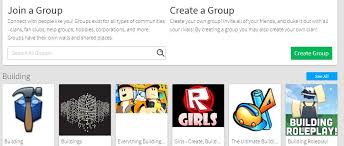
- Press the button with the three horizontal lines situated in the top left corner, then select the function “Create cluster”.
- Assign a name to the cluster by typing it into the first field, making sure it does not exceed 50 characters.
- Provide a description of the cluster in the box below, specifying the purpose and goals of your community.
- Choose a representative image for the cluster from the Emblem section: You can either drag-and-drop an image or select one manually using the “Select image” function.
Creating a Cluster on Roblox From App
To create a cluster on Roblox from the app:
- Log in to your Roblox account using the app.
- Access the leading page of the platform and initiate the training procedure by tapping the icon of the three dots at the bottom right corner, then select the “Clusters” function.
- Tap the button that represents a cluster with 100 Robux beside it and confirm your intention to create a new community.
Managing Your Cluster
Once you have created your cluster, you can access its management panel from both PC and app versions. From there, you can configure settings such as:
- Description and name of the cluster
- Representative image
- Permissions for joining or manual approval
- Shop section for creating and managing objects and promotional material
- Affiliated section to link collaborations with other clusters
Tips And Best Practices
To ensure a smooth experience, keep in mind the following tips:
- Make sure to read our guide on gaining Robux free if you’re interested in creating a cluster without spending any money.
- Consider joining gambling games like Adopt Me or Pet Simulator to earn Robux while taking care of nice domestic animals.
- Be aware that modifying your cluster’s name may incur an additional 100 Robux fee.
Conclusion
Creating a cluster on Roblox can be a fun and rewarding experience, allowing you to build a community around shared interests. By following this guide, you’ll be able to create a successful and engaging cluster on both PC and app versions of the platform. Remember to keep your cluster well-managed and follow best practices to ensure its success.
Frequently Asked Questions (FAQs)
Here are some additional questions and answers related to creating a cluster on Roblox:
Q: How many clusters can I create?
A: You can have up to 100 clusters created.
Q: What is the cost of creating a cluster?
A: To train a cluster, you need to spend 100 Robux. Modifying your cluster’s name may incur an additional 100 Robux fee.
Q: Can I delete a cluster if I no longer want it?
A: Unfortunately, deleting a cluster is not possible once created.
Q: What are the benefits of creating a cluster on Roblox?
A: By creating a cluster, you can connect with others who share your passions and build a community around a specific theme or interest.


