
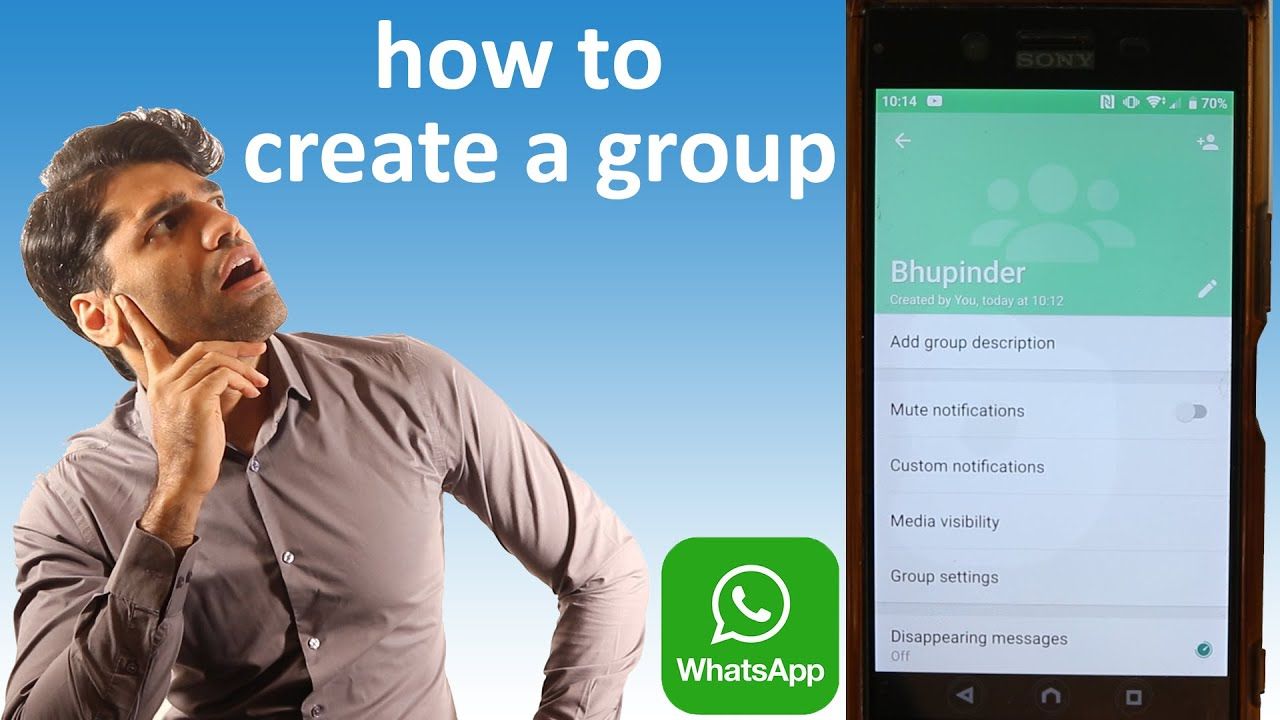
How to Create a Whatsapp Group: A Step-by-step Guide
Are you tired of sending individual messages to your friends or family members? Do you want to create a group chat where everyone can stay updated on the latest news and discussions? Look no further! In this article, we will guide you through the process of creating a WhatsApp group, whether you’re using an Android device, iPhone, or computer.
What is a Whatsapp Group?
A WhatsApp group is a feature that allows you to create a chat with multiple people at once. It’s perfect for family gatherings, friend circles, or even work teams. With a WhatsApp group, everyone can participate in the conversation, share messages, and receive updates simultaneously.
How to Create a Whatsapp Group on Android
To create a WhatsApp group on your Android device, follow these steps:
- Open Whatsapp: Launch the WhatsApp app on your Android device.
- Access Chat: Tap on the chat icon at the bottom of the screen to access the chats list.
- New Chat: Tap on the three dots (⋯) at the top right corner of the screen and select “New chat”.
- Group Chat: Select “Group chat” from the options.
- Add Participants: Choose the contacts you want to add to the group by tapping on their names or searching for them in the search bar.
- Set Group Name: Enter a name for your group chat and select an icon (optional).
- Save Changes: Tap “Create” to save the new group.
How to Create a Whatsapp Group on Iphone
Creating a WhatsApp group on your iPhone is just as easy as on Android:
- Open Whatsapp: Launch the WhatsApp app on your iPhone.
- Access Chat: Tap on the chat icon at the bottom of the screen to access the chats list.
- New Chat: Tap on the “New” button (looks like a pen) at the top right corner of the screen and select “Group”.
- Add Participants: Choose the contacts you want to add to the group by tapping on their names or searching for them in the search bar.
- Set Group Name: Enter a name for your group chat and select an icon (optional).
- Save Changes: Tap “Done” to save the new group.
How to Create a Whatsapp Group on Computer
To create a WhatsApp group on your computer, follow these steps:
- Open Whatsapp Web: Access WhatsApp Web by opening a web browser and navigating to web.Whatsapp.Com.
- Log in: Log in to your WhatsApp account using your phone number or QR code.
- Access Chat: Click on the chat icon at the top left corner of the screen to access the chats list.
- New Chat: Click on the three dots (⋯) at the top right corner of the screen and select “New chat”.
- Group Chat: Select “Group chat” from the options.
- Add Participants: Choose the contacts you want to add to the group by clicking on their names or searching for them in the search bar.
- Set Group Name: Enter a name for your group chat and select an icon (optional).
- Save Changes: Click “Create” to save the new group.
How to Share a Whatsapp Group Link
Want to share your WhatsApp group with others? Here’s how:
- Access The Group Settings: Open the WhatsApp app on your device and navigate to the group chat.
- Click on The Three Dots: Tap or click on the three dots at the top right corner of the screen.
- Select “Invite by Link”: Choose “Invite by link” from the options.
- Copy The Link: Copy the link to your clipboard or share it with others via email, SMS, or other messaging apps.
How to Create a Whatsapp Group With No Participants
Can you create a WhatsApp group without any participants? Yes, but with a little trick:
- Create a New Group: Follow the steps above to create a new group chat.
- Add One Contact: Add one contact to the group, even if it’s just yourself.
- Remove The Contact: Remove the contact from the group.
Now you can use this group as a template and add more contacts later.
How to Create a Whatsapp Group With Ephemeral Messages
Want to create a WhatsApp group with ephemeral messages? Here’s how:
- Access The Group Settings: Open the WhatsApp app on your device and navigate to the group chat.
- Click on The Three Dots: Tap or click on the three dots at the top right corner of the screen.
- Select “Ephemeral Messages”: Choose “Ephemeral messages” from the options.
- Set Message Duration: Set the message duration to 24 hours, 7 days, or 90 days.
How to Create a Whatsapp Group With Only Administrators Allowed to Send Messages
Want to create a WhatsApp group where only administrators can send messages? Here’s how:
- Access The Group Settings: Open the WhatsApp app on your device and navigate to the group chat.
- Click on The Three Dots: Tap or click on the three dots at the top right corner of the screen.
- Select “Group Settings”: Choose “Group settings” from the options.
- Allow Only Administrators to Send Messages: Toggle the switch next to “Only administrators can send messages”.
That’s it! With these simple steps, you can create a WhatsApp group on your Android device, iPhone, or computer.
Conclusion
Creating a WhatsApp group is an excellent way to stay in touch with friends and family while avoiding individual messages. Whether you’re using an Android device, iPhone, or computer, the process remains relatively the same. Remember to share the link with others, use ephemeral messages, and control who can send messages in your group.
Frequently Asked Questions (FAQs)
- Q: Can I Create a Whatsapp Group Without Any Participants?
A: Yes, but you need to add at least one contact to the group before removing them. - Q: How do I Share a Whatsapp Group Link With Others?
A: Copy the link from the group settings and share it via email, SMS, or other messaging apps. - Q: Can I Create a Whatsapp Group With Only Administrators Allowed to Send Messages?
A: Yes, access the group settings and toggle the switch next to “Only administrators can send messages”. - Q: How do I Add Participants to my Whatsapp Group?
A: Open the group chat and tap on the three dots at the top right corner of the screen. - Q: Can I Export a Whatsapp Group Chat And Move it to Another Group?
A: No, you can only export the chat as a CSV file or PDF document.
Conclusion
Creating a WhatsApp group is an excellent way to stay in touch with friends and family while avoiding individual messages. Whether you’re using an Android device, iPhone, or computer, the process remains relatively the same. Remember to share the link with others, use ephemeral messages, and control who can send messages in your group.
Additional Resources
- WhatsApp Official Website: Https://Www.Whatsapp.Com/
- WhatsApp Web: Web.Whatsapp.Com
- Google Play Store (Android): Https://Play.Google.Com/store/apps/details?id=com.Whatsapp.W4b
- App Store (iOS): Https://Apps.Apple.Com/us/app/whatsapp/id309449328


