
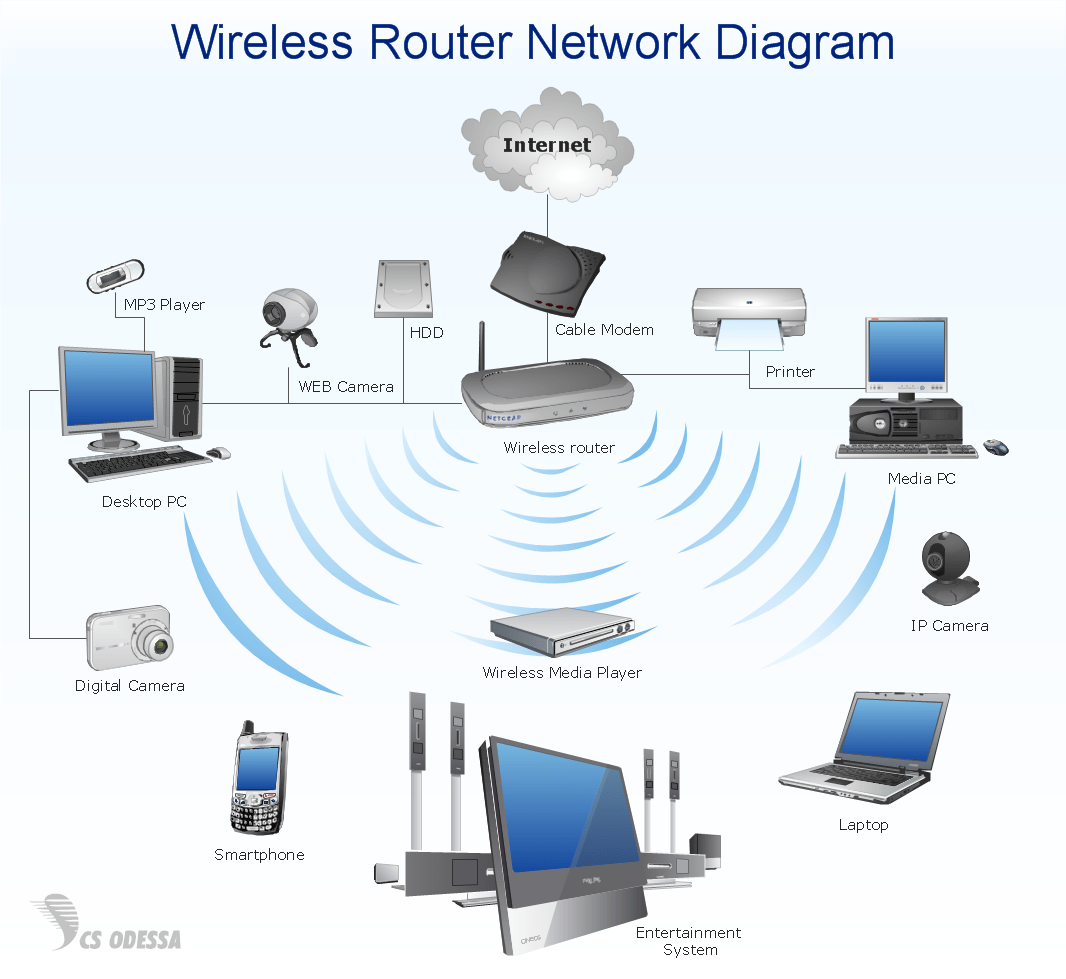
How to Create a Home Network: A Step-by-step Guide
Are you tired of dealing with multiple computers, phones, and tablets scattered around your home? Do you want to share files, printers, and internet connections seamlessly? Creating a home network is the answer! In this article, we’ll guide you through the process of setting up a home network using Windows 10, macOS, and other devices.
What is a Home Network?
A home network, also known as a local area network (LAN), is a private network that connects multiple devices within your home. This allows you to share files, printers, and internet connections between devices, making it easier to manage and enjoy your digital life.
Benefits of Creating a Home Network
- Share Files: Share files between devices without the need for cables or external storage.
- Printers And Scanners: Connect multiple printers and scanners to a single device, making printing and scanning more convenient.
- Internet Connection: Share a single internet connection between devices, reducing the number of internet plans you need to purchase.
- Wireless Connectivity: Enable wireless connectivity for all devices, eliminating the need for cables.
- Convenience: Simplify your digital life by having everything connected and accessible from one device.
Step 1: Choose Your Devices
Before setting up your home network, choose the devices you want to connect. This can include:
- Multiple computers (Windows, macOS, Linux)
- Smartphones and tablets (iOS, Android)
- Printers and scanners
- Gaming consoles (Xbox, PlayStation, Nintendo Switch)
- TVs with streaming capabilities
Step 2: Connect Devices
Connect your devices to a central device using Ethernet cables or Wi-Fi. This will create a local network that allows devices to communicate with each other.
Windows 10 Setup
- Open Settings: Click on the Start menu and select Settings.
- Network & Internet: Select Network & Internet from the Settings menu.
- Create a Home Network: Click on “Set up a home network” and follow the prompts.
- Connect Devices: Connect devices to your router using Ethernet cables or Wi-Fi.
Macos Setup
- Open System Preferences: Click on the Apple logo in the top left corner of the screen and select System Preferences.
- Sharing: Select Sharing from the menu.
- File Sharing: Enable File Sharing and select the shared folder you want to access.
- Connect Devices: Connect devices to your router using Ethernet cables or Wi-Fi.
Tips And Tricks
- Use a Strong Password: Use a strong password for your home network to ensure security.
- Update Your Router Firmware: Regularly update your router firmware to ensure the latest security patches and features.
- Keep Your Devices Up-to-date: Ensure all devices are running the latest operating system and software updates.
Common Issues And Solutions
- Devices Not Connecting: Restart your router, modem, and devices to resolve connectivity issues.
- File Sharing Not Working: Check that file sharing is enabled on both devices and that they are connected to the same network.
- Internet Connection Issues: Check your internet plan and ensure that all devices have a stable connection.
Setting Up a Home Network With Two Routers
If you want to expand your home network, you can connect two routers to create a larger network. This can be done using different configurations:
- Lan-lan Configuration: Connect the second router in parallel to the first, creating a larger local area network.
- Lan-wan Configuration: Use the second router as an access point for devices connected to it, allowing them to connect to the larger network.
Conclusion
Creating a home network is a simple and convenient way to manage your digital life. By following these steps and tips, you can set up a secure and reliable network that allows you to share files, printers, and internet connections seamlessly.
Frequently Asked Questions (FAQs)
- Q: What Devices Can I Connect to my Home Network?
A: You can connect multiple computers, smartphones, tablets, printers, scanners, gaming consoles, and TVs with streaming capabilities. - Q: How do I Set up a Home Network?
A: Follow the steps outlined in this article for Windows 10 and macOS setup. - Q: What Are The Benefits of Creating a Home Network?
A: Share files, printers, and internet connections between devices, simplify your digital life, and reduce the number of internet plans you need to purchase. -
Q: How do I Troubleshoot Common Issues With my Home Network?
A: Check for updates, restart your router and devices, and ensure that file sharing is enabled on both devices. -
Q: Can I Connect Two Routers to Create a Larger Home Network?
A: Yes, you can connect two routers using different configurations (LAN-LAN, LAN-WAN). -
Q: How do I Secure my Home Network?
A: Use strong passwords, update your router firmware regularly, and keep all devices up-to-date with the latest operating system and software updates. -
Q: Can I Use a Home Network to Stream Content From One Device to Another?
A: Yes, you can use a home network to stream content from one device to another using various streaming services and apps. -
Q: How do I Access Shared Files on my Home Network?
A: Access shared files by opening the Shared folder on your computer or using an app specifically designed for sharing files (e.G., Solid Explorer).


