
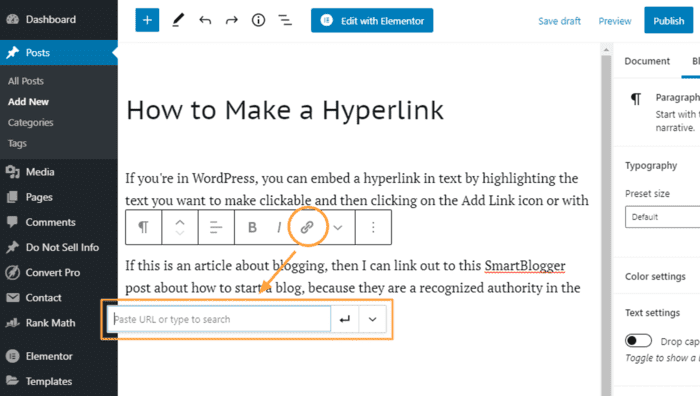
Creating Links: A Comprehensive Guide
In today’s digital age, creating links is an essential skill for sharing information, collaborating with others, and promoting online content. With so many platforms and services available, it can be overwhelming to know where to start. In this article, we’ll explore the various ways to create links, from simple file sharing to more complex videoconferences.
Why Create Links?
Before diving into the details, let’s quickly cover why creating links is important:
- Share files and documents with others
- Promote online content, such as blog posts or videos
- Conduct videoconferences and meetings with remote teams
- Share knowledge and expertise through tutorials or guides
Creating a Link to a File
One of the most common ways to create a link is by sharing a file. Here are some popular services for creating links to files:
- Wetransfer: A free service that allows you to share large files up to 2 GB.
- Google Drive: A cloud storage service that enables you to share files and folders with others.
- Onedrive: A cloud storage service from Microsoft that offers file sharing capabilities.
- Icloud Drive: A cloud storage service from Apple that allows you to share files and folders.
To create a link on WeTransfer, follow these steps:
- Go to the WeTransfer website and sign in to your account.
- Click on the “Share” button and select “Get a Link”.
- Choose the file or folder you want to share and click “Open”.
- Enter the email address of the person you want to share with and click “Share”.
Creating a Link to a Video
If you want to share a video, you can use services like YouTube, Vimeo, or Google Drive. Here’s how to create a link on YouTube:
- Go to the YouTube website and sign in to your account.
- Find the video you want to share and click on it.
- Click on the “Share” button below the video player.
- Choose the type of sharing you want to do (e.G., Copy link, email, or social media).
- Copy the link and paste it into an email or message.
Creating a Link For Videoconferences
If you want to conduct videoconferences with remote teams, you can use services like Google Meet, Zoom, or Microsoft Teams. Here’s how to create a link on Google Meet:
- Go to the Google Meet website and sign in to your account.
- Click on the “New meeting” button and select “Get a link”.
- Choose the participants for the meeting and click “Create meeting”.
- Copy the link and share it with others.
Creating a Link on Zoom
To create a link on Zoom, follow these steps:
- Open the Zoom app on your device.
- Click on the “New Meeting” button and select “Get a link”.
- Choose the participants for the meeting and click “Create meeting”.
- Copy the link and share it with others.
Creating a Link on Microsoft Teams
To create a link on Microsoft Teams, follow these steps:
- Open the Microsoft Teams app on your device.
- Click on the “Calendar” button and select “New meeting”.
- Choose the participants for the meeting and click “Save”.
- Copy the link and share it with others.
Creating a Personalized Link
If you want to create a personalized link, you can use services like Bitly or Tiny URL. Here’s how to create a personalized link on Bitly:
- Go to the Bitly website and sign in to your account.
- Click on the “Shorten URL” button and enter the URL of the webpage you want to share.
- Choose a custom domain (if desired) and click “Shorten”.
- Copy the shortened link and paste it into an email or message.
Creating a Link in Html
If you want to create a link in HTML, you can use the following code:
Html

<A href="https://Www.Example.Com">Example Website</a>
Replace https://Www.Example.Com with the URL of the webpage you want to share, and “Example Website” with the text that will appear on the link.
Conclusion
Creating links is an essential skill for sharing information, collaborating with others, and promoting online content. In this article, we’ve explored various ways to create links, from simple file sharing to more complex videoconferences. Whether you’re using WeTransfer, Google Drive, Zoom, or Microsoft Teams, the process of creating a link is relatively straightforward.
Faqs
- What is The Difference Between a Public And Private Link?
A public link can be accessed by anyone with the link, while a private link requires authentication (e.G., Password) to access. - Can I Create a Link on Multiple Platforms at Once?
Yes, you can use services like Bitly or Tiny URL to create a personalized link that works across multiple platforms. - How do I Share a Link With Others?
You can share a link by copying and pasting it into an email or message, or by using social media sharing buttons. - Can I Track The Usage of my Shared Links?
Yes, many services like WeTransfer, Google Drive, and Zoom offer analytics tools to track the number of times your shared link has been accessed. - Is Creating a Link Secure?
Yes, creating a link is generally secure, but it’s essential to follow best practices for sharing sensitive information (e.G., Using password-protected links or encryption). - Can I Create a Link on Mobile Devices?
Yes, most services offer mobile apps that enable you to create and share links on-the-go. - How do I Edit or Update an Existing Shared Link?
You can usually edit or update an existing shared link by logging into the service’s website or app and modifying the original link. - Can I Create a Link Without Having an Account?
Yes, some services like WeTransfer offer anonymous sharing options that don’t require you to sign in with an account.


