
How to Create a Mailing List With Gmail
Are you tired of manually typing email addresses every time you need to send out a message to multiple contacts? Do you wish there was an easier way to manage your email list? Look no further! In this article, we’ll show you how to create a mailing list with Gmail, making it easy to send emails to multiple contacts at once.
What is a Mailing List?
A mailing list is a collection of email addresses that you can use to send messages to multiple people at once. It’s like creating a group chat for your email contacts, but instead of using a messaging app, you’re using your email client (in this case, Gmail).
Benefits of Creating a Mailing List With Gmail
Creating a mailing list with Gmail has several benefits:
- Save Time: No more manually typing out email addresses every time you need to send an update or announcement.
- Easy Management: Organize your contacts into groups and easily manage who receives what messages.
- Increased Efficiency: Send emails to multiple people at once, reducing the time spent on sending individual messages.
How to Create a Mailing List With Gmail
Creating a mailing list with Gmail is a straightforward process. Here’s how:
- Access Google Contacts: Log in to your Google account and navigate to the Google Contacts page.
- Create a New Label: Click on the “+” button next to “Labels” and create a new label for your mailing list.
- Add Contacts to The Label: Search for the contacts you want to add to your list and click on the checkbox next to each contact’s name.
- Create The Label: Click on the “Create label” button and give your label a name.
Forwarding Emails With Gmail
Once you have created your mailing list, sending emails to multiple contacts is as easy as:
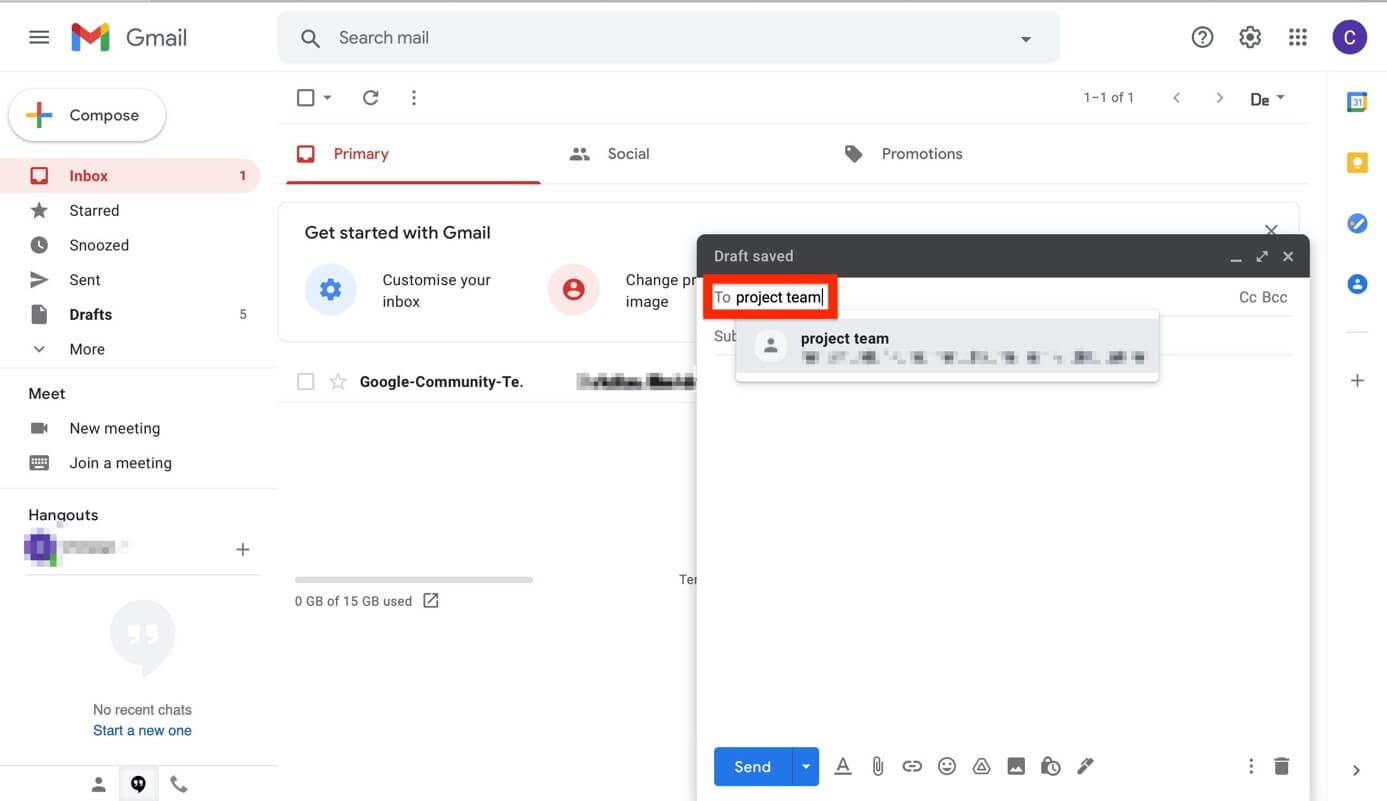
- Compose an Email: Open a new compose window in Gmail and address your message to the label you created.
- Select The Label: In the “To” field, select the label you created from the dropdown menu.
- Add Recipients: The contacts in your label will be automatically added as recipients.
Alternative Solutions
While creating a mailing list with Gmail is a great way to manage your email list, there are other solutions available:
- Brevo: A marketing automation tool that allows you to create and manage email lists, as well as automate email campaigns.
- Mailup: A platform that enables you to create and send emails to multiple contacts at once, with features like email templates and contact management.
Why Choose Gmail’s Mailing List Feature?
While other solutions may offer more advanced features, Gmail’s mailing list feature is a simple and effective way to manage your email list. Here are some reasons why:
- Easy Integration: The feature integrates seamlessly with Gmail, making it easy to use.
- No Additional Costs: Using Gmail’s mailing list feature doesn’t incur any additional costs.
- High Deliverability Rates: Gmail has high deliverability rates, ensuring that your emails reach their intended recipients.
Conclusion
Creating a mailing list with Gmail is a simple and effective way to manage your email list. By following these steps, you can save time and increase efficiency when sending emails to multiple contacts. Whether you choose to use Gmail’s feature or explore alternative solutions, the benefits of creating a mailing list are clear.
Frequently Asked Questions (FAQs)
- Q: How do I Create a Mailing List With Gmail?
A: To create a mailing list with Gmail, access Google Contacts, create a new label, add contacts to the label, and create the label. - Q: What is The Benefit of Creating a Mailing List With Gmail?
A: The benefits include saving time, easy management, and increased efficiency when sending emails to multiple contacts. - Q: Can I Use Other Solutions Like Brevo or Mailup?
A: Yes, you can explore alternative solutions that offer more advanced features and functionality. - Q: Why Should I Choose Gmail’s Mailing List Feature?
A: The feature is easy to integrate with Gmail, doesn’t incur additional costs, and has high deliverability rates.
Additional Resources
- Google Contacts: Access Google Contacts to create a new label and add contacts to your mailing list.
- Brevo: Explore Brevo’s marketing automation tool for more advanced features and functionality.
- Mailup: Learn about MailUp’s platform for creating and sending emails to multiple contacts at once.


