
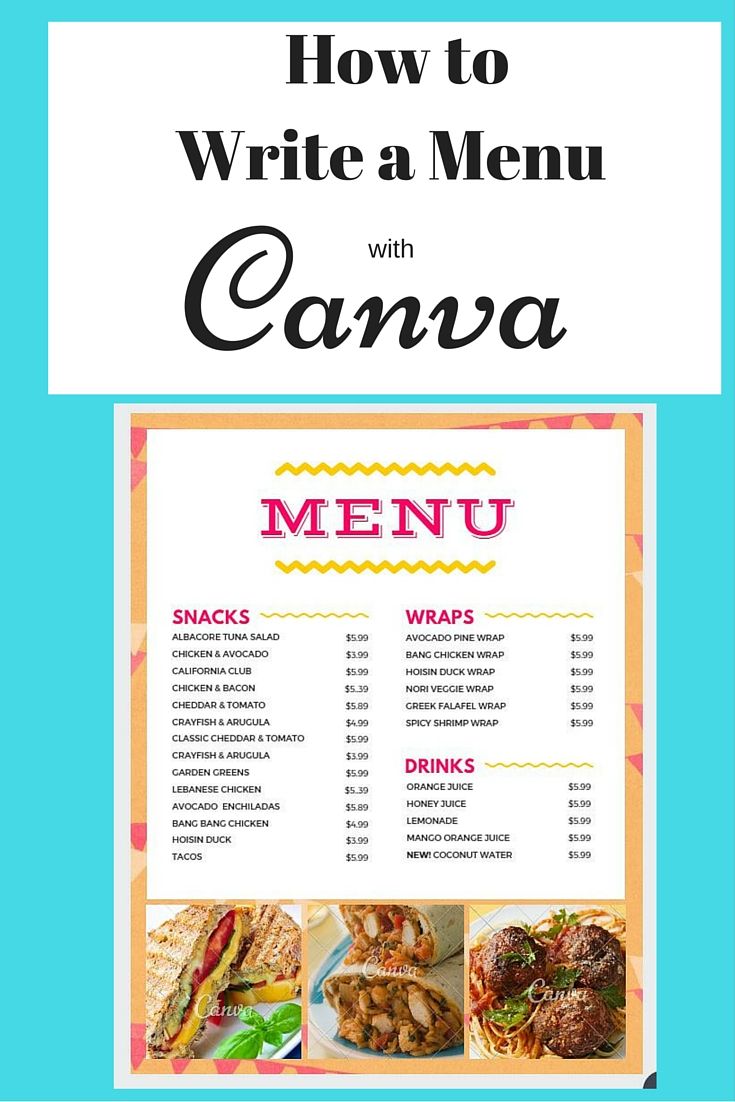
How to Create a Menu For Your Restaurant
Are you looking to create a menu for your restaurant that is both visually appealing and functional? Do you want to know how to design a menu that will make your customers’ mouths water? Look no further! In this article, we will guide you through the process of creating a menu for your restaurant using some of the leading programs and services online.
Why Create a Menu For Your Restaurant?
Creating a menu for your restaurant is an essential step in presenting your food offerings to your customers. A well-designed menu can help to:
- Increase sales by highlighting the best dishes on your menu
- Improve customer satisfaction by providing clear and concise information about your dishes
- Enhance your brand image by showcasing your unique style and personality
Using Microsoft Word to Create a Menu
One of the easiest ways to create a menu is using Microsoft Word. This popular software has a range of templates that you can use as a starting point, or you can start from scratch and design your own menu.
To get started, open Microsoft Word on your computer and click on the “File” tab. Select “New” and then browse through the templates to find one that suits your needs. Choose a template that has a clean and simple design, and then customize it by adding your restaurant’s logo, colors, and fonts.
Adding Images And Graphics
To add images and graphics to your menu, click on the “Insert” tab and select “Picture”. Browse through your computer or search online for images that match your theme. You can also use Microsoft Word’s built-in image editing tools to resize and format your images.
Creating a Menu With Canva
Canva is another popular tool that you can use to create a menu. This cloud-based software has a range of templates and design tools that make it easy to create a professional-looking menu.
To get started, sign up for a free account on Canva’s website and browse through the templates to find one that suits your needs. Choose a template that has a clean and simple design, and then customize it by adding your restaurant’s logo, colors, and fonts.
Other Solutions to Create a Menu
If you’re looking for other solutions to create a menu, there are several options available. Some popular alternatives include:
- Famenu: A web-based service that provides a range of templates and design tools to help you create a professional-looking menu.
- Leggimenu: Another web-based service that offers a range of templates and design tools to help you create a menu.
Creating a Menu to Display
A menu to display, also known as a menu dropdown or menu bar, is an essential element in any restaurant. This feature allows customers to view the menu on their phone or tablet without having to print it out.
To create a menu to display on Excel, follow these steps:
- Open Microsoft Excel and select the cells where you want to insert the menu.
- Go to the “Data” tab and click on “Validation”.
- Select “List of items” from the dropdown menu and enter the list of menu items.
- Click “OK” to confirm.
Creating a Menu to Display on Word
To create a menu to display on Microsoft Word, follow these steps:
- Open Microsoft Word and select the cells where you want to insert the menu.
- Go to the “Options” tab and click on “Personalization”.
- Select the “Development” tab and click on the “Controlled box combined” icon.
- Enter the list of menu items and click “Add” to confirm.
Creating a Menu to Display on Html
To create a menu to display on an HTML editor, follow these steps:
- Open the HTML editor and insert a new div tag with the id “Menu”.
- Insert an unordered list (ul) inside the div tag.
- Add list items (li) inside the ul tag and enter the menu items.
Conclusion
Creating a menu for your restaurant is an essential step in presenting your food offerings to your customers. With these simple steps, you can create a menu that will make your customers’ mouths water. Remember to choose a template or design tool that suits your needs, add images and graphics to enhance the design, and customize it with your restaurant’s logo, colors, and fonts.
Faqs
Q: What is the best software to use for creating a menu?
A: Microsoft Word and Canva are two popular tools that you can use to create a menu.
Q: How do I add images and graphics to my menu?
A: You can add images and graphics by clicking on the “Insert” tab and selecting “Picture”.
Q: What is the best way to display a menu on a phone or tablet?
A: A menu dropdown, also known as a menu bar, is an essential element in any restaurant. This feature allows customers to view the menu on their phone or tablet without having to print it out.
Q: How do I create a menu to display on Excel?
A: To create a menu to display on Excel, follow these steps:
- Open Microsoft Excel and select the cells where you want to insert the menu.
- Go to the “Data” tab and click on “Validation”.
- Select “List of items” from the dropdown menu and enter the list of menu items.
Q: How do I create a menu to display on Word?
A: To create a menu to display on Microsoft Word, follow these steps:
- Open Microsoft Word and select the cells where you want to insert the menu.
- Go to the “Options” tab and click on “Personalization”.
- Select the “Development” tab and click on the “Controlled box combined” icon.
Q: How do I create a menu to display on HTML?
A: To create a menu to display on an HTML editor, follow these steps:
- Open the HTML editor and insert a new div tag with the id “Menu”.
- Insert an unordered list (ul) inside the div tag.
- Add list items (li) inside the ul tag and enter the menu items.
Q: What are some other solutions to create a menu?
A: Some popular alternatives include Famenu, Leggimenu, and Canva.
Q: How do I customize my menu with my restaurant’s logo, colors, and fonts?
A: You can customize your menu by using Microsoft Word or Canva’s design tools.


