
How to Create a New Account on Pc: A Step-by-step Guide
Are you tired of sharing your computer with family members or friends? Do you want to have separate profiles for each user, without worrying about settings getting mixed up? Look no further! In this article, we will guide you through the process of creating a new account on PC, including Windows 11, 10, 8, and Mac.
Creating a New Account on Windows 11
If you’re using Windows 11, creating a new account is a straightforward process. Here’s how to do it:
- Open Settings: Click on the Start button (Windows logo) and select “Settings.”
- Select Accounts: In the Settings window, click on “Accounts” from the left menu.
- Choose Family & Other Users: Scroll down to the “Family & other users” section and click on it.
- Add a New Account: Click on the “Add another user” button.
- Create a Microsoft Account: Choose to create a Microsoft account, or add an existing one.
- Set up The New Account: Follow the prompts to set up the new account, including setting a password and adding a recovery email.
Creating a New Account on Windows 10
If you’re using Windows 10, creating a new account is similar to Windows 11:
- Open Settings: Click on the Start button (Windows logo) and select “Settings.”
- Select Accounts: In the Settings window, click on “Accounts” from the left menu.
- Choose Family & Other Users: Scroll down to the “Family & other users” section and click on it.
- Add a New Account: Click on the “Add another user” button.
- Create a Microsoft Account: Choose to create a Microsoft account, or add an existing one.
- Set up The New Account: Follow the prompts to set up the new account, including setting a password and adding a recovery email.
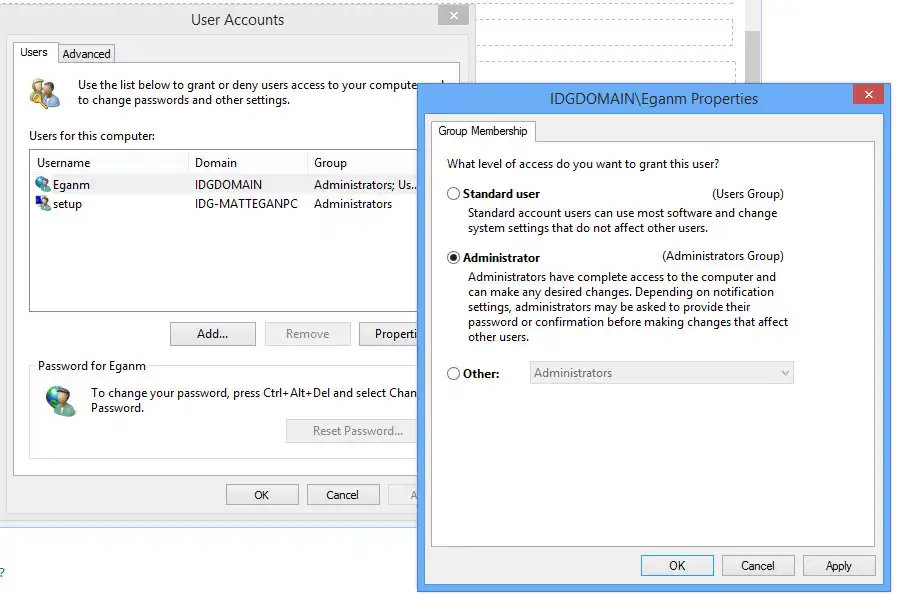
Creating a New Account on Windows 8
If you’re using Windows 8, creating a new account is also possible:
- Open Settings: Press the Windows key + I to open the Settings window.
- Select Accounts: In the Settings window, click on “Accounts” from the left menu.
- Choose Add a User Account: Click on the “Add a user account” button.
- Create a Local Account: Choose to create a local account, or add an existing Microsoft account.
Creating a New Account on Mac
If you’re using a Mac, creating a new account is also possible:
- Open System Preferences: Click on the Apple logo in the top left corner and select “System Preferences.”
- Select Users & Groups: In the System Preferences window, click on “Users & Groups” from the left menu.
- Click on Add: Click on the “+” button at the bottom of the window to add a new user.
- Enter The User’s Name And Password: Enter the user’s name and password in the prompts.
Creating a New Google Account
If you want to create a new Google account, follow these steps:
- Open Google: Open a web browser and go to google.Com.
- Click on Create Account: Click on the “Create account” button at the top right corner of the page.
- Fill Out The Form: Fill out the form with your name, email address, password, and other details.
Why Create a New Account?
Creating a new account on your PC or Mac can be beneficial in several ways:
- Separate Profiles: Each user has their own separate profile, which means they won’t have access to each other’s files, settings, or data.
- Simplified Sharing: If you want to share certain files or folders with others, creating a new account for them can simplify the process.
- Better Organization: Having multiple accounts can help keep your computer organized and easier to manage.
Conclusion
Creating a new account on PC is a simple process that can be completed in just a few steps. Whether you’re using Windows 11, 10, 8, or Mac, following these guides will ensure that you create a new account quickly and easily. Remember to set up the new account correctly, including setting passwords and recovery emails. If you have any further questions or need more assistance, feel free to ask.
Frequently Asked Questions (FAQs)
- Q: How do I Create a New Account on Windows 11?
A: To create a new account on Windows 11, follow the steps outlined in this article. - Q: Can I Create a Local Account on Windows 10?
A: Yes, you can create a local account on Windows 10 by following the steps outlined in this article. - Q: How do I Create a New Google Account?
A: To create a new Google account, follow the steps outlined in this article. - Q: Why Should I Create a New Account on my Pc?
A: Creating a new account can help keep your computer organized and easier to manage. - Q: Can I Share Files Between Accounts?
A: Yes, you can share files between accounts by following the steps outlined in this article. - Q: How do I Set up a New Account on my Mac?
A: To set up a new account on your Mac, follow the steps outlined in this article. - Q: Can I Create Multiple Accounts on my Pc?
A: Yes, you can create multiple accounts on your PC by following the steps outlined in this article. - Q: How do I Manage Multiple Accounts on my Pc?
A: To manage multiple accounts on your PC, follow the steps outlined in this article.
Feel free to ask if you have any further questions or need more assistance!


