
How to Create a New User on Windows 10: A Step-by-step Guide
Are you looking to create a new user account on your Windows 10 computer? Maybe you want to share your PC with family members or friends, but don’t know how to set up separate accounts for them. Or perhaps you’re just curious about the process and want to learn more. Whatever your reason, this article is here to guide you through the process of creating a new user on Windows 10.
Why Create a New User Account?
Before we dive into the steps, let’s talk about why creating a new user account is useful. When you create a new user account, it allows each user to have their own set of preferences, programs, and files without affecting other users’ settings. This is especially helpful when multiple people use the same computer, as it helps prevent conflicts and ensures that everyone has a smooth computing experience.
Types of User Accounts on Windows 10
On Windows 10, you can create two types of user accounts: A local account or a Microsoft account. A local account is specific to the computer and cannot be used on other devices. On the other hand, a Microsoft account is linked to your online Microsoft account and can be accessed from any device with an internet connection.
Step 1: Access The Settings App
To create a new user account, you’ll first need to access the Settings app. This can be done by clicking on the Start button (the Windows logo) located at the bottom left corner of your screen. From there, click on the icon that looks like a cogwheel (Settings).
Step 2: Select Accounts
In the Settings window, select the “Accounts” option from the list on the left side. This will take you to a new page where you can manage user accounts.
Step 3: Add a New User Account
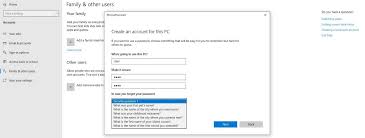
Scroll down to the section labeled “Family & other users,” and click on the button that says “Add another user to this PC.” A new window will appear, asking you to add an account without a Microsoft account or to use an existing one.
Step 4: Create a Local Account
If you choose to create a local account, you’ll need to provide a username and password for the new user. You can also add a profile picture if desired. Once complete, click on the “Create” button to finish setting up the new user account.
Step 5: Accessing The New User Account
After creating the new user account, it will be listed in the start menu under “Other users.” To access this account, simply click on the username from the list. You’ll be prompted to log in with the credentials you provided during setup.
Creating a Microsoft Account
If you want to create a Microsoft account instead of a local one, follow these steps:
- Click on the Start button and select the Settings app.
- Select “Accounts” and then click on the option that says “Family & other users.”
- Click on the button that says “Add another user to this PC.”
- Choose the option to add an account with a Microsoft account.
- Enter your email address, password, and other required information.
Creating an Administrator Account
If you want to create an administrator account instead of a standard one, follow these steps:
- Click on the Start button and select the Settings app.
- Select “Accounts” and then click on the option that says “Family & other users.”
- Click on the username of the existing user.
- In the “Account type” dropdown menu, choose “Administrator.”
Conclusion
Creating a new user account on Windows 10 is a straightforward process that can be completed in just a few steps. By following these instructions, you’ll be able to set up separate accounts for each user, ensuring that everyone has their own preferences and files without affecting others.
Frequently Asked Questions (FAQs)
- What’s The Difference Between a Local Account And a Microsoft Account?
A local account is specific to the computer and cannot be used on other devices. A Microsoft account, on the other hand, can be accessed from any device with an internet connection. - Can I Create Multiple Administrator Accounts?
Yes, but it’s not recommended as this can lead to security issues. - How do I Delete a User Account?
To delete a user account, go to Settings > Accounts > Family & other users and click on the “Remove” button next to the username. - Can I Switch Between User Accounts Without Logging Out?
Yes, you can use the Ctrl + Shift + Del keys combination to quickly switch between user accounts. - What Happens if I Forget my Password?
If you forget your password, you’ll need to reset it using a recovery email or security question. - Can I Create a New User Account For Someone With a Disability?
Yes, Windows 10 has built-in accessibility features that can help users with disabilities. To set up an account for someone with a disability, follow the same steps as above and choose the “Accessibility” option during setup. - How do I Change my Username or Password?
To change your username or password, go to Settings > Accounts > Your email & accounts and click on the “Edit” button next to the username or password field.
Feel free to ask me any questions you have about creating a new user account on Windows 10!


