
How to Create a New Pattern in Microsoft Word
Creating a new pattern in Microsoft Word can be a game-changer for your productivity and document creation process. In this article, we will guide you through the step-by-step process of creating a custom pattern in Microsoft Word.
What Are Patterns in Microsoft Word?
Patterns in Microsoft Word refer to pre-designed templates that can be used to create documents with a specific style or layout. These patterns can be customized to fit your needs and preferences, making it easier to create documents without having to start from scratch.
Benefits of Creating a Custom Pattern
Creating a custom pattern in Microsoft Word offers several benefits, including:
- Increased Productivity: By creating a custom pattern, you can save time and effort when creating documents.
- Improved Document Quality: A custom pattern ensures that your documents are consistently formatted and visually appealing.
- Enhanced Creativity: Creating a custom pattern allows you to express your personal style and creativity in your documents.
Step-by-step Guide to Creating a Custom Pattern
Here’s how to create a new pattern in Microsoft Word:
- Open Microsoft Word: First, open Microsoft Word on your PC or Mac.
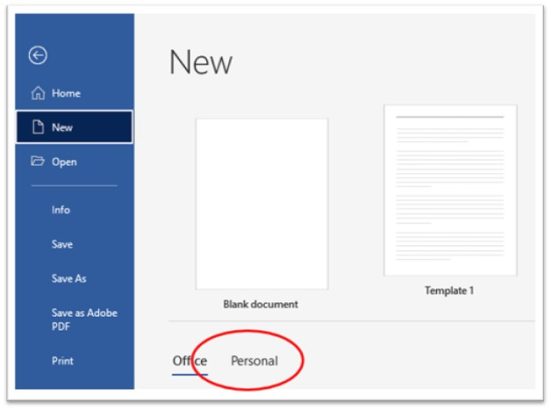
- Choose The “File” Menu: Click on the “File” menu and select “New” from the dropdown list.
- Select The “Document” Option: Choose the “Document” option from the dialog box that appears.
- Choose a Pattern Template: Select a pattern template from the gallery of templates provided by Microsoft Word.
- Customize Your Pattern: Customize your pattern by selecting the desired font, size, and style.
- Save Your Pattern: Once you’ve customized your pattern, save it as a new document.
Creating a Custom Pattern in Microsoft Word Online
Microsoft Word also offers an online version that allows you to create documents directly from the web browser. Here’s how to create a custom pattern in Microsoft Word Online:
- Log In to Your Account: Log in to your Microsoft account.
- Access Microsoft Word Online: Access Microsoft Word Online from your web browser.
- Choose The “File” Menu: Click on the “File” menu and select “New” from the dropdown list.
- Select The “Document” Option: Choose the “Document” option from the dialog box that appears.
- Customize Your Pattern: Customize your pattern by selecting the desired font, size, and style.
- Save Your Pattern: Once you’ve customized your pattern, save it as a new document.
Creating a Custom Pattern on Microsoft Word For Smartphones And Tablets
Microsoft Word also offers an app for smartphones and tablets that allows you to create documents directly from your device. Here’s how to create a custom pattern on Microsoft Word for mobile devices:
- Install The Microsoft Word App: Install the Microsoft Word app on your smartphone or tablet.
- Launch The App: Launch the app and select “New” from the menu.
- Choose The “File” Menu: Click on the “File” menu and select “New” from the dropdown list.
- Select The “Document” Option: Choose the “Document” option from the dialog box that appears.
- Customize Your Pattern: Customize your pattern by selecting the desired font, size, and style.
- Save Your Pattern: Once you’ve customized your pattern, save it as a new document.
Frequently Asked Questions
Here are some frequently asked questions about creating custom patterns in Microsoft Word:
Q: What is a pattern in Microsoft Word?
A: A pattern in Microsoft Word refers to a pre-designed template that can be used to create documents with a specific style or layout.
Q: How do I create a new pattern in Microsoft Word?
A: To create a new pattern in Microsoft Word, follow the step-by-step guide provided above.
Q: Can I create a custom pattern in Microsoft Word Online?
A: Yes, you can create a custom pattern in Microsoft Word Online by following the steps provided above.
Q: Can I create a custom pattern on Microsoft Word for mobile devices?
A: Yes, you can create a custom pattern on Microsoft Word for mobile devices by following the steps provided above.
Conclusion
Creating a new pattern in Microsoft Word is a straightforward process that offers several benefits. By following the step-by-step guide provided above, you can create a custom pattern that suits your needs and preferences. Whether you’re working on a PC or Mac, or using Microsoft Word Online or the app on your mobile device, creating a custom pattern is easier than ever.
Frequently Asked Questions
Here are some frequently asked questions about creating custom patterns in Microsoft Word:
Q: What is a pattern in Microsoft Word?
A: A pattern in Microsoft Word refers to a pre-designed template that can be used to create documents with a specific style or layout.
Q: How do I create a new pattern in Microsoft Word?
A: To create a new pattern in Microsoft Word, follow the step-by-step guide provided above.
Q: Can I create a custom pattern in Microsoft Word Online?
A: Yes, you can create a custom pattern in Microsoft Word Online by following the steps provided above.
Q: Can I create a custom pattern on Microsoft Word for mobile devices?
A: Yes, you can create a custom pattern on Microsoft Word for mobile devices by following the steps provided above.


