
Creating a Recovery Password Disk: A Step-by-step Guide
Are you worried about forgetting your password? Do you want to ensure that you can regain access to your computer in case of a password reset? Look no further! In this article, we will guide you through the process of creating a recovery password disk for Windows 10 and Windows 7.
Why Create a Recovery Password Disk?
Creating a recovery password disk is an essential step in protecting your digital privacy. By storing a copy of your password in a secure location, you can ensure that you can access your computer even if you forget your password. This feature is particularly useful for businesses and individuals who use complex passwords to protect their sensitive data.
Getting Started: Windows 10
To create a recovery password disk for Windows 10, follow these steps:
- Log in With The Correct Account: First, ensure that you are logged in with the account for which you want to create the recovery password disk.
- Insert a Usb Drive: Insert a USB drive into your computer’s port and format it in FAT32 or NTFS if necessary. Note that formatting will erase all data on the drive, so make sure to back up any important files beforehand.
- Open The Settings App: Click on the Start button and select the Settings icon (represented by gears).
- Search For “Create a Recovery Password Disk”: Type “create a recovery password disk” in the search bar and click on the result that appears at the top of the screen.
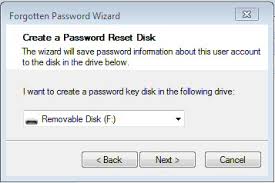
- Select Your Usb Drive: Choose the USB drive you want to use as your recovery password disk from the menu.
- Enter Your Current Password: Enter the current password for the account associated with the USB drive.
- Follow The Prompts: Click on the “Next” button and follow the prompts to complete the process.
Using Your Recovery Password Disk
If you forget your password, simply insert the recovery password disk into your computer’s port and follow these steps:
- Insert The Recovery Password Disk: Insert the USB drive containing your recovery password into your computer’s port.
- Click on “Reset”: Click on the “Reset” button in the login screen to initiate the password reset process.
- Enter Your New Password: Enter a new password and follow the prompts to complete the password reset.
Creating a Recovery Password Disk For Windows 7
The steps to create a recovery password disk for Windows 7 are similar to those for Windows 10:
- Log in With The Correct Account: First, ensure that you are logged in with the account for which you want to create the recovery password disk.
- Insert a Usb Drive: Insert a USB drive into your computer’s port and format it in FAT32 or NTFS if necessary.
- Open The Control Panel: Click on the Start button and select the Control Panel icon (represented by gears).
- Select “User Accounts”: Click on “User Accounts” from the menu.
- Click on “Create a Recovery Password Disk”: Select “Create a recovery password disk” from the submenu.
- Follow The Prompts: Click on the “Next” button and follow the prompts to complete the process.
Tips And Variations
- Use a dedicated USB drive for your recovery password disk: To ensure that you can access your recovery password disk even if you forget it, consider using a separate USB drive just for this purpose.
- Format your USB drive in FAT32 or NTFS: When formatting your USB drive, select either FAT32 or NTFS as the file system to ensure compatibility with Windows 10 and Windows 7.
Conclusion
Creating a recovery password disk is an essential step in protecting your digital privacy. By following these simple steps, you can create a secure copy of your password that will allow you to access your computer even if you forget it. Remember to use a dedicated USB drive and format it in FAT32 or NTFS for optimal compatibility.
Frequently Asked Questions
- Q: How do I know if my recovery password disk is working?
A: If your recovery password disk is working correctly, you should be able to access your computer even if you forget your password. - Q: What happens if I lose my recovery password disk?
A: If you lose your recovery password disk, consider creating a new one and storing it in a secure location. You can also try recovering your original password using other means, such as through your email account or cloud storage.


