
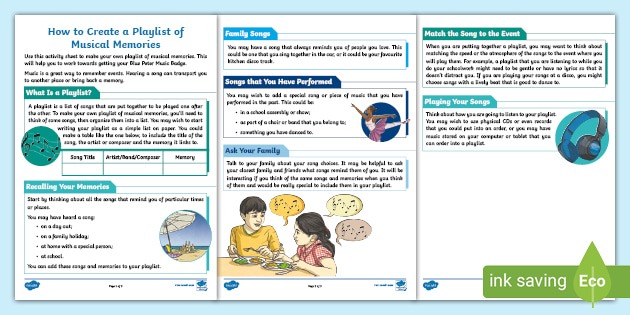
How to Create a Playlist on Your Favorite Music Streaming Platform
Are you tired of searching for music on your favorite streaming platform? Do you want to create a playlist of your favorite songs without having to spend hours browsing through endless options? Look no further! In this article, we will guide you through the process of creating a playlist on popular music streaming platforms such as Spotify, Apple Music, YouTube, and more.
Understanding Playlists
Before we dive into the step-by-step instructions, let’s quickly understand what playlists are. A playlist is a collection of songs or videos that can be saved and accessed easily on your favorite music streaming platform. You can create playlists for various purposes, such as creating a workout playlist, a relaxation playlist, or even a playlist for a specific movie or TV show.
Creating a Playlist on Spotify
Spotify is one of the most popular music streaming platforms out there. Creating a playlist on Spotify is easy and straightforward.
Step 1: Open Spotify
Open the Spotify app on your device, whether it’s a desktop computer, laptop, tablet, or smartphone.
Step 2: Click on The “+” Icon
Click on the “+” icon located in the top-left corner of the screen. This will open up a new window where you can create a playlist.
Step 3: Name Your Playlist
Name your playlist by typing in the title you want to give it. You can also add an image or description to your playlist if you want.
Step 4: Add Songs to Your Playlist
To add songs to your playlist, simply click on the “Search” bar and type in the song or artist you’re looking for. You can also browse through Spotify’s vast music library by clicking on the “Browse” tab.
Step 5: Save Your Playlist
Once you’ve added all the songs you want to your playlist, click on the “Save” button to save it.
Creating a Public Playlist on Spotify
If you want to share your playlist with others, you can make it public by following these steps:
- Click on the three dots located next to your playlist title.
- Select “Edit playlist.”
- Toggle the switch next to “Public” to turn it green.
- Save your changes.
Creating a Shared Playlist on Spotify
If you want to collaborate with others on creating a playlist, follow these steps:
- Click on the “+” icon in the top-left corner of the screen.
- Select “Collaborative playlist.”
- Invite others to join your playlist by sharing the link or code.
- Collaborate with others to add songs to your playlist.
Creating a Playlist on Youtube
YouTube is another popular music streaming platform where you can create playlists.
Step 1: Open Youtube
Open the YouTube app on your device, whether it’s a desktop computer, laptop, tablet, or smartphone.
Step 2: Click on The “+” Icon
Click on the “+” icon located in the top-right corner of the screen. This will open up a new window where you can create a playlist.
Step 3: Name Your Playlist
Name your playlist by typing in the title you want to give it. You can also add an image or description to your playlist if you want.
Step 4: Add Videos to Your Playlist
To add videos to your playlist, simply search for them by clicking on the “Search” bar and typing in the title or artist you’re looking for. You can also browse through YouTube’s vast video library by clicking on the “Browse” tab.
Step 5: Save Your Playlist
Once you’ve added all the videos you want to your playlist, click on the “Save” button to save it.
Creating a Private Playlist on Youtube
If you want to keep your playlist private, follow these steps:
- Click on the three dots located next to your playlist title.
- Select “Edit playlist.”
- Toggle the switch next to “Private” to turn it green.
- Save your changes.
Creating a Shared Playlist on Apple Music
Apple Music is another popular music streaming platform where you can create playlists.
Step 1: Open Apple Music
Open the Apple Music app on your device, whether it’s an iPhone, iPad, or Mac computer.
Step 2: Click on The “+” Icon
Click on the “+” icon located in the top-right corner of the screen. This will open up a new window where you can create a playlist.
Step 3: Name Your Playlist
Name your playlist by typing in the title you want to give it. You can also add an image or description to your playlist if you want.
Step 4: Add Songs to Your Playlist
To add songs to your playlist, simply search for them by clicking on the “Search” bar and typing in the title or artist you’re looking for. You can also browse through Apple Music’s vast music library by clicking on the “Browse” tab.
Step 5: Save Your Playlist
Once you’ve added all the songs you want to your playlist, click on the “Save” button to save it.
Creating a Collaborative Playlist on Apple Music
If you want to collaborate with others on creating a playlist, follow these steps:
- Click on the “+” icon in the top-right corner of the screen.
- Select “Collaborative playlist.”
- Invite others to join your playlist by sharing the link or code.
- Collaborate with others to add songs to your playlist.
Conclusion
Creating playlists on music streaming platforms is a simple and fun way to organize your favorite songs and videos. Whether you want to create a public, private, or collaborative playlist, we’ve got you covered. By following these steps, you can easily create playlists on popular music streaming platforms like Spotify, YouTube, Apple Music, and more.
Faqs
- Q: How do I Create a Playlist on Spotify?
A: To create a playlist on Spotify, open the app, click on the “+” icon in the top-left corner of the screen, name your playlist, add songs to it by searching or browsing through Spotify’s music library, and save your changes. - Q: Can I Make my Playlist Public on Spotify?
A: Yes, you can make your playlist public on Spotify by clicking on the three dots next to your playlist title, selecting “Edit playlist,” toggling the switch next to “Public” to turn it green, and saving your changes. - Q: How do I Create a Shared Playlist on Apple Music?
A: To create a shared playlist on Apple Music, open the app, click on the “+” icon in the top-right corner of the screen, name your playlist, add songs to it by searching or browsing through Apple Music’s music library, and save your changes. You can also invite others to join your playlist by sharing the link or code. - Q: Can I Create a Private Playlist on Youtube?
A: Yes, you can create a private playlist on YouTube by clicking on the three dots next to your playlist title, selecting “Edit playlist,” toggling the switch next to “Private” to turn it green, and saving your changes. - Q: How do I Add Videos to my Playlist on Youtube?
A: To add videos to your playlist on YouTube, search for them by clicking on the “Search” bar and typing in the title or artist you’re looking for. You can also browse through YouTube’s vast video library by clicking on the “Browse” tab. - Q: Can I Collaborate With Others on Creating a Playlist?
A: Yes, you can collaborate with others on creating a playlist by selecting “Collaborative playlist” when creating a new playlist and inviting others to join your playlist by sharing the link or code. - Q: How do I Save my Playlist on Youtube?
A: To save your playlist on YouTube, click on the “Save” button after adding all the videos you want to your playlist. - Q: Can I Create a Playlist on Multiple Music Streaming Platforms at Once?
A: No, each music streaming platform has its own method of creating playlists, and it’s best to follow their specific instructions for creating playlists.


