
How to Create a Professional-looking Flyer With Microsoft Word
Are you looking for ways to promote your event or activity without breaking the bank? Creating a professional-looking flyer is an excellent way to do so. In this article, we will guide you on how to create a stunning flyer using Microsoft Word.
The Benefits of Creating a Flyer
Before we dive into the nitty-gritty of creating a flyer, let’s take a moment to appreciate its benefits. A well-designed flyer can:
- Attract potential attendees to your event
- Increase brand awareness and visibility
- Save you time and money compared to traditional advertising methods
Getting Started With Microsoft Word
Microsoft Word is an excellent tool for creating flyers due to its user-friendly interface and numerous features. To get started, follow these steps:
- Launch Microsoft Word: Open Microsoft Word on your computer or mobile device.
- Choose a Template: Select the “Blank Document” option to start from scratch or choose a pre-designed template that suits your needs.
Step 1: Set Up Your Flyer
To create a professional-looking flyer, you’ll need to set up its basic elements:
- Page Dimensions: Choose the dimensions of your flyer (e.G., A4, A5, or letter-sized).
- Background Color: Select a color that complements your brand’s identity.
- Font And Text Size: Choose a clear, readable font and adjust the text size to make it easy to read.
Step 2: Add Images And Text
Now it’s time to add images and text to your flyer:
- Images: Insert relevant images that showcase your event or activity. You can use Microsoft Word’s built-in image library or upload your own.
- Text: Add the necessary text, including the event name, date, time, location, and other important details.
Step 3: Customize Your Flyer
Take your flyer to the next level by customizing it with:
- Graphics And Shapes: Use Microsoft Word’s built-in graphics and shapes to add visual interest.
- Effects And Transitions: Apply effects and transitions to make your text and images pop.
Using Pre-designed Templates
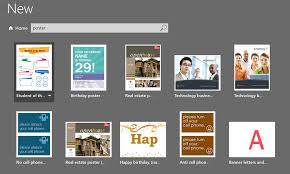
If you’re short on time or not feeling creative, use pre-designed templates to get started. You can find a wide range of templates online or in Microsoft Word’s built-in library:
- Word Online: Use the web-based version of Microsoft Word to access a vast collection of templates.
- Microsoft 365: Subscribe to Microsoft 365 to gain access to more advanced features and templates.
Creating a Flyer on Smartphones And Tablets
Yes, you can create a flyer on your smartphone or tablet using the Microsoft Word app:
- Microsoft Word App: Download the Microsoft Word app for Android or iOS devices.
- Tablet Version: Use the Microsoft Word app’s tablet version to access more advanced features and templates.
Tips And Tricks
Here are some additional tips and tricks to help you create an amazing flyer:
- Use High-quality Images: Ensure your images are high-resolution and relevant to your event or activity.
- Keep it Simple: Avoid cluttering your flyer with too much information. Focus on the essential details.
- Proofread: Carefully proofread your flyer for any errors in spelling, grammar, or punctuation.
Conclusion
Creating a professional-looking flyer using Microsoft Word is easier than you think! By following these steps and tips, you’ll be able to design an eye-catching flyer that attracts potential attendees and promotes your event or activity. Happy designing!
Frequently Asked Questions (FAQs)
Q: What are the benefits of creating a flyer?
A: A well-designed flyer can attract potential attendees, increase brand awareness, and save time and money compared to traditional advertising methods.
Q: How do I get started with Microsoft Word?
A: Launch Microsoft Word on your computer or mobile device and choose a template or start from scratch.
Q: What are the basic elements of a flyer?
A: The basic elements include page dimensions, background color, font, and text size.
Q: Can I use pre-designed templates to create my flyer?
A: Yes, you can use Microsoft Word’s built-in library or online templates to get started.
Q: Can I create a flyer on my smartphone or tablet?
A: Yes, you can use the Microsoft Word app for Android or iOS devices to create a flyer.
Q: What are some tips and tricks for creating an amazing flyer?
A: Use high-quality images, keep it simple, proofread carefully, and avoid cluttering your flyer with too much information.


