
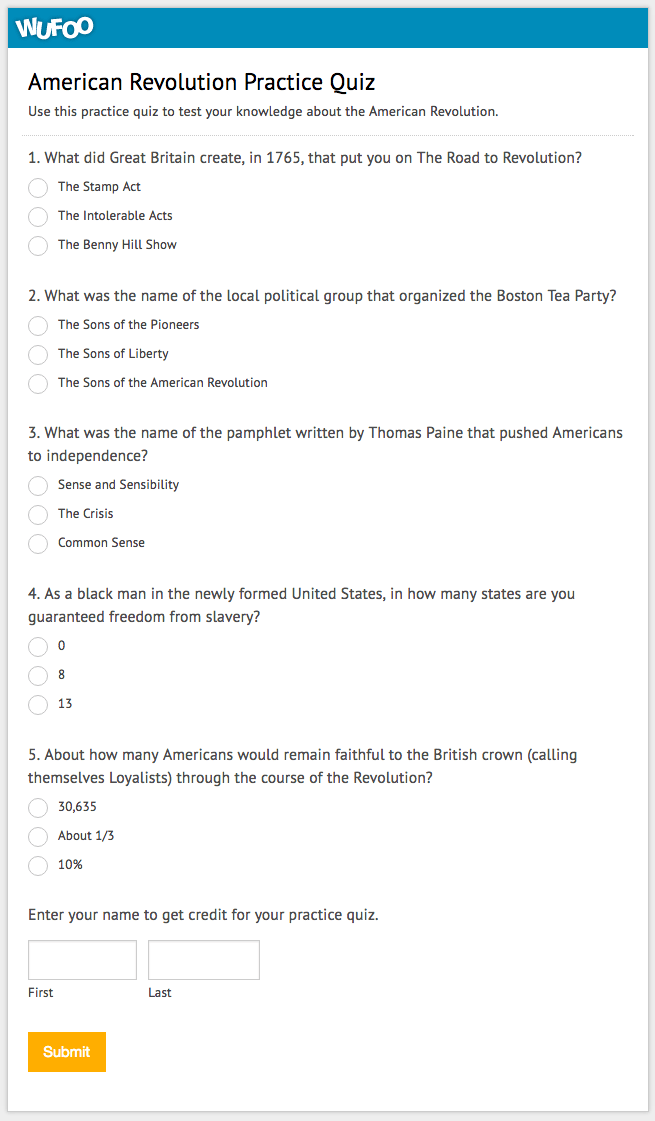
How to Create a Quiz: A Step-by-step Guide
Are you looking to create a quiz for your students, employees, or clients? Do you want to know how to make it engaging and interactive? Look no further! In this article, we will guide you through the process of creating a quiz using various tools and platforms.
Why Create a Quiz?
Creating a quiz can be an effective way to assess knowledge, evaluate understanding, and even entertain. Whether you’re an educator, marketer, or entrepreneur, a quiz can help you achieve your goals in a fun and engaging way.
Tools For Creating a Quiz
In this article, we will explore the following tools and platforms for creating a quiz:
- Google Forms
- Kahoot
- Canva
- Scratch
- PowerPoint
Each of these tools has its unique features and benefits, which we’ll discuss in detail below.
Google Forms: A Free And Easy-to-use Tool
Google Forms is a free online tool that allows you to create forms, quizzes, and surveys quickly and easily. To get started:
- Go to the Google Forms website and sign in with your Google account.
- Click on the “Create” button to start a new form.
- Add questions and answers to your quiz by clicking on the “+” button.
- Use the formatting options to customize the appearance of your quiz.
- Set up settings for sharing, collecting email addresses, and more.
Kahoot: A Platform For Interactive Learning
Kahoot is a platform designed for interactive learning and engagement. To create a quiz on Kahoot:
- Sign in to your Kahoot account or create a new one.
- Click on the “Create” button to start a new game.
- Choose from various templates or create your own quiz from scratch.
- Add questions, answers, and multimedia content to your quiz.
- Use settings to customize the appearance and behavior of your quiz.
Canva: A Graphic Design Tool For Creating Interactive Quizzes
Canva is a popular graphic design tool that can also be used to create interactive quizzes. To create a quiz on Canva:
- Sign in to your Canva account or create a new one.
- Click on the “Create” button to start a new project.
- Choose from various templates or create your own quiz from scratch.
- Add questions, answers, and multimedia content to your quiz.
- Use settings to customize the appearance and behavior of your quiz.
Scratch: A Platform For Creating Interactive Stories
Scratch is a platform designed for creating interactive stories, animations, and games. To create a quiz on Scratch:
- Sign in to your Scratch account or create a new one.
- Click on the “Create” button to start a new project.
- Choose from various templates or create your own quiz from scratch.
- Use blocks to add questions, answers, and multimedia content to your quiz.
- Set up settings for sharing and more.
Powerpoint: A Tool For Creating Interactive Presentations
PowerPoint is a popular tool for creating presentations, which can also be used to create interactive quizzes. To create a quiz on PowerPoint:
- Sign in to your Microsoft account or create a new one.
- Click on the “Create” button to start a new presentation.
- Add questions and answers to your quiz by using the text box feature.
- Use links to connect answers to correct or incorrect slides.
- Set up settings for sharing and more.
Conclusion
Creating a quiz can be an effective way to assess knowledge, evaluate understanding, and even entertain. With these tools and platforms, you can create engaging and interactive quizzes that meet your needs. Remember to follow the steps outlined in each section to ensure a smooth and enjoyable experience.
Frequently Asked Questions (FAQs)
- What is The Best Tool For Creating a Quiz?
The best tool for creating a quiz depends on your specific needs and preferences. Google Forms, Kahoot, Canva, Scratch, and PowerPoint are all popular options that offer unique features and benefits.
- How do I Add Multimedia Content to my Quiz?
To add multimedia content to your quiz, use the following tools:
- Google Forms: Use the “Add” button to upload images or videos.
- Kahoot: Use the “+” button to add multimedia content to your quiz.
- Canva: Use the “Media” tab to upload images or videos.
- Scratch: Use blocks to add multimedia content to your quiz.
-
PowerPoint: Use the “Insert” menu to add images or videos.
-
How do I Set up Settings For Sharing my Quiz?
To set up settings for sharing your quiz, use the following tools:
- Google Forms: Click on the “Settings” icon and select the sharing options.
- Kahoot: Click on the “Share” button and choose from various sharing options.
- Canva: Use the “Share” tab to share your quiz with others.
- Scratch: Click on the “Share” button and choose from various sharing options.
-
PowerPoint: Click on the “File” menu and select the sharing options.
-
Can I Create a Quiz For Multiple-choice Questions Only?
Yes, you can create a quiz for multiple-choice questions only using the following tools:
- Google Forms: Use the “Multiple Choice” question type to create multiple-choice questions.
- Kahoot: Use the “Quiz” feature to create multiple-choice questions.
- Canva: Use the “Form” feature to create multiple-choice questions.
- Scratch: Use blocks to create multiple-choice questions.
-
PowerPoint: Use the text box feature to create multiple-choice questions.
-
Can I Create a Quiz For Open-ended Questions Only?
Yes, you can create a quiz for open-ended questions only using the following tools:
- Google Forms: Use the “Short Answer” question type to create open-ended questions.
- Kahoot: Use the “Quiz” feature to create open-ended questions.
- Canva: Use the “Form” feature to create open-ended questions.
- Scratch: Use blocks to create open-ended questions.
- PowerPoint: Use the text box feature to create open-ended questions.


