
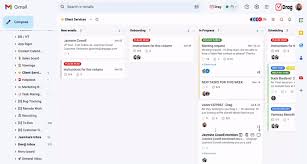
How to Create a Second Email Address: A Step-by-step Guide
Are you tired of having all your emails mixed together in one inbox? Do you want to separate your personal and professional emails? Look no further! Creating a second email address is easier than you think, and we’ll guide you through the process.
Why Create a Second Email Address?
Having two separate email addresses can be incredibly useful. You can use one for personal emails and another for professional or business-related communications. This can help you keep your inbox organized and make it easier to manage your emails.
How to Create a Second Email Address With Gmail
If you’re already using Gmail, creating a second email address is a breeze. Here’s how:
- Log in to your primary Gmail account.
- Click on the gear icon in the upper right corner of the page.
- Select “Settings” from the dropdown menu.
- Scroll down to the “Accounts and import” section.
- Click on the “Add another account” button.
- Enter the details for your new email address, including the username and password.
- Click on the “Create” button.
That’s it! Your new email address will be created and linked to your primary Gmail account.
How to Create a Second Email Address With Outlook
If you’re using Outlook, creating a second email address is similarly easy:
- Log in to your primary Outlook account.
- Click on the gear icon in the upper right corner of the page.
- Select “Settings” from the dropdown menu.
- Scroll down to the “Accounts and settings” section.
- Click on the “Add a new email address” button.
- Enter the details for your new email address, including the username and password.
- Click on the “Save” button.
How to Create a Second Email Address With Other Email Providers
Creating a second email address with other email providers, such as Yahoo or Hotmail, is also relatively simple:
- Log in to your primary email account.
- Look for an option to add a new email address or create an alias.
- Follow the prompts to enter the details for your new email address.
- Save your changes.
How to Configure Multiple Email Accounts on Your Computer
If you want to manage multiple email accounts from one place, you can use a client like Microsoft Outlook or Mozilla Thunderbird:
- Open the client and click on the “Accounts” tab.
- Click on the “Add account” button.
- Enter the details for your new email address.
- Follow the prompts to configure the account.
How to Configure Multiple Email Accounts on Your Mobile Device
If you want to manage multiple email accounts from your mobile device, you can use a client like Gmail or Outlook:
- Open the client and click on the “Accounts” tab.
- Click on the “Add account” button.
- Enter the details for your new email address.
- Follow the prompts to configure the account.
Tips And Tricks
- Make sure to use a strong password for your new email address.
- Consider using a password manager to keep track of all your passwords.
- Use a client like Microsoft Outlook or Mozilla Thunderbird to manage multiple email accounts from one place.
- Be cautious when downloading apps or add-ons that claim to help you manage multiple email accounts.
Frequently Asked Questions
Q: Can I create multiple email addresses with the same username?
A: Yes, but be aware that this can make it difficult to keep track of which account is receiving emails.
Q: How do I set up a new email address on my phone?
A: The process varies depending on your device and operating system. Check with your manufacturer for instructions.
Q: Can I use multiple email addresses with the same password?
A: No, this is not recommended as it can make your accounts vulnerable to hacking.
Q: How do I switch between multiple email accounts?
A: This depends on the client you are using. Check the documentation for your specific client.
Conclusion
Creating a second email address is easier than you think! With Gmail, Outlook, and other email providers making it simple to add new email addresses, there’s no excuse not to get organized and start separating your personal and professional emails. Remember to use strong passwords, be cautious when downloading apps or add-ons, and consider using a client like Microsoft Outlook or Mozilla Thunderbird to manage multiple email accounts from one place. Happy emailing!


