
Creating a Free Website With Google Sites: A Step-by-step Guide
Are you looking to create a free website without spending too much time or effort? Look no further than Google Sites! In this article, we will guide you through the process of creating a free website with Google Sites, and explore its features and benefits.
What is Google Sites?
Google Sites is a free service provided by Google that allows users to create simple websites without needing any web development skills. It’s perfect for individuals or small businesses who want to create a basic website quickly and easily.
Benefits of Using Google Sites
There are several benefits to using Google Sites, including:
- Free: Creating a website with Google Sites is completely free!
- Easy to Use: The platform is designed to be user-friendly, making it easy for anyone to create a website without needing any web development skills.
- Customizable: You can customize your website’s design and layout using the drag-and-drop editor.
- Integrated With Other Google Services: Google Sites integrates seamlessly with other Google services, such as Google Analytics and Google AdSense.
Step 1: Creating a New Website
To create a new website with Google Sites, follow these steps:
- Go to the Google Sites website (https://Sites.Google.Com) and sign in with your Google account.
- Click on the “Create” button to start creating a new website.
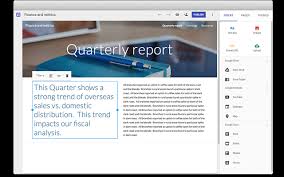
- Choose from one of the pre-designed templates or create a custom design using the drag-and-drop editor.
Step 2: Choosing a Template
Google Sites offers several pre-designed templates to get you started. You can choose from:
- Portfolio: A template for showcasing your portfolio or work experience.
- Event: A template for creating an event website, such as a wedding or conference.
- Course: A template for creating an online course website.
Step 3: Customizing Your Website
Once you’ve chosen a template, it’s time to customize your website. You can:
- Change The Color Scheme: Choose from a variety of color schemes to match your brand.
- Add Images And Videos: Upload images and videos to make your website more engaging.
- Edit Text And Layout: Use the drag-and-drop editor to edit text, layout, and design elements.
Step 4: Adding Pages
To add new pages to your website, follow these steps:
- Click on the “Pages” tab in the top navigation bar.
- Click on the “+” icon to create a new page.
- Choose from one of the pre-designed templates or create a custom design using the drag-and-drop editor.
Step 5: Publishing Your Website
Once you’ve created and customized your website, it’s time to publish it! Follow these steps:
- Click on the “Publish” button in the top navigation bar.
- Choose whether to publish your website publicly or privately.
- Insert the URL of your website into a search engine like Google.
Tips And Tricks
Here are some tips and tricks to keep in mind when using Google Sites:
- Use The Drag-and-drop Editor: The drag-and-drop editor makes it easy to customize your website’s design and layout.
- Integrate With Other Google Services: Take advantage of Google Sites’ integration with other Google services, such as Google Analytics and Google AdSense.
- Keep Your Website Up-to-date: Regularly update your website with fresh content to keep visitors engaged.
Conclusion
Creating a free website with Google Sites is a simple and easy process. With its user-friendly interface and customizable design options, you can create a professional-looking website without spending too much time or effort. Whether you’re an individual or small business, Google Sites is the perfect platform for creating a basic website quickly and easily.
Faqs
Here are some frequently asked questions about using Google Sites:
Q: What is The Cost of Using Google Sites?
A: Using Google Sites is completely free!
Q: Do I Need to Have Any Web Development Skills to Use Google Sites?
A: No, you don’t need any web development skills to use Google Sites. The platform is designed to be user-friendly and easy to use.
Q: Can I Integrate my Website With Other Google Services?
A: Yes, Google Sites integrates seamlessly with other Google services, such as Google Analytics and Google AdSense.
Q: How do I Publish my Website on The Internet?
A: To publish your website on the internet, click on the “Publish” button in the top navigation bar and follow the instructions.
Q: Can I Add Images And Videos to my Website?
A: Yes, you can add images and videos to your website using the drag-and-drop editor.
Q: How do I Add New Pages to my Website?
A: To add new pages to your website, click on the “Pages” tab in the top navigation bar and follow the instructions.


