
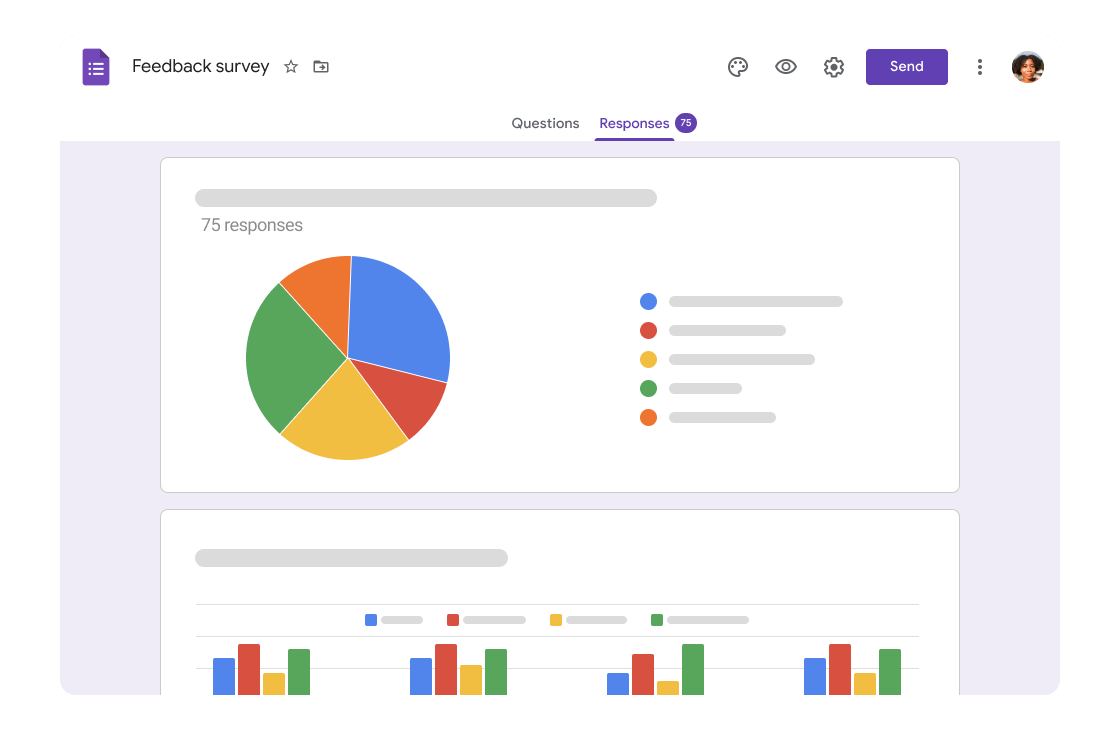
Creating a Survey on Google: A Step-by-step Guide
Are you looking to collect statistical data from a sample of people, but don’t know where to start? Creating a survey on Google can be a great way to achieve this goal. In this article, we will walk you through the process of creating a survey using Google Forms and Google Surveys.
Why Use Google For Your Survey?
Google offers two free services that can help you create a survey: Google Forms and Google Surveys. Both services are user-friendly and allow you to collect data from respondents with ease. With Google Forms, you can create forms and quizzes to gather information from your target audience. On the other hand, Google Surveys allows you to conduct market research and collect data from a specific population.
Using Google Forms to Create a Survey
Google Forms is a free service that allows you to create forms and quizzes with ease. To get started, follow these steps:
- Sign in to Your Google Account: If you don’t have a Google account, create one before proceeding.
- Access The Google Forms Website: Type “forms.Google.Com” into your browser’s address bar and sign in with your Google account credentials.
- Choose a Template or Start From Scratch: Click on the “+” button to create a new form from scratch or select a pre-made template that suits your needs.
- Add Questions And Options: Enter your survey questions and add relevant options for respondents to choose from.
- Customize Your Form: Use the settings menu to personalize your form’s design, including adding images, videos, and backgrounds.
Using Google Surveys to Conduct Market Research
Google Surveys is another free service that allows you to conduct market research and collect data from a specific population. To get started:
- Sign in to Your Google Account: If you don’t have a Google account, create one before proceeding.
- Access The Google Surveys Website: Type “surveys.Google.Com” into your browser’s address bar and sign in with your Google account credentials.
- Create a New Survey: Click on the “+” button to create a new survey from scratch or select a pre-made template that suits your needs.
- Add Questions And Options: Enter your survey questions and add relevant options for respondents to choose from.
- Specify Your Target Audience: Choose the population you want to reach, including age range, country of residence, and language preference.
Tips And Tricks
Here are some additional tips and tricks to keep in mind when creating a survey on Google:
- Use Clear And Concise Language: Make sure your questions are easy to understand and avoid using jargon or technical terms.
- Keep it Short And Sweet: Keep your survey brief and to the point, as respondents may lose interest if it’s too long.
- Test Your Form: Test your form before sharing it with others to ensure it works correctly.
Conclusion
Creating a survey on Google can be a great way to collect data from a sample of people. By following these steps and tips, you can create a survey using Google Forms or Google Surveys that will help you achieve your research goals.
Frequently Asked Questions (FAQs)
Q: What Are The Benefits of Creating a Survey on Google?
A: Creating a survey on Google allows you to collect data from respondents with ease and at a low cost.
Q: Can I Create a Survey on Google Using my Smartphone or Tablet?
A: Yes, you can create a survey on Google using your smartphone or tablet by accessing the Google Forms or Surveys website through your browser.
Q: How do I Access my Survey Data?
A: You can access your survey data by signing in to your Google account and navigating to the relevant form or survey.
Q: Can I Use Both Google Forms And Google Surveys For my Research?
A: Yes, you can use both services for your research, depending on your specific needs and goals.
Q: Is Creating a Survey on Google Free?
A: Yes, creating a survey on Google using Google Forms or Surveys is free of charge.
Q: How do I Ensure The Accuracy of my Survey Data?
A: You can ensure the accuracy of your survey data by testing your form before sharing it with others and by following best practices for survey design.


