
How to Create a New Gmail Account on Your Device
Are you tired of juggling multiple email accounts? Do you want to create a secondary account just for work or personal use without deleting your existing one? Look no further! In this article, we will guide you through the process of creating a new Gmail account on your device.
Why Create a Secondary Gmail Account?
Having a secondary Gmail account can be incredibly useful. You can use it to separate your professional and personal life, or simply to have an additional email address for specific purposes. With a secondary account, you can also avoid cluttering your primary inbox with work-related emails.
Creating a New Gmail Account on Your Android Device
If you’re using an Android device, creating a new Gmail account is relatively straightforward.
- Open The Settings App: Tap on the gear icon in your notification shade or find it in your app drawer.
- Select “Account”: Choose the option that says “Account” and then select “Add Account.”
- Choose Google: Select the Google option from the list of available accounts.
- Create a New Account: Tap on the button that says “Continue,” then choose the option to create a new account.
- Fill Out The Form: Enter your name, surname, date of birth, and other required information.
- Choose Your Gmail Username: Select a username for your new Gmail account, or create a personalized one.
- Set up Your Password: Create a strong password for your new account and set it up with two-factor authentication if desired.
- Review And Confirm: Review the information you’ve entered and tap on “Yes” to accept the terms of service.
Switching Between Your Primary And Secondary Gmail Accounts
Now that you have created a secondary Gmail account, switching between your primary and secondary accounts is easy.
- Open The Gmail App: Tap on the icon for the Gmail app.
- Tap on Your Profile Picture or Initials: This will take you to a menu where you can select which account to use.
- Choose Your Primary or Secondary Account: Select either your primary or secondary account from the list.
Creating a New Gmail Account on Your Iphone
If you’re using an iPhone, creating a new Gmail account is also relatively straightforward.
- Open The Settings App: Tap on the gear icon in your notification shade.
- Select “Mail”: Choose the option that says “Mail.”
- Tap on “Account”: Select the option to add a new account.
- Choose Google: Select the Google option from the list of available accounts.
- Create a New Account: Tap on the button that says “Continue,” then choose the option to create a new account.
- Fill Out The Form: Enter your name, surname, date of birth, and other required information.
- Choose Your Gmail Username: Select a username for your new Gmail account, or create a personalized one.
- Set up Your Password: Create a strong password for your new account and set it up with two-factor authentication if desired.
Switching Between Your Primary And Secondary Gmail Accounts on Iphone
Now that you have created a secondary Gmail account, switching between your primary and secondary accounts is easy.
- Open The Gmail App: Tap on the icon for the Gmail app.
- Tap on Your Profile Picture or Initials: This will take you to a menu where you can select which account to use.
- Choose Your Primary or Secondary Account: Select either your primary or secondary account from the list.
Creating a New Gmail Account on Your PC
If you’re using a PC, creating a new Gmail account is also relatively straightforward.
- Open Google’s Website: Go to www.Gmail.Com.
- Click on “Create a New Account”: Click on the button that says “Create a new account.”
- Fill Out The Form: Enter your name, surname, date of birth, and other required information.
- Choose Your Gmail Username: Select a username for your new Gmail account, or create a personalized one.
- Set up Your Password: Create a strong password for your new account and set it up with two-factor authentication if desired.
Switching Between Your Primary And Secondary Gmail Accounts on PC
Now that you have created a secondary Gmail account, switching between your primary and secondary accounts is easy.
- Open The Gmail Website: Go to www.Gmail.Com.
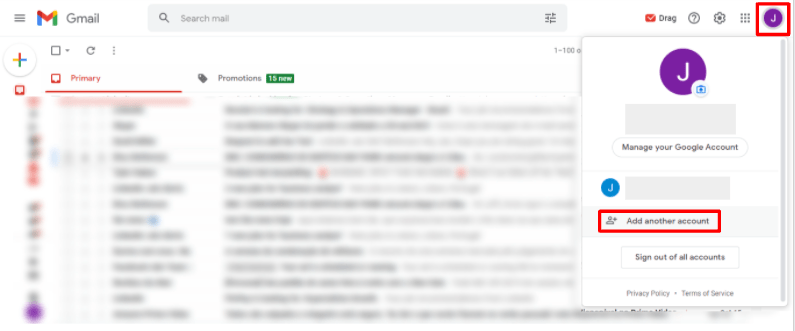
- Click on Your Profile Picture or Initials: This will take you to a menu where you can select which account to use.
- Choose Your Primary or Secondary Account: Select either your primary or secondary account from the list.
Can I Create a Gmail Account For a Minor?
If you’re wondering whether it’s possible to create a Gmail account for a minor, the answer is yes, but with some caveats. The minimum age requirement for creating a Google account varies depending on your location, so be sure to check the specific requirements in your area.
Conclusion
Creating a new Gmail account is relatively straightforward and can be done on various devices, including Android phones, iPhones, and PCs. Having a secondary account can be incredibly useful for separating work and personal life or just having an additional email address. We hope this guide has been helpful in showing you how to create a new Gmail account and switch between your primary and secondary accounts with ease!


