
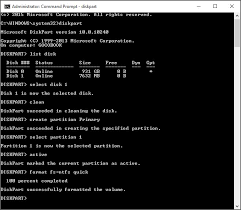
How to Create a Usb Bootable Drive: A Step-by-step Guide
Are you tired of dealing with broken DVDs or limited storage on your portable devices? Do you want to install Windows, Linux, or macOS on a computer without a CD/DVD drive? Look no further! Creating a USB bootable drive is a simple and effective solution. In this article, we’ll guide you through the process of creating a USB bootable drive with Windows, Linux, or macOS.
What You Need
Before we begin, make sure you have the following:
- A USB pendrive with at least 4GB of free space
- A computer with a stable internet connection
- A correct configuration of your BIOS/UEFI settings (depending on your system)
Preliminary Operations
Before diving into the tutorial, there are some preliminary operations to perform. First and foremost, ensure you have the necessary material:
- Usb Pendrive: You’ll need a USB pendrive with at least 4GB of free space.
- Internet Connection: A stable internet connection is essential for downloading files.
- Bios/uefi Configuration: Correctly configure your BIOS/UEFI settings to enable booting from a USB drive.
How to Create a Usb Bootable Drive
Windows
To create a USB bootable drive with Windows, follow these steps:
For Windows 10
- Download the Media Creation Tool from Microsoft’s website.
- Insert a blank USB pendrive into your computer and run the Media Creation Tool.
- Select “Create installation media for another PC” and choose the USB drive as the destination.
- Wait for the process to complete.
For Windows 8
- Download Rufus, a free application that creates bootable USB drives.
- Insert a blank USB pendrive into your computer and run Rufus.
- Select “Create a bootable disk using” and choose the USB drive as the destination.
- Wait for the process to complete.
For Windows 7
- Download Rufus, a free application that creates bootable USB drives.
- Insert a blank USB pendrive into your computer and run Rufus.
- Select “Create a bootable disk using” and choose the USB drive as the destination.
- Wait for the process to complete.
Macos
To create a USB bootable drive with macOS, follow these steps:
- Download the macOS installer from Apple’s website.
- Insert a blank USB pendrive into your Mac and open the Terminal application.
- Run the command
diskutil listto identify the USB pendrive. - Run the command
diskutil eraseDisk msdos 'OPERATING_SYSTEM' mbr /dev/diskNs(substituting the correct disk identifier). - Wait for the process to complete.
Linux
To create a USB bootable drive with Linux, follow these steps:
- Download the ISO file of your desired Linux distribution.
- Insert a blank USB pendrive into your computer and run Rufus.
- Select “Create a bootable disk using” and choose the USB drive as the destination.
- Wait for the process to complete.
Tips And Variations
- For Windows 10, you can also use the Microsoft Media Creation Tool to create a USB bootable drive.
- For Linux, you can use the Creator Discs of Start utility to create a USB bootable drive.
- Be sure to correctly configure your BIOS/UEFI settings before attempting to boot from a USB drive.
Conclusion
Creating a USB bootable drive is a straightforward process that allows you to install operating systems without the need for DVDs or CDs. By following these step-by-step guides, you can create a USB bootable drive with Windows, Linux, or macOS and enjoy the benefits of portable computing.
Frequently Asked Questions (FAQs)
- Q: What is a Usb Bootable Drive?
A: A USB bootable drive is a USB pendrive that contains an operating system installation file. - Q: How do I Create a Usb Bootable Drive With Windows 10?
A: You can use the Media Creation Tool to create a USB bootable drive with Windows 10. - Q: Can I Create a Usb Bootable Drive With Linux?
A: Yes, you can create a USB bootable drive with Linux using Rufus or other tools. - Q: What Are The Benefits of Creating a Usb Bootable Drive?
A: Creating a USB bootable drive allows you to install operating systems without DVDs or CDs and provides greater flexibility in computer setup. - Q: How do I Configure my Bios/uefi Settings For Booting From a Usb Drive?
A: Consult your system manual or online resources for specific instructions on configuring your BIOS/UEFI settings.
I hope this article has been helpful in providing you with the necessary information to create a USB bootable drive. Happy computing!


