
Creating a Brochure With Microsoft Word: A Step-by-step Guide
Are you looking for ways to promote your business, product, or service? One effective way is by creating a brochure that showcases your brand’s unique value proposition. While traditional printing methods can be expensive and time-consuming, using Microsoft Word (Word) can help you create professional-looking brochures quickly and easily.
What You Need to Know
Before we dive into the step-by-step guide, here are some essential things to know:
- Microsoft Word is a powerful tool that can be used on both desktop computers and mobile devices.
- You don’t need any prior experience with graphic design or programming to create a brochure in Word.
- The process of creating a brochure in Word involves selecting a template, customizing it to your liking, and saving the final product.
Step 1: Selecting a Template
To get started, open Microsoft Word on your desktop computer or mobile device. Click on the “New” button, located at the top left corner of the screen. In the new window that opens, select the “File” tab and click on “Save As.” Choose a location to save your brochure, give it a name, and select the file type as “.Docx.”
Step 2: Choosing a Template
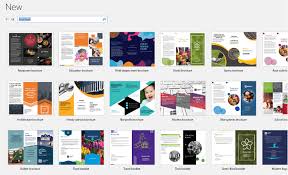
Once you have selected the file type, click on the “Template” button at the top right corner of the screen. Browse through the various templates available in Word, which include brochures, flyers, and business cards.
Step 3: Customizing Your Brochure
Choose a template that suits your needs, and click on it to open it in Word. Start customizing your brochure by adding text, images, and other elements as needed. Use the toolbar at the top of the screen to format your text, add images, and apply other design elements.
Step 4: Saving Your Brochure
Once you are satisfied with your brochure’s design, click on the “Save” button located at the top left corner of the screen. Choose a location to save your brochure, give it a name, and select the file type as “.Docx.” This will ensure that your brochure is saved in Word format.
Creating a Brochure With Microsoft Word on Mobile Devices
If you want to create a brochure using your mobile device, download the Microsoft Word app from the App Store or Google Play. Open the app, and click on the “New” button located at the bottom left corner of the screen. Select the file type as “.Docx,” choose a template, and start customizing your brochure.
Alternatives to Microsoft Word
If you don’t have access to Microsoft Word or prefer not to use it, there are several alternatives available, including LibreOffice and OpenOffice. These free productivity software suites offer similar features to Word and can be used on desktop computers and mobile devices.
Tips For Creating a Professional-looking Brochure
To create a professional-looking brochure, keep the following tips in mind:
- Use high-quality images that are relevant to your product or service.
- Keep the text concise and easy to read by using clear headings and bullet points.
- Use a consistent font throughout the brochure to maintain visual harmony.
Conclusion
Creating a brochure with Microsoft Word is a simple and effective way to promote your business, product, or service. By following these steps, you can create a professional-looking brochure that showcases your brand’s unique value proposition.
Frequently Asked Questions
Q: What Are The Benefits of Creating a Brochure in Microsoft Word?
A: Creating a brochure in Microsoft Word offers several benefits, including saving time and money compared to traditional printing methods. Additionally, using Word allows you to customize your brochure easily and make changes as needed.
Q: Can I Create a Brochure on my Mobile Device?
A: Yes, you can create a brochure using the Microsoft Word app on your mobile device. Simply download the app, select a template, and start customizing your brochure.
Q: Are There Any Alternatives to Microsoft Word For Creating Brochures?
A: Yes, there are several alternatives available, including LibreOffice and OpenOffice. These free productivity software suites offer similar features to Word and can be used on desktop computers and mobile devices.
Q: What Tips Should I Keep in Mind When Creating a Professional-looking Brochure?
A: To create a professional-looking brochure, use high-quality images that are relevant to your product or service. Keep the text concise and easy to read by using clear headings and bullet points. Use a consistent font throughout the brochure to maintain visual harmony.
Q: How Can I Save my Brochure in Word Format?
A: To save your brochure in Word format, click on the “Save” button located at the top left corner of the screen. Choose a location to save your brochure, give it a name, and select the file type as “.Docx.” This will ensure that your brochure is saved in Word format.


