
How to Create Cards For Bomboniere With Publisher
Are you looking for a way to create personalized cards for your bomboniere, but don’t know where to start? Look no further! In this article, we will guide you through the process of creating beautiful and elegant cards using Microsoft Publisher.
What is a Bomboniere?
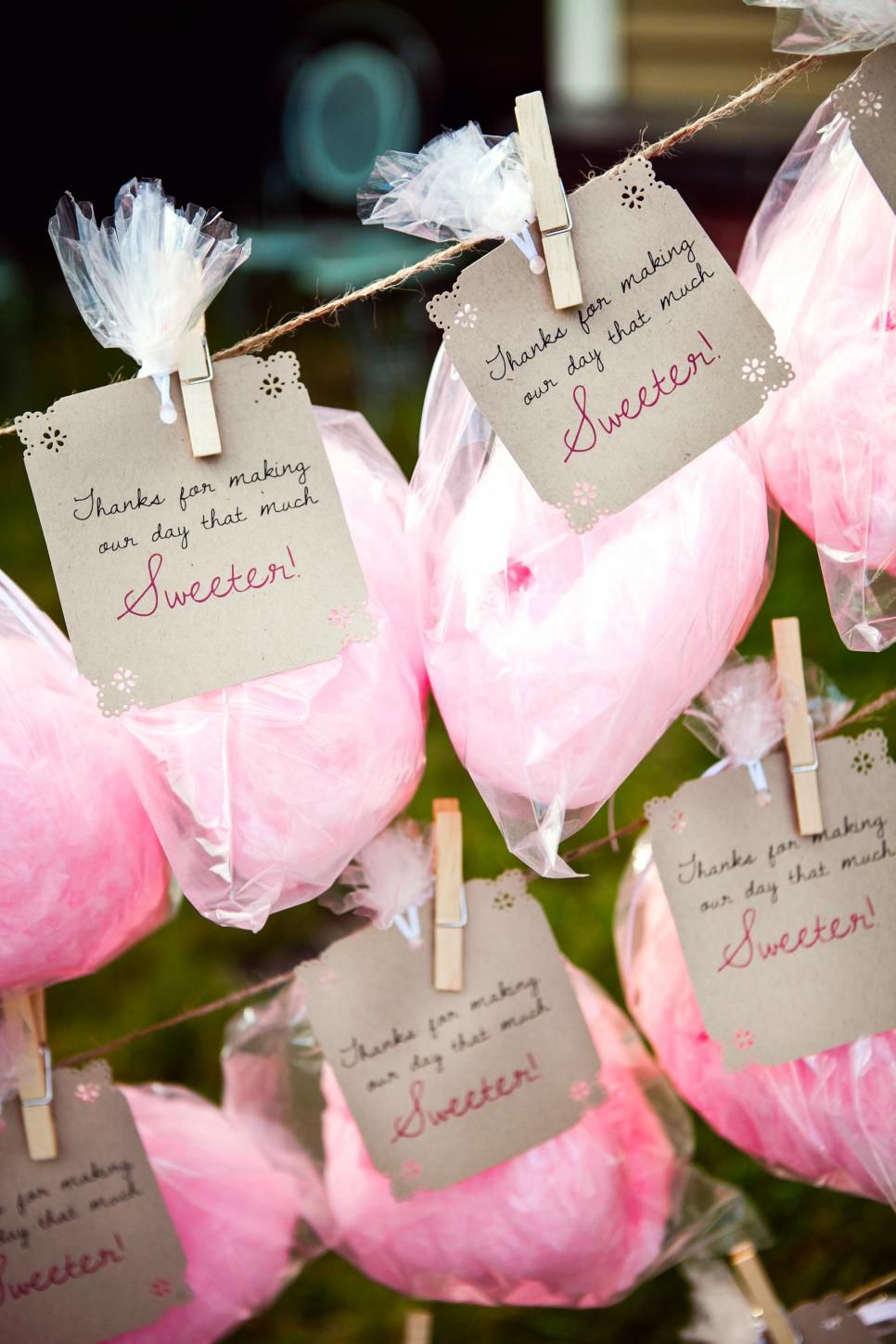
A bomboniere is a small gift or token that is given to guests at a wedding or other special occasion. It’s usually a small box or bag filled with candies or treats, and it serves as a reminder of the happy occasion.
Why Use Publisher to Create Your Cards?
Microsoft Publisher is a powerful and user-friendly software that allows you to create professional-looking cards without needing any prior design experience. With its intuitive interface and extensive range of templates and tools, you can easily create stunning cards that will impress your guests.
Step 1: Setting Up Your Account And Subscription
Before we dive into the process of creating your cards, it’s essential to set up your Microsoft account and subscription. To do this:
- Go to the Microsoft website and sign in with your existing account or create a new one.
- Click on the “Get Started” button and follow the prompts to subscribe to Office 365 Home, which includes Publisher among other applications.
Step 2: Downloading And Installing Publisher
Once you have subscribed to Office 365 Home, download and install Microsoft Publisher on your computer. Follow these steps:
- Go to the Microsoft website and sign in with your account.
- Click on the “Install” button next to the Publisher icon.
- Wait for the installation process to complete.
Step 3: Creating Your Card
Now it’s time to create your card! To do this:
- Open Microsoft Publisher and click on the “Blank Page” option.
- Choose a template from the gallery or start from scratch by selecting an empty page.
- Adjust the dimensions of the card to fit your needs.
Step 4: Adding Your Message
Next, add your message to the card. You can do this:
- Type in your message using the text tool.
- Use the font and formatting options to customize the look of your text.
Step 5: Inserting an Image (Optional)
If you want to add a personal touch to your card, insert an image. To do this:
- Click on the “Insert” menu and select the “Picture” option.
- Choose a file from your computer or upload one from OneDrive.
- Resize the image to fit your needs.
Step 6: Finalizing Your Card
Once you have added your message and image (if desired), it’s time to finalize your card. To do this:
- Save your work by clicking on the “Save” button.
- Preview your card to make sure everything looks correct.
- Make any necessary adjustments before printing.
Printing Your Cards
Now that your cards are complete, it’s time to print them! To do this:
- Go to the “File” menu and select the “Print” option.
- Choose the number of copies you want to print.
- Select the paper type and size from the drop-down menus.
Tips And Variations
Here are some additional tips and variations to consider when creating your cards:
- Use a high-quality printer and paper for professional-looking results.
- Experiment with different fonts, colors, and images to make your card unique.
- Consider adding a personal touch by incorporating photos or special graphics.
Conclusion
Creating cards for bomboniere using Microsoft Publisher is a fun and easy process that can be completed in just a few steps. With this guide, you’ll have beautiful and elegant cards that will impress your guests and leave a lasting impression. So why wait? Get started today and create something truly special!
Frequently Asked Questions (FAQs)
- What is The Cost of Microsoft Office 365 Home?
The cost of Office 365 Home varies depending on the country and region you are in. However, it typically ranges from $6 to $10 per month.
- Can I Use Publisher on a Mac?
Yes, Microsoft Publisher can be used on a Mac, but only through the cloud-based version of Office 365. You will need to subscribe to Office 365 Home and access Publisher through the web.
- How do I Add a Personal Touch to my Card?
To add a personal touch to your card, you can insert an image or photo using the “Insert” menu. You can also experiment with different fonts, colors, and graphics to make your card unique.
- Can I Print Multiple Copies of my Card?
Yes, you can print multiple copies of your card by selecting the number of copies you want to print from the “Print” menu.
- What is The Recommended Paper Type For Printing Cards?
The recommended paper type for printing cards is high-quality printer paper or cardstock. This will ensure that your cards have a professional look and feel.


