
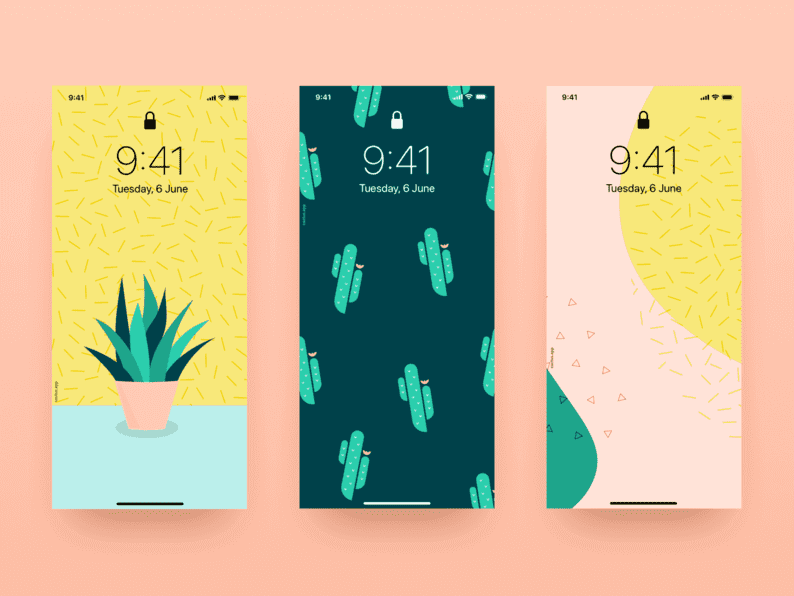
How to Create Stunning Mobile Wallpapers: A Step-by-step Guide
Are you tired of using generic mobile wallpapers that don’t reflect your personality? Do you want to create custom backgrounds that showcase your style and creativity? Look no further! In this article, we’ll show you how to create stunning mobile wallpapers using various apps and software.
Why Create Custom Mobile Wallpapers?
Before we dive into the tutorial, let’s talk about why creating custom mobile wallpapers is a great idea. By making your own wallpapers, you can:
- Showcase your personality and style
- Personalize your device with unique designs
- Save money by avoiding expensive wallpaper purchases
- Express yourself creatively
The Ultimate Mobile Wallpaper Creation Guide
In this guide, we’ll cover the following topics:
- Tapet Wallpapers Generator (Android): A free app that allows you to create stunning wallpapers from scratch.
- Gradient Wallpaper Maker (Android/iOS/iPadOS): An intuitive app that helps you create beautiful gradient wallpapers.
- Gimp (Windows/macOS/Linux): A powerful photo editing software that can be used to create custom mobile wallpapers.
- Adobe Photoshop (Windows/macOS/Linux): A professional-grade software that allows you to create stunning wallpapers with advanced features.
Step 1: Create a Custom Mobile Wallpaper Using Tapet Wallpapers Generator
To get started, download the Tapet Wallpapers Generator app from the Google Play Store or Apple App Store.
Once installed, follow these steps:
- Open the app and tap on the “Access” button to connect your device.
- Select an account (e.G., Google) to access your library of wallpapers.
- Browse through the available templates and select a design that you like.
- Customize the wallpaper by adjusting colors, effects, and more.
- Tap on the “Save” button to save your creation.
Step 2: Create a Custom Mobile Wallpaper Using Gradient Wallpaper Maker
To create a custom mobile wallpaper using Gradient Wallpaper Maker, follow these steps:
- Download and install the app from the Google Play Store or Apple App Store.
- Open the app and tap on the “Let’s Go” button to start creating your wallpaper.
- Select a color scheme by choosing from various options or entering a hex code.
- Add multiple levels to your gradient by tapping on the “+” icon.
- Save your creation by tapping on the “Save” button.
Step 3: Create a Custom Mobile Wallpaper Using Gimp
To create a custom mobile wallpaper using GIMP, follow these steps:
- Download and install GIMP from its official website.
- Launch GIMP and select the “Create a new image” option.
- Choose the desired dimensions for your wallpaper (e.G., 1080 X 1920 pixels).
- Select a color scheme by choosing from various options or entering a hex code.
- Use the brush tool to add textures, patterns, or other effects to your design.
Step 4: Create a Custom Mobile Wallpaper Using Adobe Photoshop
To create a custom mobile wallpaper using Adobe Photoshop, follow these steps:
- Download and install Adobe Photoshop from its official website (subscription required).
- Launch Photoshop and select the “Create a new document” option.
- Choose the desired dimensions for your wallpaper (e.G., 1080 X 1920 pixels).
- Select a color scheme by choosing from various options or entering a hex code.
- Use advanced tools and features to add textures, patterns, or other effects to your design.
How to Set Your Custom Mobile Wallpaper
After creating your custom mobile wallpaper using any of the above methods, follow these steps to set it as your device’s wallpaper:
- For Android devices:
- Open the Settings app.
- Go to “Wallpaper and style”.
- Select “Other wallpapers” and choose your custom wallpaper.
- Tap on the “Set wallpaper” button.
- For iOS devices:
- Open the Settings app.
- Go to “Wallpapers”.
- Select “Add a new wallpaper” and choose your custom wallpaper.
- Tap on the “Set” button.
Conclusion
Creating stunning mobile wallpapers is easier than you think! With these step-by-step guides, you can create beautiful backgrounds that showcase your personality and style. Remember to experiment with different apps and software to find the one that works best for you.
Frequently Asked Questions (FAQs)
Q: What are some popular apps for creating custom mobile wallpapers?
A: Tapet Wallpapers Generator, Gradient Wallpaper Maker, GIMP, and Adobe Photoshop are popular options.
Q: How do I set a custom mobile wallpaper on my device?
A: Follow the steps outlined in each guide or refer to your device’s user manual.
Q: Can I use any image as a mobile wallpaper?
A: Yes, but ensure that the image is high-resolution (e.G., 1080 X 1920 pixels) and suitable for your device’s screen size.
Q: How do I customize my mobile wallpaper with effects and textures?
A: Use apps like GIMP or Adobe Photoshop to add advanced features and effects to your design.
Q: Can I create a custom mobile wallpaper using my computer?
A: Yes, use software like GIMP or Adobe Photoshop to create stunning wallpapers on your computer and transfer them to your device.
Q: How do I save my custom mobile wallpaper for later use?
A: Save your creation by tapping on the “Save” button in each app’s respective guide.
Q: Can I share my custom mobile wallpaper with others?
A: Yes, save your design as an image file (e.G., JPEG or PNG) and share it with friends or family.


