
Creating Conceptual Maps: A Comprehensive Guide
As a tool for problem-solving and simplifying complex arguments, conceptual maps have become an essential part of modern learning and communication. In this article, we will explore the world of conceptual maps, their differences from mental maps, and provide a step-by-step guide on how to create them using various software and apps.
What Are Conceptual Maps?
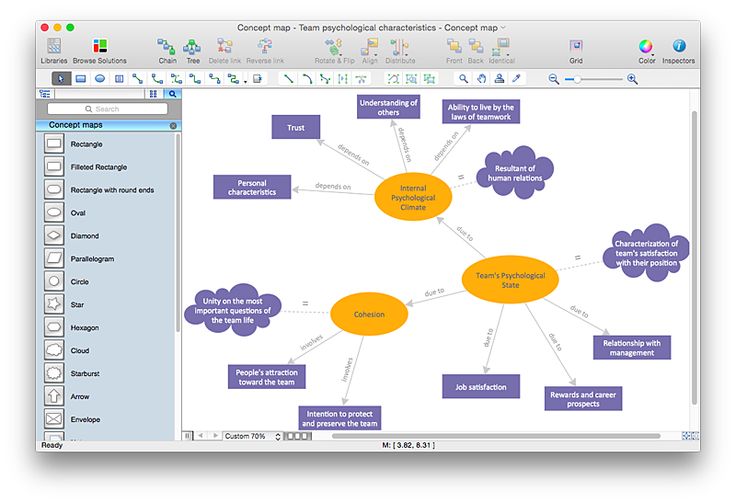
Conceptual maps are visual representations of information that help us organize and connect ideas, concepts, and relationships. They are designed to facilitate deep thinking, problem-solving, and critical thinking. Unlike mental maps, which are more creative and used for brainstorming, conceptual maps are more structured and focused on cognitive understanding.
How to Create Conceptual Maps on The PC
Creating conceptual maps on a PC is easy with the right software. We recommend using Microsoft Word or PowerPoint, as they offer a range of features and tools that can help you create professional-looking conceptual maps.
Step 1: Choose Your Software
Choose either Microsoft Word or PowerPoint to create your conceptual map. Both programs are user-friendly and have similar interfaces.
Step 2: Initiate The Program
Open the program you’ve chosen and create a new document or presentation.
Step 3: Add Geometrical Forms
Click on the “Insert” tab and select the “Forms” option. Choose a shape that suits your needs, such as a rectangle or triangle, and draw it on the page.
Step 4: Add Text And Connectors
Add text to the form by clicking right-clicking and selecting “Modify text/Add text.” Use connectors from the “Insert” tab to link forms together.
Step 5: Customize Your Map
Customize your map by adjusting the shape’s dimensions, colors, and font. Repeat steps 3-4 to add more shapes and connections.
Step 6: Save And Export
Save your conceptual map as a document or presentation, or export it in various formats such as PDF, PNG, or JPEG.
How to Create Conceptual Maps With Mac
If you’re using a Mac, don’t worry – we’ve got you covered! Pages is the perfect app for creating conceptual maps on your MacBook.
Step 1: Open Pages
Open Pages and click on the “New” button to create a new document.
Step 2: Choose Your Template
Select an empty template or use one of the pre-designed templates to get started.
Step 3: Add Geometrical Forms
Click on the “Insert” tab and select the “Form” option. Choose a shape that suits your needs, such as a rectangle or triangle, and draw it on the page.
Step 4: Add Text And Connectors
Add text to the form by double-clicking and typing away! Use connectors from the “Insert” tab to link forms together.
Step 5: Customize Your Map
Customize your map by adjusting the shape’s dimensions, colors, and font. Repeat steps 3-4 to add more shapes and connections.
Step 6: Export or Save
Export your conceptual map in various formats such as PDF, PNG, or JPEG, or save it as a Pages document for future reference.
How to Create Conceptual Maps Online
Creating conceptual maps online is just as easy! Mindomo is an excellent web-based tool that allows you to create conceptual maps and mind maps with ease.
Step 1: Sign Up
Sign up for a free account on Mindomo or upgrade to a paid plan for more features.
Step 2: Choose Your Template
Select from pre-designed templates or start from scratch. Add forms, text, and connectors as needed.
Step 3: Customize Your Map
Customize your map by adjusting colors, fonts, and dimensions. Repeat steps 2-4 to add more shapes and connections.
Step 4: Export or Save
Export your conceptual map in various formats such as PDF, PNG, or JPEG, or save it for future reference.
How to Create Conceptual Maps on Smartphone And Tablet
Creating conceptual maps on-the-go is now possible with mobile apps! Word (Android/iOS/iPadOS) is an excellent option for creating conceptual maps on your smartphone or tablet.
Step 1: Open Word
Open Word on your device and log in to your Microsoft account.
Step 2: Choose Your Template
Select from pre-designed templates or start from scratch. Add forms, text, and connectors as needed.
Step 3: Customize Your Map
Customize your map by adjusting colors, fonts, and dimensions. Repeat steps 2-4 to add more shapes and connections.
Step 4: Save or Export
Save your conceptual map in various formats such as PDF, PNG, or JPEG, or export it for future reference.
Other Apps For Creating Conceptual Maps
SimpleMind (Android/iOS/iPadOS), Mindomo (Android/iPadOS), and Mindly (Android/iOS/iPadOS) are other apps that allow you to create conceptual maps on your smartphone or tablet. These apps offer a range of features, including the ability to export maps in various formats.
Conclusion
Creating conceptual maps is a powerful tool for problem-solving, critical thinking, and communication. Whether you’re using Microsoft Word, PowerPoint, Pages, Mindomo, or mobile apps like Word, SimpleMind, Mindomo, or Mindly, creating conceptual maps has never been easier. By following these step-by-step guides, you’ll be well on your way to creating professional-looking conceptual maps that will help you achieve your goals.
Frequently Asked Questions
- Q: What is The Difference Between a Mental Map And a Conceptual Map?
A: Mental maps are more creative and used for brainstorming, while conceptual maps are more structured and focused on cognitive understanding. - Q: Can I Create Conceptual Maps Online?
A: Yes, Mindomo is an excellent web-based tool that allows you to create conceptual maps and mind maps with ease. - Q: What Software Can I Use to Create Conceptual Maps on my PC or Mac?
A: Microsoft Word, PowerPoint, and Pages are excellent options for creating conceptual maps on your PC or Mac. - Q: Can I Create Conceptual Maps on my Smartphone or Tablet?
A: Yes, mobile apps like Word (Android/iOS/iPadOS), SimpleMind (Android/iOS/iPadOS), Mindomo (Android/iPadOS), and Mindly (Android/iOS/iPadOS) allow you to create conceptual maps on-the-go. - Q: What Are Some Other Apps For Creating Conceptual Maps?
A: SimpleMind, Mindomo, and Mindly are excellent options for creating conceptual maps on your smartphone or tablet.
We hope this comprehensive guide has helped you understand the world of conceptual maps and how to create them using various software and apps. Happy mapping!


