
How to Create Custom Emojis For Whatsapp: A Step-by-step Guide
Are you tired of using the same old emojis on WhatsApp? Do you want to add a personal touch to your messages and surprise your friends with unique and creative expressions? Look no further! In this article, we will guide you through the process of creating custom emojis for WhatsApp on both Android and iOS devices.
Why Create Custom Emojis?
Custom emojis can add a lot of personality to your messages and make them more engaging. With the ability to create personalized emojis based on your face or other images, you can express yourself in ways that are unique to you. Whether you want to create funny memes or send heartfelt messages, custom emojis can help you do it with style.
Creating Custom Emojis on Android
If you’re using an Android device, you have several options for creating custom emojis. Here are a few methods:
Using Gboard
Gboard is the virtual keyboard app provided by Google that allows you to create custom emojis based on your face or other images. To use this feature, follow these steps:
- Open WhatsApp and start a new chat.
- Tap on the text input field to bring up the keyboard.
- Tap on the Gboard icon in the top-right corner of the screen.
- Tap on the “Mini Add” icon (a smiling face) and take a photo with your camera.
- Select the style of avatar you prefer, and then tap on the “Save” button.
Using Bitmoji
Bitmoji is another popular app that allows you to create custom emojis based on your face or other images. To use this feature, follow these steps:
- Download and install the Bitmoji app from the Play Store.
- Tap on the “Recorded by email” button and enter your email address.
- Tap on the “Continue” button to proceed with the setup process.
- Take a photo of yourself or choose an existing image to use as your emoji.
- Customize your avatar by selecting different facial features, hair styles, and other options.
Creating Custom Emojis on Ios
If you’re using an iOS device, you have several options for creating custom emojis. Here are a few methods:
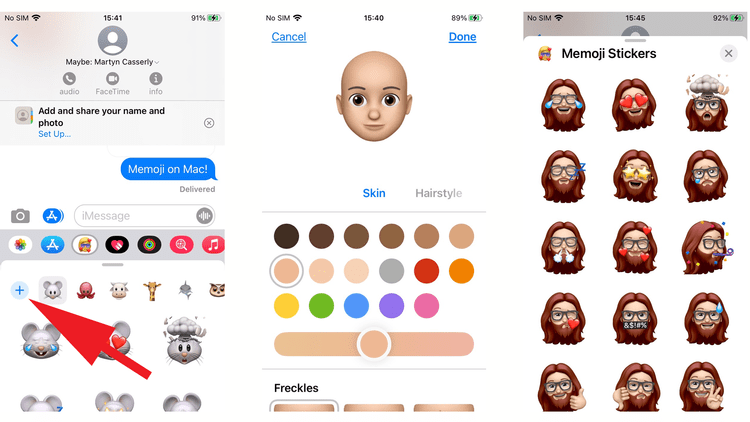
Using Memoji
Memoji is the built-in feature in iOS that allows you to create custom emojis based on your face or other images. To use this feature, follow these steps:
- Open WhatsApp and start a new chat.
- Tap on the text input field to bring up the keyboard.
- Tap on the “App Drawer” icon (a clock) and select the Memoji icon.
- Take a photo with your camera or choose an existing image to use as your emoji.
- Customize your avatar by selecting different facial features, hair styles, and other options.
Using Bitmoji
Bitmoji is also available on iOS devices, allowing you to create custom emojis based on your face or other images. To use this feature, follow these steps:
- Download and install the Bitmoji app from the App Store.
- Tap on the “Recorded by email” button and enter your email address.
- Tap on the “Continue” button to proceed with the setup process.
- Take a photo of yourself or choose an existing image to use as your emoji.
- Customize your avatar by selecting different facial features, hair styles, and other options.
Creating Custom Emojis on PC
If you’re using a Windows PC, you can also create custom emojis using the Moji Maker app. To do this, follow these steps:
- Download and install the Moji Maker app from the Microsoft Store.
- Open the app and tap on the “New” button to create a new emoji.
- Choose an image or take a photo with your camera to use as your emoji.
- Customize your avatar by selecting different facial features, hair styles, and other options.
- Save your emoji and download it in PNG format.
Conclusion
Creating custom emojis for WhatsApp is a fun and creative way to express yourself and add personality to your messages. Whether you’re using an Android or iOS device, there are several options available to you. With the ability to create personalized emojis based on your face or other images, you can surprise your friends with unique and engaging expressions.
Frequently Asked Questions
Q: How do I create custom emojis for WhatsApp?
A: You can create custom emojis using various apps such as Gboard, Bitmoji, Moji Maker, and Memoji.
Q: What devices are compatible with these apps?
A: These apps are available on both Android and iOS devices, as well as Windows PC.
Q: Can I use my existing images to create custom emojis?
A: Yes, you can use your existing images or take a photo with your camera to create custom emojis.
Q: How do I share my custom emojis on WhatsApp?
A: To share your custom emojis on WhatsApp, simply tap on the emoji icon in the keyboard and select the emoji you want to share.
Q: Can I customize my avatar further after creating it?
A: Yes, you can customize your avatar further by selecting different facial features, hair styles, and other options.
Q: How do I save and download my custom emojis?
A: You can save and download your custom emojis in PNG format using the Moji Maker app.


