
How to Create a Gmail Email Account: A Step-by-step Guide
Are you looking to create a free email account on Google’s popular platform, Gmail? Look no further! In this article, we will guide you through the process of creating a Gmail account on your PC, Android device, and iPhone. We’ll also cover some tips and tricks for avoiding unnecessary verification steps.
What is Gmail And Why Should I Use It?
Gmail is a free email service provided by Google that allows you to send and receive emails using a web-based interface or through various mobile apps. With Gmail, you can enjoy features such as:
- Unlimited storage space
- Advanced security features
- Integration with other Google services like Drive, Calendar, and Maps
- Synchronization across multiple devices
Creating a Gmail Account on PC
To create a Gmail account on your PC, follow these steps:
- Go to The Gmail Website: Open a web browser and navigate to www.Gmail.Com.
- Click on “Create a Google Account”: In the top right corner of the page, click on the button that says “Create a Google Account.”
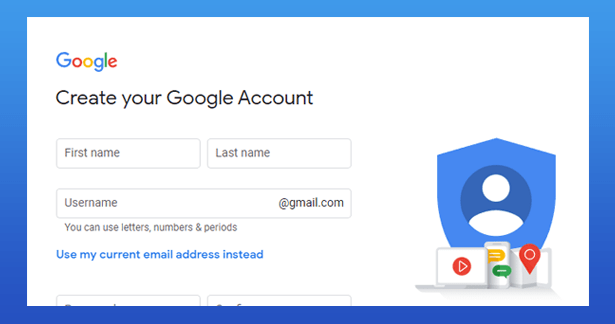
- Fill Out The Registration Form: Enter your first and last name, choose a username (which will become your email address), and create a password.
- Enter Your Birthdate And Gender: Fill out this information to complete your profile.
- Choose Your Recovery Options: Add an alternate email address or phone number for recovery purposes.
- Review The Terms of Service: Read through Google’s policies before agreeing to them.
Creating a Gmail Account on Android
To create a Gmail account on your Android device, follow these steps:
- Go to Settings: Open the Settings app and select “Accounts.”
- Tap on “Add Account”: Choose “Google” from the list of options.
- Fill Out The Registration Form: Enter your first and last name, choose a username (which will become your email address), and create a password.
- Enter Your Birthdate And Gender: Fill out this information to complete your profile.
- Choose Your Recovery Options: Add an alternate email address or phone number for recovery purposes.
Creating a Gmail Account on Iphone
To create a Gmail account on your iPhone, follow these steps:
- Go to Settings: Open the Settings app and select “Mail.”
- Tap on “Accounts”: Choose “Add Account” from the list of options.
- Fill Out The Registration Form: Enter your first and last name, choose a username (which will become your email address), and create a password.
- Enter Your Birthdate And Gender: Fill out this information to complete your profile.
Tips For Avoiding Verification Steps
If you’re experiencing issues with verification steps when creating a Gmail account on Android or iPhone, try the following:
- Use a computer instead of a mobile device
- Create an account using incognito mode or private browsing
- Clear your browser cache and cookies before attempting to create an account
Creating a Business Gmail Account
If you need a separate email address for work purposes, consider creating a business Gmail account. This will provide you with additional features such as:
- A dedicated email address for your company
- Increased storage space
- Advanced security features
- Integration with other Google services like Drive and Calendar
To create a business Gmail account, follow these steps:
- Go to The Google Workspace Website: Open a web browser and navigate to www.Google.Com/work.
- Click on “Create a Google Workspace Account”: Fill out the registration form and choose your subscription plan.
- Fill Out The Company Information: Enter your business details, including name and address.
Conclusion
Creating a Gmail email account is a straightforward process that can be completed in just a few minutes. By following these step-by-step guides, you’ll have a fully functional email account on your PC, Android device, or iPhone. Don’t forget to take advantage of the tips and tricks provided for avoiding unnecessary verification steps.
Frequently Asked Questions
Q: What is Gmail?
A: Gmail is a free email service provided by Google that allows users to send and receive emails using a web-based interface or through various mobile apps.
Q: How do I create a Gmail account on my PC?
A: To create a Gmail account on your PC, go to the Gmail website and click on “Create a Google Account.” Fill out the registration form, enter your birthdate and gender, and choose your recovery options.
Q: Can I use Gmail on multiple devices?
A: Yes! With Gmail, you can access your emails from any device that has an internet connection. Simply log in to your account using your username and password.
Q: How do I create a business Gmail account?
A: To create a business Gmail account, go to the Google Workspace website and click on “Create a Google Workspace account.” Fill out the registration form and choose your subscription plan.
Additional Resources
For more information on creating a Gmail email account or for tips on using Gmail effectively, check out these additional resources:
- Www.Gmail.Com (Gmail website)
- Www.Google.Com/work (Google Workspace website)
- Support.Google.Com/mail (Gmail support page)
Table: Features of Gmail
| Feature | Description |
|---|---|
| Unlimited Storage Space | Store an unlimited number of emails, contacts, and files in your account. |
| Advanced Security Features | Protect your account with two-factor authentication, password recovery options, and email encryption. |
| Integration With Other Google Services | Seamlessly access other Google services like Drive, Calendar, and Maps directly from your inbox. |
Table: Benefits of Creating a Business Gmail Account
| Benefit | Description |
|---|---|
| Dedicated Email Address | Create a separate email address for business purposes that is distinct from your personal account. |
| Increased Storage Space | Enjoy more storage space for storing company-related files and emails. |
| Advanced Security Features | Protect your business account with enhanced security features like two-factor authentication and password recovery options. |
| Integration With Other Google Services | Access other Google services like Drive and Calendar directly from your inbox to streamline work tasks. |
(THE Second Table)
Creating a Gmail Account: Additional Tips And Tricks
| Tip/trick | Description |
|---|---|
| Use Incognito Mode or Private Browsing | Create an account using incognito mode or private browsing to avoid unnecessary verification steps. |
| Clear Browser Cache And Cookies | Clear your browser cache and cookies before attempting to create a new account. |
| Use a Computer Instead of a Mobile Device | Use a computer instead of a mobile device to reduce the likelihood of encountering verification issues. |
| Create an Account Using a Vpn or Incognito Mode | Create an account using a virtual private network (VPN) or incognito mode to maintain anonymity and avoid unnecessary verification steps. |


