
Unlocking The Secret of Avatars: A Comprehensive Guide to Creating Avatar on Iphone
Are you curious about the possibility of using an avatar on your iPhone? You’re in luck! Today, we’ll delve into the world of avatars and explore how to create one on your iPhone. Get ready to unleash your creativity and express yourself like never before!
What Are Memoji And Animoji?
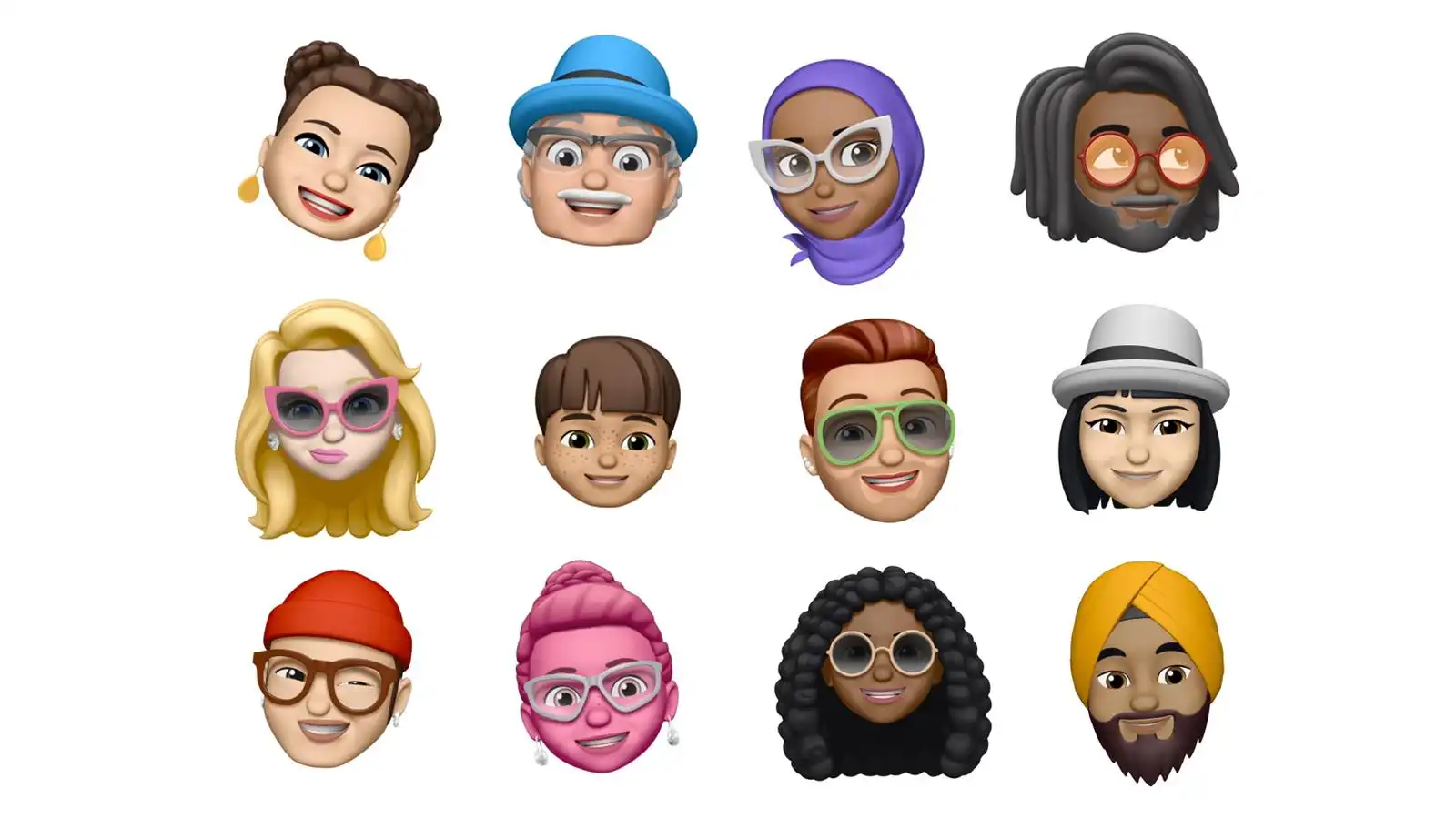
Before we dive into the nitty-gritty of creating an avatar, let’s understand what Memoji and Animoji are. Memoji are custom-made emojis that resemble you, with features such as facial expressions, hair color, and more. Animoji, on the other hand, are animated stickers that portray animals or other characters.
Compatibility: Which Devices Can Use Avatars?
Avatars can be created and used on various devices, including:
- All iPhone models updated to iOS 13 and later
- All iPad models updated to iPadOS 13 and later
- All Mac computers updated to macOS 11 Big Sur or later
Step-by-step Guide: Creating an Avatar on Iphone
Now that we’ve covered the basics, let’s move on to the fun part! Here’s a step-by-step guide to creating an avatar on your iPhone:
- Initiate a New Conversation: Open the Messages app and start a new conversation or tap on an existing one.
- Access Memoji Settings: Tap on the pencil icon in the top-right corner of the screen to access the Memoji settings.
- Choose Your Avatar: Select the Memoji icon (three faces) from the menu bar, then tap on “New Memoji” to start creating your avatar.
- Customize Your Avatar: Choose your complexion and cheek color, add freckles or a mole if you’d like, select your hair style and color, and customize your eyebrows, eyes, eyelashes, and facial features.
- Add Accessories: Choose from various accessories such as glasses, hats, or jewelry to give your avatar some personality.
- Finalize Your Avatar: Review your avatar and make any necessary adjustments before saving it.
Using Avatars in Messages And Beyond
Now that you’ve created your avatar, you can use it in various messaging apps, including:
- IMessage
- FaceTime
You can also share your avatar as a sticker or image with friends and family. Additionally, on iPhone devices with Face ID, you can use avatars for video calls using FaceTime.
Tips And Tricks
Here are some additional tips to enhance your avatar-creating experience:
- Experiment with different facial expressions and accessories to find the perfect combination.
- Use the “Test” feature to see how your avatar looks in different lighting conditions.
- Save multiple versions of your avatar to try out different styles and ideas.
Conclusion
Creating an avatar on iPhone is a fun and creative process that allows you to express yourself in new and exciting ways. With this comprehensive guide, you’re now equipped with the knowledge and skills to create and use avatars on various devices. So go ahead, unleash your creativity, and show the world what makes you unique!
Frequently Asked Questions (FAQs)
- Q: Can I Use an Avatar on Facebook?
A: Yes, you can use avatars on Facebook by applying the functionality available in the Facebook app. - Q: Can I Create an Avatar on Android Devices?
A: Unfortunately, avatars are not officially supported on Android devices. However, there are some third-party apps that allow you to create and use avatars on Android devices. - Q: How do I Modify my Existing Memoji?
A: You can modify your existing Memoji by accessing the Memoji settings in the Messages app and selecting the “Modify” option. - Q: Can I Use an Avatar For Video Calls Using Facetime?
A: Yes, on iPhone devices with Face ID, you can use avatars for video calls using FaceTime. - Q: How do I Share my Avatar as a Sticker or Image?
A: You can share your avatar by tapping on the “Share” button in the Messages app and selecting the desired sharing option. - Q: Can I Use an Avatar on Whatsapp?
A: Yes, you can create and use avatars on WhatsApp by following the steps outlined in this guide. - Q: How do I Save Multiple Versions of my Avatar?
A: You can save multiple versions of your avatar by accessing the Memoji settings and selecting the “Save” option. - Q: Can I Use an Avatar For Text Messages Only, or Can I Also Use it For Video Calls?
A: Avatars can be used for both text messages and video calls, depending on your preferences and device capabilities.


