
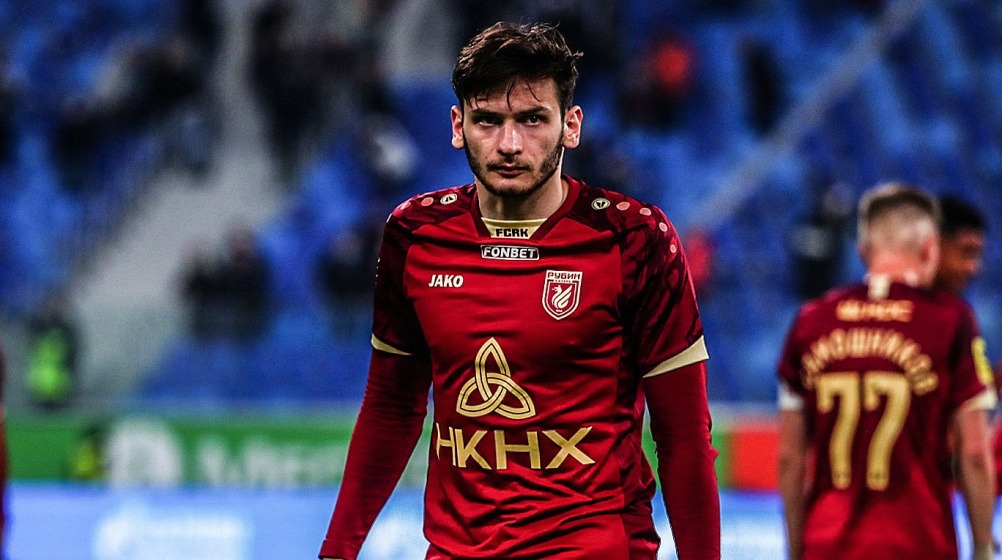
How to Create Kvaratskhelia on Fifa 22
Are you a passionate fan of FIFA and the SSC Napoli? Do you dream of creating your own avatar of Khvicha Kvaratskhelia, the talented Armenian player? Look no further! In this tutorial, we’ll guide you through the step-by-step process of creating Kvaratskhelia on FIFA 22.
Understanding The Basics
Before we dive into the details, it’s essential to understand that the version of “Kvara” created using these procedures can be played alone in offline mode, friendly matches, tournaments, or career mode. However, please note that this avatar cannot be used in online modes like FUT (FIFA Ultimate Team), where the Armenian talent is present as a card.
Step 1: Accessing The Editor
To create Kvaratskhelia on FIFA 22, you’ll need to access the editor. Here’s how:
- Start your FIFA game and go to the main menu.
- Click on the “Personalize” option in the top-right corner of the screen.
- Select the player type (in this case, PLAYER) and confirm.
- You’ll be taken to a page with 9 default avatar presets. Choose one that resembles Kvaratskhelia.
Step 2: Editing The Avatar
Now it’s time to get creative! Here’s how to edit your avatar:
- Select the “INFO” tab in the top bar of the screen.
- Fill out the player information, including name (Khvicha), surname (Kvaratskhelia), alias (optional), and other details.
- Make sure to fill out all required fields, as they cannot be modified later.
Step 3: Editing Facial Features
Next, we’ll edit Kvaratskhelia’s facial features. Follow these steps:
- Select the “FACE” tab in the editor.
- Choose a preset that resembles Kvaratskhelia’s face.
- Go to the “TONE” and “COMPLEXION” tabs and select the desired presets.
- Move on to the “EYEBROWS” tab and choose a preset. You can also modify them using the transform tool.
- Select the “NOSE” tab and pick a preset. Again, you can use the transform tool to customize it.
Step 4: Editing Body Features
Now it’s time to work on Kvaratskhelia’s body features:
- Select the “HEAD” tab in the editor.
- Choose a preset that resembles Kvaratskhelia’s head and face.
- Go to the “CHEEKS” and “MASCLE” tabs and select the desired presets. You can also modify them using the transform tool.
Step 5: Editing Hair And Beard
Finally, let’s add some finishing touches:
- Select the “HAIRS” tab in the editor.
- Choose a preset that resembles Kvaratskhelia’s hair style.
- Move on to the “BEARD” tab and select a preset. You can also modify it using the transform tool.
Step 6: Adding Style And Animations
Now that we have our avatar looking like Kvaratskhelia, let’s add some style and animations:
- Select the “STYLE VEST” tab in the editor.
- Choose a preset that resembles Kvaratskhelia’s style.
- Go to the “SCARPINI” and “ACCESSORY” tabs and select the desired presets.
- Move on to the “GLOVES” and “PULSES” tabs and choose a preset. You can also modify it using the transform tool.
Step 7: Adding Animations
Finally, let’s add some animations to our avatar:
- Select the “ESULTANZE” tab in the editor.
- Choose an animation that resembles Kvaratskhelia’s style.
- Go to the “STYLE BALL *INATTIVA” and “STYLE PUNISHMENTS” tabs and select the desired presets.
Step 8: Finalizing The Avatar
Now that we’ve completed all the steps, let’s finalize our avatar:
- Select the “Save” option in the top bar of the screen.
- Confirm the creation of your avatar.
Congratulations! You now have a Kvaratskhelia-like avatar on FIFA 22. Go ahead and test it out in different game modes!
Tips And Tricks
Here are some tips and tricks to keep in mind while creating your avatar:
- Be creative and experiment with different presets and settings.
- Pay attention to the details, as they can make a big difference in the final result.
- Don’t be afraid to try new things and take risks.
Conclusion
Creating Kvaratskhelia on FIFA 22 is a fun and rewarding experience. With these step-by-step instructions, you’ll be able to create an avatar that resembles the talented Armenian player. Remember to have fun and experiment with different presets and settings to create a unique avatar that reflects your personality.
Frequently Asked Questions
Here are some frequently asked questions about creating Kvaratskhelia on FIFA 22:
Q: Can I use this avatar in online modes like FUT?
A: No, unfortunately not. This avatar can only be used in offline modes like friendly matches and tournaments.
Q: How do I edit my avatar’s facial features?
A: To edit your avatar’s facial features, select the “FACE” tab in the editor and choose a preset that resembles Kvaratskhelia’s face.
Q: Can I add custom animations to my avatar?
A: Yes, you can add custom animations to your avatar by selecting the “ESULTANZE” tab in the editor.
Q: How do I save my avatar?
A: To save your avatar, select the “Save” option in the top bar of the screen and confirm the creation of your avatar.


