
Unlocking The Power of Lightroom Presets: A Step-by-step Guide
Are you tired of editing photos manually, tweaking every setting to achieve the perfect look? Do you wish there was a way to apply consistent styles to your photos without spending hours in post-processing? Look no further than Lightroom presets!
In this article, we’ll delve into the world of Lightroom presets and show you how to create and use them on both PC and mobile devices. By the end of this guide, you’ll be able to unlock the full potential of Lightroom and take your photography to the next level.
What Are Lightroom Presets?
Lightroom presets are files that contain a set of settings for editing photos in Adobe Lightroom. They allow you to apply a specific style or look to multiple photos at once, saving you time and effort. Think of them as “recipes” for editing your photos, where every ingredient is carefully measured to achieve a consistent result.
Why Use Lightroom Presets?
Using Lightroom presets offers several benefits:
- Time-saving: With presets, you can apply a style or look to multiple photos quickly, saving time and effort.
- Consistency: Presets ensure that your photos are edited consistently, giving them a cohesive look.
- Flexibility: Presets can be created for various styles, from classic black and white to vibrant color profiles.
Creating Lightroom Presets on PC
To create presets in Lightroom Classic or CC on your PC:
- Open The Photo You Want to Use as a Base: This will be the template for your preset.
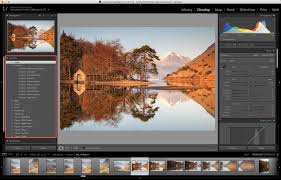
- Go to The Develop Module: Click on the “Develop” tab at the top of the screen.
- Adjust The Settings: Modify the exposure, contrast, color temperature, and other settings to achieve the desired look.
- Save as a Preset: Click on the “+” button next to “Presets” in the left panel, select “Create Preset,” and choose the name for your preset.
Creating Lightroom Presets on Mobile
To create presets on your mobile device:
- Open The Lightroom App: Launch the app on your Android or iOS device.
- Select a Photo: Choose the image you want to use as a base for your preset.
- Adjust The Settings: Modify the color, effects, and details to achieve the desired look.
- Save as a Preset: Tap on the “…” Menu icon, select “Create Preset,” and choose the name for your preset.
Using Lightroom Presets
To apply a preset to a photo:
- Open The Lightroom App: Launch the app on your device.
- Select a Photo: Choose the image you want to edit.
- Go to The Develop Module: Click or tap on the “Develop” tab.
- Apply The Preset: Select the preset from the list, and it will be applied to the photo.
Tips And Variations
- Experiment With Different Presets: Try out various styles to find the one that suits your taste.
- Customize Presets: Modify existing presets or create new ones based on your preferences.
- Use Presets For Specific Genres: Use presets specifically designed for portrait, landscape, or street photography.
Conclusion
Lightroom presets are a powerful tool for photographers of all levels. By creating and using presets, you can achieve consistent results, save time, and unlock the full potential of Lightroom. Whether you’re editing photos on your PC or mobile device, presets can help you take your photography to the next level.
Now that you know the ins and outs of Lightroom presets, it’s time to get creative! Experiment with different styles, customize existing presets, and share your favorite looks with fellow photographers.
Frequently Asked Questions
Q: What are Lightroom presets?
A: Lightroom presets are files containing a set of settings for editing photos in Adobe Lightroom. They allow you to apply a specific style or look to multiple photos at once.
Q: Why use Lightroom presets?
A: Using Lightroom presets saves time, ensures consistency, and offers flexibility in achieving various styles.
Q: How do I create Lightroom presets on PC?
A: To create presets in Lightroom Classic or CC on your PC, open the photo you want to use as a base, go to the Develop module, adjust the settings, and save as a preset.
Q: How do I create Lightroom presets on mobile?
A: To create presets on your mobile device, open the Lightroom app, select a photo, adjust the settings, and save as a preset.
Q: How do I use Lightroom presets?
A: To apply a preset to a photo, open the Lightroom app, select the image you want to edit, go to the Develop module, and choose the preset from the list.


