
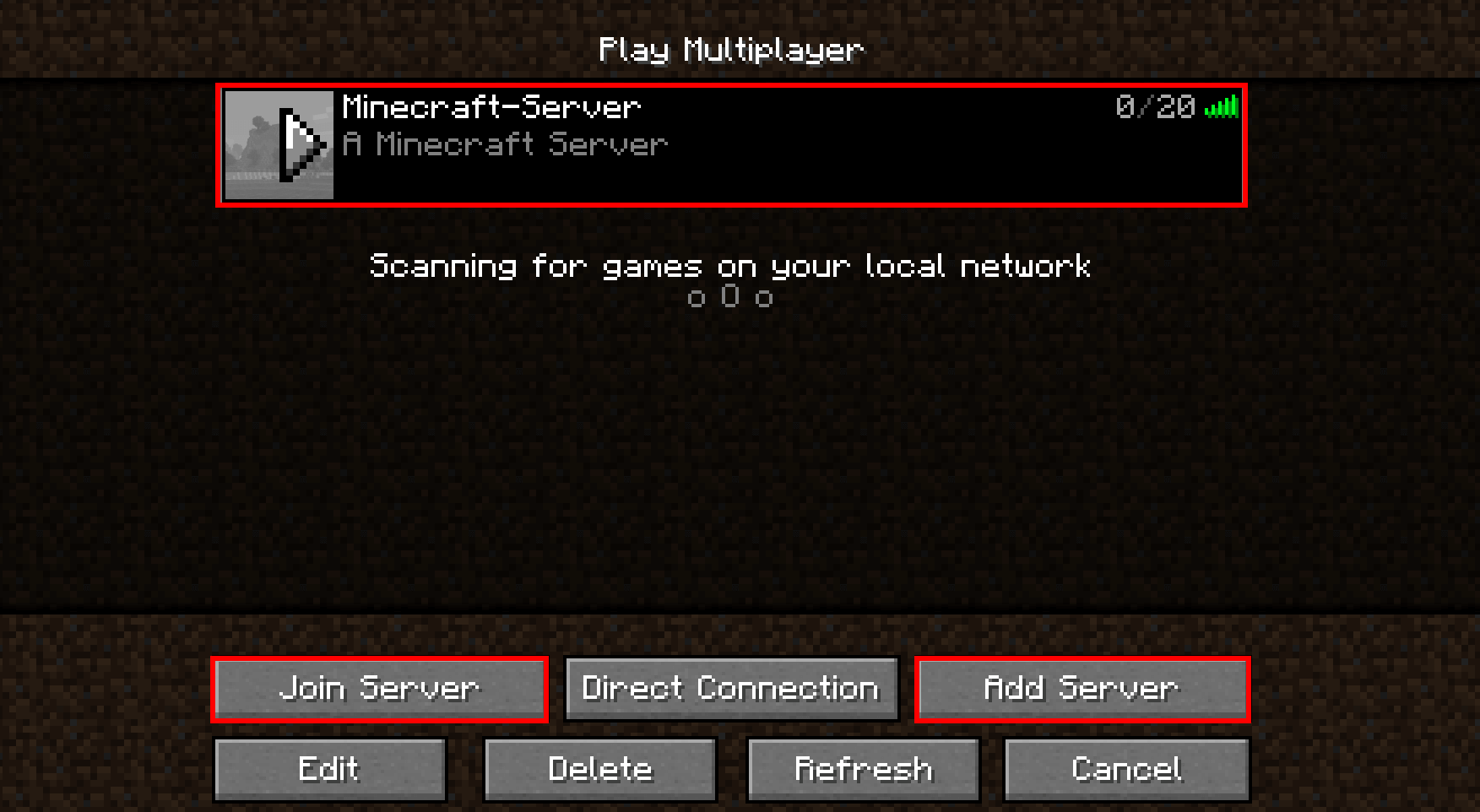
Creating a Server For Minecraft: A Step-by-step Guide
Are you ready to enter the world of Minecraft servers? With this guide, you’ll learn how to create a server for Minecraft, both for Java and Bedrock versions. We’ll cover the procedures, tips, and tricks to help you get started.
Understanding Minecraft Versions
Before we dive into creating a server, it’s essential to understand that Minecraft is available in two main versions: Java and Bedrock. The Java version is available on PC, while the Bedrock version is available on Windows 10, mobile devices, and console.
Creating a Server For Minecraft (Java Version)
To create a server for the Java version of Minecraft, follow these steps:
- Install Java: Ensure you have the latest version of Java installed on your computer.
- Configure Java: Configure Java to run from the command line by adding the executable path to your system’s PATH variable.
- Download The Minecraft Server Jar File: Download the Minecraft server JAR file from the official Minecraft website.
- Create a Folder For Your Server: Create a folder on your desktop and move the downloaded JAR file into it.
- Run The Server: Run the server using the command
java -jar server.Jarin the terminal or command prompt.
Troubleshooting Common Issues
If you encounter any issues during this process, consult the official Minecraft wiki or online forums for assistance. You can also try reinstalling Java or updating your operating system to resolve any compatibility issues.
Creating a Server For Minecraft (Bedrock Version)
To create a server for the Bedrock version of Minecraft, follow these steps:
- Download The Bedrock Server Zip File: Download the Bedrock server ZIP file from the official Minecraft website.
- Extract The Files: Extract the contents of the ZIP file into a folder on your desktop.
- Run The Server: Run the server using the command
bedrock_server.Exein the terminal or command prompt.
Tips And Tricks
- Ensure you have a stable internet connection to prevent lag or disconnections.
- Consider investing in a high-performance computer with at least 1GB of RAM for optimal performance.
- Consult online forums or official Minecraft resources for assistance with troubleshooting common issues.
Conclusion
Creating a server for Minecraft can be a fun and rewarding experience. With this guide, you’ve learned the steps to create a server for both Java and Bedrock versions. Remember to troubleshoot common issues by consulting online resources, and don’t hesitate to reach out for help if needed.
Frequently Asked Questions (FAQs)
- Q: What Are The System Requirements For Creating a Minecraft Server?
A: Ensure you have a stable internet connection and at least 1GB of RAM on your computer. - Q: How do I Troubleshoot Common Issues With my Minecraft Server?
A: Consult online forums or official Minecraft resources for assistance with troubleshooting common issues. - Q: Can I Create a Minecraft Server For Console Versions Like Ps4 or Xbox?
A: No, the Bedrock version of Minecraft is available on Windows 10, mobile devices, and console, but creating a server for these platforms is not currently supported. - Q: What Are Some Popular Alternatives to Creating a Custom Minecraft Server?
A: Consider using Aternos or other hosting services that offer pre-configured servers and plugins. - Q: How do I Secure my Minecraft Server From Hacking or Unauthorized Access?
A: Use strong passwords, enable two-factor authentication, and keep your server software up-to-date to prevent security vulnerabilities.
Additional Resources
For more information on creating a Minecraft server, consult the official Minecraft wiki or online forums like Reddit’s r/Minecraft.


