
How to Create Multiple Instagram Accounts With The Same Email: A Step-by-step Guide
Are you tired of juggling multiple social media accounts, each with its own unique purpose? Do you want to create a separate Instagram account for your personal life, while keeping your business or professional profile separate? Look no further! In this article, we’ll show you how to create multiple Instagram accounts using the same email address.
Understanding The Need For Multiple Accounts
As an individual or business owner, it’s common to have different online personas. You might want to keep your personal life and professional life separate, or maintain a distinct brand identity on social media. Creating multiple Instagram accounts can help you achieve this separation, while also allowing you to manage your online presence more effectively.
Creating Multiple Accounts With The Same Email
To create multiple Instagram accounts using the same email address, you’ll need to use the app’s built-in functionality. Here’s a step-by-step guide:
Step 1: Download And Install The Instagram App
First, download and install the Instagram app on your Android or iOS device.
Step 2: Access Your Existing Account
Once you’ve installed the app, access your existing account by entering your login credentials.
Step 3: Go to The Profile Section
Navigate to the profile section of the app, where you’ll find an icon of a person in the top-right corner. Tap on this icon to access your profile settings.
Step 4: Select “Add Account”
In the profile settings, tap on the option that says “Add account”. This will prompt you to create a new account using the same email address as your existing one.
Step 5: Choose a Name And Password
Select a name for your new account and choose a password. You can also opt not to create a new password if you want to use the same login credentials as your existing account.
Step 6: Confirm The Account Creation
Once you’ve completed these steps, confirm the creation of your new account by tapping on the “Complete registration” button.
Associating Multiple Accounts With The Same Email
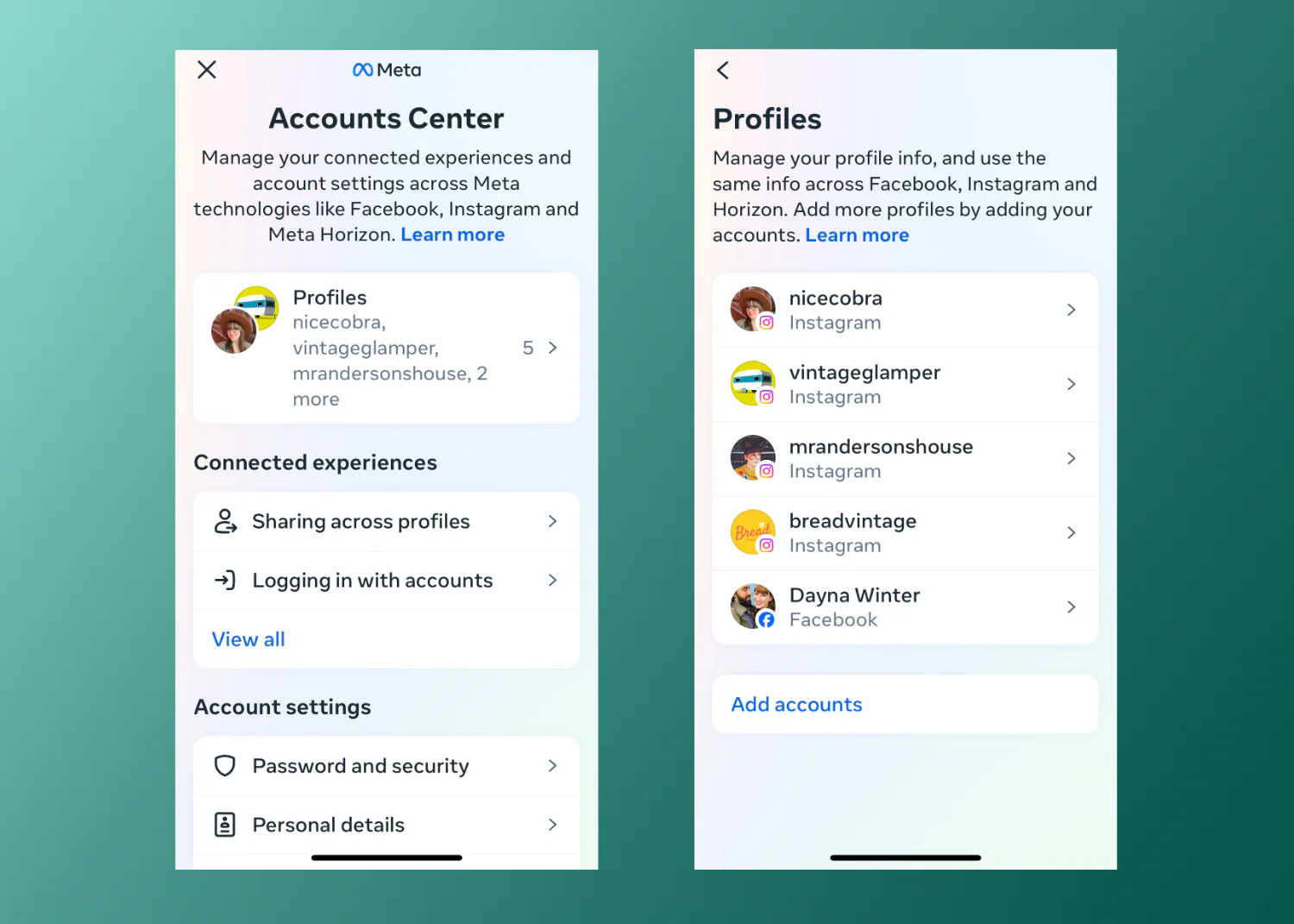
Now that you have created multiple Instagram accounts using the same email address, you can associate them with each other to manage them more easily. Here’s how:
Step 1: Access Your Existing Account
Access your existing account by entering your login credentials.
Step 2: Go to The Profile Section
Navigate to the profile section of the app, where you’ll find an icon of a person in the top-right corner. Tap on this icon to access your profile settings.
Step 3: Select “Spend”
Tap on the option that says “Spend”, which is located at the bottom of the screen.
Step 4: Choose The Account You Want to Switch To
Select the account you want to switch to by tapping on its name in the menu.
Using Multiple Accounts With The Same Email
Now that you have created and associated multiple Instagram accounts using the same email address, you can use them as desired. Here are some tips:
Separate Your Personal And Professional Life
Use separate accounts for your personal life and professional life to maintain a clear distinction between the two.
Manage Multiple Brands
If you have multiple brands or businesses, create separate accounts for each one to manage them effectively.
Keep Your Accounts Organized
Regularly review and update your account settings to ensure that they are organized and easy to manage.
Conclusion
Creating multiple Instagram accounts using the same email address can be a useful tool for managing your online presence. By following these steps, you can create separate accounts for different aspects of your life or business, while keeping them associated with each other for easier management. Remember to keep your accounts organized and update them regularly to ensure that they are working effectively for you.
Common Questions
Q: Can I create multiple Instagram accounts using the same email address?
A: Yes, you can create multiple Instagram accounts using the same email address by following the steps outlined in this article.
Q: How do I associate multiple accounts with each other?
A: To associate multiple accounts with each other, access your existing account, go to the profile section, and select “Spend”.
Q: Can I use the same login credentials for all my accounts?
A: Yes, you can use the same login credentials for all your accounts if you choose not to create a new password when creating a new account.


