
How to Create a Partition on Your Computer: A Step-by-step Guide
Are you wondering how to create a partition on your computer? Look no further! In this article, we will guide you through the process of creating a partition on Windows 10 and Windows 11, as well as on Mac and USB drives.
What is a Partition?
Before we dive into the step-by-step guide, let’s first understand what a partition is. A partition is a virtual division of a storage device (such as a hard drive or solid-state drive) into multiple sections, each containing its own operating system and files. Think of it like having multiple folders on your computer, but instead of being just folders, they are separate partitions that can be used to run different operating systems.
Why Create a Partition?
Creating a partition can be useful for several reasons:
- Dual-booting: You can create a partition for a second operating system, allowing you to dual-boot between two different OSes.
- Data Storage: A partition can be used as an additional storage space for your files and programs.
- Recovery: A partition can serve as a recovery partition, which allows you to restore your computer to its original state in case of a system failure.
Creating a Partition on Windows 10 And Windows 11
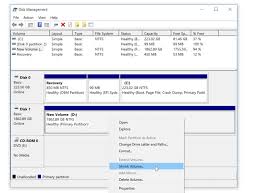
To create a partition on Windows 10 or Windows 11, follow these steps:
- Open the Disk Management tool by typing “diskmgmt.Msc” in the Run dialog box (Windows key + R) or searching for it in the Start menu.
- In the Disk Management window, select the disk you want to partition from the list on the left.
- Right-click on an unallocated space on the selected disk and choose New Simple Volume.
- Follow the wizard to assign a drive letter, file system, and label to your new partition.
Creating a Partition on Mac
To create a partition on a Mac, follow these steps:
- Open the Disk Utility app by searching for it in Spotlight or navigating to Applications/Utilities.
- Select the disk you want to partition from the list on the left.
- Click on the Partition tab and click on the “+” button to create a new partition.
- Choose the file system, size, and other settings for your new partition.
Creating a Partition on a Usb Drive
To create a partition on a USB drive, follow these steps:
- Insert the USB drive into an available port on your computer.
- Open the Disk Management tool (Windows) or Disk Utility app (Mac).
- Select the USB drive from the list and follow the same steps as above to create a new partition.
Tips And Precautions
Before creating a partition, make sure you have:
- A backup of your important files and data.
- Enough free space on the disk to accommodate the new partition.
- Familiarity with the process and potential risks involved.
By following these steps and taking necessary precautions, you can successfully create a partition on your computer.


