
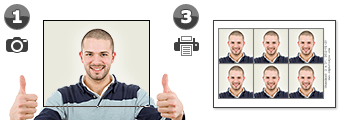
Creating a Phototessere: A Step-by-step Guide
Are you in urgent need of a phototessere (Italian identity document) but can’t find your trusted photographer? Don’t worry, this guide will show you how to create a phototessere directly from your computer or smartphone.
Introduction
A phototessere is an Italian identity document that requires a specific type of photo. If you’re unable to visit a photographer, creating one yourself is a viable option. In this article, we’ll explore the various methods to create a phototessere using software for Windows and macOS, online services, and mobile apps.
Creating Phototessere on PC And Mac
Idphotostudio (Windows)
If you’re using a Windows computer, you can create a phototessere with IDPhotoStudio. This free software is available in both standard and portable versions, allowing you to create multiple formats of photos.
- Download the program from the official website.
- Extract the contents of the ZIP file into a folder of your choice.
- Run the IDPhotoStudio.Exe file and click on the “Open image” button.
- Select the photo you want to use as your phototessere.
- Click on the “Options” menu and select the format 35×45 mm (Italy).
- Personalize your phototessere by adjusting the options provided.
Ifototessere (macOS)
If you’re using a Mac, you can create a phototessere with the iFotoTessere app. This user-friendly application allows you to create multiple formats of photos for various types of documents.
- Download and install the iFotoTessere app from the Mac App Store.
- Launch the app and click on the “Open” button.
- Select the photo you want to use as your phototessere.
- Choose the format 4,5 x 3,5 cm (Italy) or another format that suits your needs.
- Personalize your phototessere by adjusting the options provided.
Creating Phototessere Online
If you don’t have a computer or prefer to use online services, there are several options available.
Created Photo ID
This online service allows you to create a phototessere without installing any software. It’s free, easy to use, and doesn’t require recording.
- Visit the Created Photo ID website.
- Click on the “Start immediately” button.
- Select the country (Italy) and format for your phototessere.
- Upload or select a photo from your computer.
- Adjust the parameters as needed and click on the “Validate” button.
- Follow the instructions to download your phototessere.
Creating Phototessere With Mobile Apps
If you don’t have access to a computer, you can use mobile apps to create a phototessere.
Photographs – Passports, Cards of Identity And Visas (Android)
This app allows you to create phototessere for various types of documents. It’s free, but offers in-app purchases to remove watermarks and access advanced features.
- Download and install the app from the Google Play Store.
- Launch the app and select the format 4,5 x 3,5 cm (Italy).
- Choose a photo from your gallery or take a new one using the camera.
- Adjust the parameters as needed and click on the “Save” button.
Fototessere Documents (iOS/iPadOS)
This app is specifically designed for creating phototessere. It’s free, but offers in-app purchases to remove watermarks.
- Download and install the app from the App Store.
- Launch the app and select the format 4,5 x 3,5 cm (Italy).
- Choose a photo from your gallery or take a new one using the camera.
- Adjust the parameters as needed and click on the “Save” button.
Conclusion
Creating a phototessere can be a simple process with the right tools. Whether you’re using software for Windows and macOS, online services, or mobile apps, there are plenty of options available. Remember to follow the instructions carefully and adjust the parameters as needed to ensure your phototessere meets the required standards.
Frequently Asked Questions
- Q: Can I create a phototessere with my smartphone?
A: Yes, you can use mobile apps like Photographs – Passports, Cards of Identity and Visas (Android) or Fototessere Documents (iOS/iPadOS). - Q: Do I need to have a computer to create a phototessere?
A: No, you can use online services like Created Photo ID or mobile apps. - Q: How do I ensure my phototessere meets the required standards?
A: Follow the instructions carefully and adjust the parameters as needed to ensure your phototessere meets the required standards.


