
How to Create Pattern Photoshops Like a Pro
Are you tired of using the same old images in your designs? Do you want to add a touch of creativity and uniqueness to your work? Look no further than creating pattern photoshops! In this article, we’ll show you how to create stunning patterns like a pro using Adobe Photoshop.
What is a Pattern Photoshops?
A pattern photoshops is a repeated design element that can be used to fill an area of an image. It’s often created by manipulating geometric shapes and forms to create a visually appealing design. Patterns can be used in various ways, from filling an entire image to just a small section.
Why Use Pattern Photoshops?
Using pattern photoshops can add a lot of creativity and uniqueness to your designs. With patterns, you can:
- Add texture and interest to your images
- Create a cohesive look across multiple elements
- Save time by reusing patterns in different designs
How to Create Pattern Photoshops From Scratch
Creating a pattern photoshops from scratch is easier than you think! Here’s a step-by-step guide on how to do it:
Step 1: Create a New Document
To start, create a new document in Adobe Photoshop. Set the dimensions and resolution to your liking.
Step 2: Choose Your Geometric Shapes
Select the geometric shapes that you want to use for your pattern from the toolbar. You can choose from various options like squares, triangles, circles, and more.
Step 3: Create a Repeatable Design Element
Create a repeatable design element by manipulating your chosen geometric shape. You can resize, rotate, or adjust the color of the shape to create a visually appealing design.
Step 4: Duplicate Your Design Element
Duplicate your design element multiple times to create a pattern. You can use the ‘Duplicate’ feature in Adobe Photoshop or simply copy and paste your design element multiple times.
Step 5: Arrange Your Pattern
Arrange your pattern in a way that looks visually appealing. You can adjust the size, spacing, and rotation of each design element to get the desired look.
Step 6: Save Your Pattern
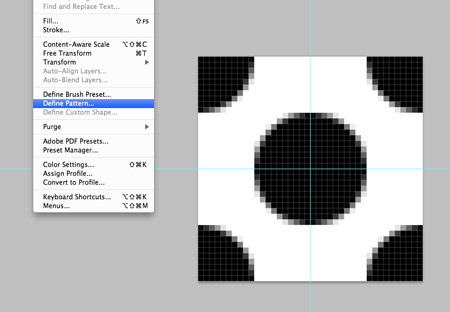
Once you’re happy with your pattern, save it as a separate document or use the ‘Define Pattern’ feature in Adobe Photoshop to save it directly into the software.
How to Use Patterns in Adobe Photoshop
Now that you have created your pattern photoshops, let’s learn how to use them in Adobe Photoshop:
Step 1: Open Your Image
Open the image where you want to apply your pattern. Make sure it’s a layer-based image for best results.
Step 2: Select The Pattern Tool
Select the ‘Pattern’ tool from the toolbar. This tool allows you to fill an area with a pattern.
Step 3: Choose Your Pattern
Choose the pattern that you created earlier by selecting it from the ‘Patterns’ palette. You can also use the ‘Load Patterns’ feature to load your saved patterns into Adobe Photoshop.
How to Apply a Pattern to an Image
Now that you’ve chosen your pattern, let’s learn how to apply it to your image:
Step 1: Select The Area to Fill
Select the area of the image where you want to apply the pattern. You can use the ‘Lasso’ tool or the ‘Marquee’ tool to select a specific area.
Step 2: Apply The Pattern
Apply the pattern by clicking on the ‘Fill’ button in the toolbar or using the keyboard shortcut Ctrl+Shift+F (Windows) or Command+Shift+F (Mac).
Tips And Tricks
Here are some additional tips and tricks for creating stunning patterns:
- Experiment with different geometric shapes, colors, and textures to create a unique pattern.
- Use layer blending modes to combine multiple patterns and create interesting effects.
- Apply a pattern to a small section of an image first before applying it to the entire image.
Conclusion
Creating pattern photoshops is a fun and creative way to add visual interest to your designs. With these steps, you can create stunning patterns from scratch and apply them to your images using Adobe Photoshop. Experiment with different geometric shapes, colors, and textures to create unique patterns that will take your designs to the next level.
What’s Next?
Now that you’ve learned how to create pattern photoshops, what’s next?
- Practice creating different types of patterns to develop your skills.
- Experiment with applying patterns to various images and see how they affect the design.
- Use layer blending modes to combine multiple patterns and create interesting effects.
Happy designing!


