
How to Create a QR Code: A Step-by-step Guide
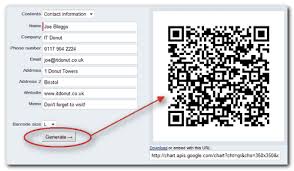
In today’s digital age, having a quick way to share information or access content is more important than ever. One of the most convenient ways to do this is through the use of QR codes. But have you ever wondered how to create one? In this article, we’ll show you how to make your own QR code using various devices and platforms.
What Are QR Codes?
QR codes, or Quick Response codes, are two-dimensional barcodes that can be scanned by smartphones and tablets with a built-in camera. They contain information such as URLs, text messages, email addresses, and more. With the rise of mobile devices, QR codes have become increasingly popular for their ease of use.
Creating a QR Code on Android
If you’re using an Android device, creating a QR code is relatively straightforward. You can download an app called QR Tails & Barcode Scan from the Google Play Store. This app allows you to scan existing QR codes and also generate new ones.
Here’s how to create a QR code with QR Tails & Barcode Scan:
- Download And Install The App: Search for “QR Tails & Barcode Scan” in the Google Play Store and download the app.
- Grant Permissions: Allow the app to access your device’s camera and other necessary permissions.
- Tap on Create: Tap on the “Create” button at the bottom of the screen.
- Choose The Type of Information: Select the type of information you want to include in your QR code, such as a URL or text message.
- Enter Your Content: Enter the content you want to share through the QR code.
Creating a QR Code on Iphone
If you’re using an iPhone or iPad, creating a QR code is just as easy. You can download an app called QR Tails Generator by Qrysta from the App Store. This app allows you to create QR codes with various designs and colors.
Here’s how to create a QR code with QR Tails Generator:
- Download And Install The App: Search for “QR Tails Generator” in the App Store and download the app.
- Choose The Type of Content: Select the type of content you want to include in your QR code, such as a website URL or email address.
- Enter Your Content: Enter the content you want to share through the QR code.
- Personalize Your QR Code: Personalize your QR code by choosing a color scheme and design.
Creating a QR Code on Instagram
If you’re an Instagram user, creating a QR code for your profile is a great way to share it with others. Here’s how:
- Access Your Instagram Profile: Open the Instagram app and access your profile.
- Tap on The Three Dots: Tap on the three dots at the top-right corner of the screen.
- Select Code QR: Select “Code QR” from the menu.
- Download Your QR Code: Download your QR code to share with others.
Creating a QR Code on Whatsapp
If you’re using WhatsApp, creating a QR code for your contact is easy. Here’s how:
- Access Your Whatsapp Profile: Open the WhatsApp app and access your profile.
- Tap on The Three Dots: Tap on the three dots at the top-right corner of the screen.
- Select Code QR: Select “Code QR” from the menu.
- Save or Share Your QR Code: Save or share your QR code with others.
Creating a QR Code For Green Pass
If you’re looking to create a QR code for your Green Pass, here’s how:
- Access The IO App: Open the IO app and access the section related to the Green Pass.
- Scan Your QR Code: Scan the QR code on your Green Pass certificate.
With these steps, you can easily create a QR code using various devices and platforms. Whether you’re looking to share information or access content quickly, QR codes are an increasingly popular solution.
Conclusion
Creating a QR code is a simple process that requires minimal effort. With the rise of mobile devices, QR codes have become an essential tool for sharing information and accessing content. In this article, we’ve shown you how to create a QR code using various devices and platforms. Whether you’re an Android or iPhone user, creating a QR code is just as easy.
We hope this guide has been helpful in answering your questions about QR codes. If you have any further queries, feel free to ask!


