
How to Create a Shared Album on Iphone: A Step-by-step Guide
Are you tired of sending individual photos and videos to your friends and family? Do you want to create a shared album where everyone can access and enjoy the memories together? Look no further! In this article, we will guide you through the process of creating a shared album on your iPhone.
What is an Album Shared on Iphone?
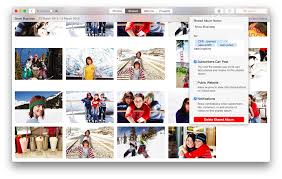
An album shared on iPhone is a feature that allows you to share photos and videos with other people. This feature is available in the Photos app, and it’s a great way to create a shared space where everyone can access and enjoy the memories together.
How Does an Album Shared Work?
When you create an album shared on your iPhone, you can add photos and videos from your library or take new ones. You can also invite other people to join the album by sharing the link with them. Once they accept the invitation, they will be able to access the album and add their own photos and videos.
Benefits of Creating a Shared Album on Iphone
Creating a shared album on your iPhone has several benefits. Here are some of them:
- Easy Sharing: With an album shared, you can easily share photos and videos with others without having to send individual files.
- Collaborative: You can invite others to join the album and add their own content, making it a collaborative effort.
- Centralized: All the memories are stored in one place, making it easy to access and enjoy them together.
Step-by-step Guide to Creating a Shared Album on Iphone
Creating an album shared on your iPhone is a straightforward process. Here’s how you can do it:
- Open the Photos app on your iPhone.
- Tap on the “Albums” tab at the bottom of the screen.
- Tap on the “+” icon in the top-right corner to create a new album.
- Select “Shared Album” from the options.
- Enter the name of the album and add photos and videos from your library or take new ones.
How to Invite Others to Join a Shared Album on Iphone
Once you’ve created an album shared, you can invite others to join it by sharing the link with them. Here’s how:
- Open the Photos app on your iPhone.
- Tap on the “Albums” tab at the bottom of the screen.
- Select the shared album you want to invite others to.
- Tap on the “Share” icon in the top-right corner.
- Share the link with others by selecting their name from the list.
How to Add Photos And Videos to a Shared Album on Iphone
Adding photos and videos to a shared album is easy! Here’s how:
- Open the Photos app on your iPhone.
- Tap on the “Albums” tab at the bottom of the screen.
- Select the shared album you want to add photos and videos to.
- Tap on the “+” icon in the top-right corner.
- Select the photos and videos you want to add.
Tips And Tricks For Using a Shared Album on Iphone
Here are some tips and tricks for using a shared album on your iPhone:
- Use it For Events: A shared album is perfect for events like weddings, birthdays, and holidays. You can create an album shared with all the guests and add photos and videos from the event.
- Collaborate With Others: With a shared album, you can collaborate with others on creating content. Just invite them to join the album and they’ll be able to add their own photos and videos.
Conclusion
Creating a shared album on your iPhone is easy and convenient. It’s a great way to share memories with others and create a collaborative effort. By following these steps, you can easily create an album shared and invite others to join it.
Frequently Asked Questions (FAQs)
- Q: What is a Shared Album on Iphone?
A: An album shared on iPhone is a feature that allows you to share photos and videos with other people. - Q: How do I Create an Album Shared on my Iphone?
A: To create an album shared, open the Photos app, tap on the “Albums” tab, and select the “+” icon in the top-right corner. Then, choose “Shared Album” from the options. - Q: How do I Invite Others to Join a Shared Album on my Iphone?
A: To invite others to join a shared album, open the Photos app, tap on the “Albums” tab, select the shared album you want to invite others to, and tap on the “Share” icon in the top-right corner. Then, share the link with others by selecting their name from the list. - Q: How do I Add Photos And Videos to a Shared Album on my Iphone?
A: To add photos and videos to a shared album, open the Photos app, tap on the “Albums” tab, select the shared album you want to add photos and videos to, and tap on the “+” icon in the top-right corner. Then, select the photos and videos you want to add. - Q: Can I Use an Album Shared For Events?
A: Yes, a shared album is perfect for events like weddings, birthdays, and holidays. You can create an album shared with all the guests and add photos and videos from the event.
I hope this guide has been helpful! If you have any further questions or need clarification on anything, feel free to ask!


