
Creating Shared Folders: A Comprehensive Guide
Are you tired of sharing files manually with your team or colleagues? Do you want to make file-sharing a breeze? Look no further! In this article, we’ll explore the various ways to create shared folders on popular cloud storage services and operating systems.
Why Create Shared Folders?
Creating shared folders is an excellent way to collaborate with others, whether it’s for work or personal projects. By sharing files in a centralized location, team members can access, edit, and comment on files without the need for manual forwarding or emailing attachments. This not only saves time but also reduces errors.
Google Drive: Creating Shared Folders
If you use Google Drive as your primary cloud storage service, creating shared folders is a straightforward process.
- Accessing Google Drive: Open the Google Drive webpage and sign in with your account.
- Creating a New Folder: Click on the “New” button and select “Folder.” Give your folder a name and click on the “Create” button.
- Sharing a Folder: Right-click on the folder you want to share and select “Get link.” You can then share this link with team members or colleagues. Alternatively, you can add users directly by clicking on the “Share” button.
Microsoft Onedrive: Creating Shared Folders
If you prefer using Microsoft OneDrive, creating shared folders is just as easy.
- Accessing Onedrive: Open the OneDrive webpage and sign in with your account.
- Creating a New Folder: Click on the “New” button and select “Folder.” Give your folder a name and click on the “Create” button.
- Sharing a Folder: Right-click on the folder you want to share and select “Share.” You can then add users directly or generate a sharing link.
Dropbox: Creating Shared Folders
If you’re already using Dropbox for file storage, creating shared folders is a simple process.
- Accessing Dropbox: Open the Dropbox webpage and sign in with your account.
- Creating a New Folder: Click on the “New” button and select “Folder.” Give your folder a name and click on the “Create” button.
- Sharing a Folder: Right-click on the folder you want to share and select “Share.” You can then add users directly or generate a sharing link.
Microsoft Teams: Creating Shared Folders
If you’re using Microsoft Teams for collaboration, creating shared folders is built into the platform.
- Accessing Teams: Open the Teams webpage and sign in with your account.
- Creating a New Team: Click on the “Teams” button and select “Create a team.” Give your team a name and click on the “Create” button.
- Sharing a Folder: Click on the “Files” tab and create a new folder. You can then share this folder with team members or colleagues.
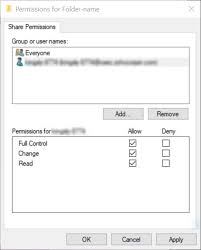
Windows 10: Creating Shared Folders
If you’re using Windows 10, creating shared folders is also possible.
- Accessing File Explorer: Open File Explorer and navigate to the folder you want to share.
- Creating a New Folder: Right-click on an empty space in the folder and select “New” > “Folder.” Give your folder a name and click on the “Create” button.
- Sharing a Folder: Right-click on the folder you want to share and select “Share.” You can then add users directly or generate a sharing link.
By following these simple steps, you can create shared folders on various cloud storage services and operating systems. This will make file-sharing and collaboration a breeze for you and your team members.


