
Creating Pictures on Various Software: A Step-by-step Guide
Are you tired of spending hours creating pictures from scratch? Do you want to know how to create beautiful, informative, and visually appealing pictures using various software? Look no further! In this article, we will guide you through the process of creating pictures on Excel, Word, Canva, and InDesign.
What is Creating Pictures?
Creating pictures refers to the process of visualizing data or information in a graphical format. This can be done using various software programs that allow users to design and edit images, charts, and graphs. The purpose of creating pictures is to make complex data more understandable and visually appealing.
Why Use Software to Create Pictures?
Using software to create pictures has numerous benefits, including:
- Saving time: Creating pictures from scratch can be a time-consuming process. Using software can save you hours or even days of work.
- Increased accuracy: Software programs can help ensure that your picture is accurate and free of errors.
- Improved visual appeal: Software allows you to customize the look and feel of your picture, making it more visually appealing.
Step-by-step Guide to Creating Pictures on Excel
To create a picture on Excel, follow these steps:
- Open Excel and select a new workbook or open an existing one.
- Choose the data you want to display in your picture.
- Select the cells containing the data and go to “Insert” > “Picture.”
- Choose the type of picture you want to create, such as a chart or graph.
- Customize the appearance of your picture by adjusting colors, fonts, and other design elements.
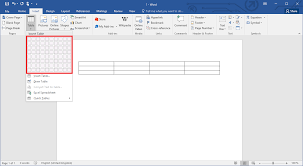
Step-by-step Guide to Creating Pictures on Word
To create a picture on Word, follow these steps:
- Open Word and select a new document or open an existing one.
- Choose the data you want to display in your picture.
- Select the cells containing the data and go to “Insert” > “Picture.”
- Choose the type of picture you want to create, such as a chart or graph.
- Customize the appearance of your picture by adjusting colors, fonts, and other design elements.
Step-by-step Guide to Creating Pictures on Canva
To create a picture on Canva, follow these steps:
- Open Canva and sign in to your account or create a new one.
- Choose the template you want to use for your picture.
- Customize the appearance of your picture by adjusting colors, fonts, and other design elements.
- Add text, shapes, and other design elements as needed.
- Download your finished picture in the desired format.
Step-by-step Guide to Creating Pictures on Indesign
To create a picture on InDesign, follow these steps:
- Open InDesign and select a new document or open an existing one.
- Choose the data you want to display in your picture.
- Select the cells containing the data and go to “Object” > “Create Picture.”
- Customize the appearance of your picture by adjusting colors, fonts, and other design elements.
- Add text, shapes, and other design elements as needed.
Conclusion
Creating pictures on various software programs can save you time, increase accuracy, and improve visual appeal. By following these step-by-step guides, you can create beautiful and informative pictures using Excel, Word, Canva, and InDesign.
Frequently Asked Questions (FAQs)
- Q: What is creating pictures?
A: Creating pictures refers to the process of visualizing data or information in a graphical format. - Q: Why use software to create pictures?
A: Using software can save time, increase accuracy, and improve visual appeal. - Q: How do I create a picture on Excel?
A: To create a picture on Excel, select the cells containing the data, go to “Insert” > “Picture,” and choose the type of picture you want to create. - Q: How do I create a picture on Word?
A: To create a picture on Word, select the cells containing the data, go to “Insert” > “Picture,” and choose the type of picture you want to create. - Q: How do I create a picture on Canva?
A: To create a picture on Canva, sign in to your account, choose the template you want to use, customize the appearance, add text and shapes as needed, and download your finished picture. - Q: How do I create a picture on InDesign?
A: To create a picture on InDesign, select the cells containing the data, go to “Object” > “Create Picture,” customize the appearance, add text and shapes as needed, and save your finished picture.
Key Takeaways
- Creating pictures is an important part of visualizing data or information.
- Using software can save time, increase accuracy, and improve visual appeal.
- Each software program has its own unique features and capabilities.
- By following these step-by-step guides, you can create beautiful and informative pictures using Excel, Word, Canva, and InDesign.
Final Thoughts
In conclusion, creating pictures on various software programs is a valuable skill that can benefit individuals and organizations alike. By understanding the benefits and processes of creating pictures, you can improve your communication skills, save time, and increase accuracy.


